
 Get started
Switching your Shopify store to Horizon: what moves, what breaks and what to test
Horizon is Shopify’s newest free theme, built from blocks you can nest and rearrange. Switching to it is mostly safe, because your products and pages don’t live in the theme. But your design, app widgets and some code do. Here’s what to check before you press Publish.
Shopify introduced Horizon in May 2025 as the base for a new family of free themes. Its big change is theme blocks: sections are built from blocks, and blocks can sit inside other blocks. A product page, for example, is one section with a “Details” group holding the title, price, variant picker, buy buttons and description, each of which you can move or replace.
Shopify has no tool that converts an old theme into Horizon. You install Horizon next to your current theme, set it up as a draft and publish it when it’s ready. Knowing what moves on its own saves most of the work.
What stays the same
Everything stored in your admin rather than in the theme moves with you: products, collections, prices, pages, blog posts, menus, URL redirects, metafields, customers, orders, discounts and your checkout. Translations of your products and pages stay too.
What you rebuild
- Theme settings. Colours, fonts, logo, button styles and spacing start from Horizon’s defaults.
- Your home page and templates. Sections you arranged in the old theme, and the text and images you typed into them, belong to that theme. Horizon’s sections are different, so you rebuild the layout rather than copy it.
- Code edits. Anything added to the old theme’s files, such as a tracking script in `theme.liquid` or a leftover snippet from an app you removed, doesn’t come along. That’s a good moment to drop what you no longer need.
- Product page extras. Size charts, safety information rows and other content shown from metafields need connecting again in Horizon’s blocks.
Apps: switch them back on
Apps reach your store in two ways, and both are saved per theme:
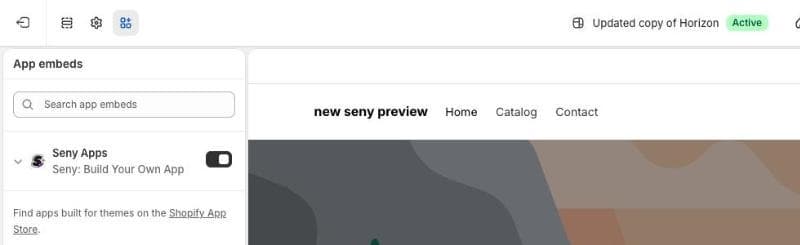
- App embeds load site-wide things such as chat buttons, popups and review scripts. In a new theme they start switched off. Open the theme editor, click the App embeds icon and turn on each app you use.
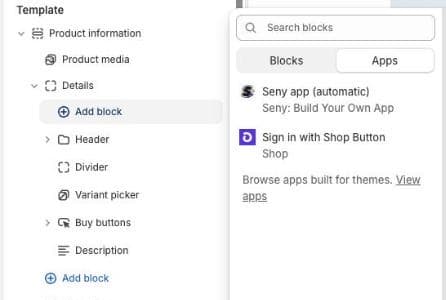
- App blocks sit in a specific place, such as reviews under the price. In Horizon you add them with Add block, then the Apps tab, and because blocks can be nested you can place them inside a group, not only between sections.
Some older apps were written for Dawn-style themes and look for page parts by their old names. Ask each app’s support whether it works with Horizon, and see why an app may not show on your store if something stays missing.
Horizon quirks worth testing
- A second announcement bar. Horizon ships with its own bar saying “Welcome to our store”. If you use an announcement bar app, hide one of them, or shoppers see two. More in the announcement bar guide.
- Express checkout buttons. Horizon’s Buy buttons block includes accelerated checkout, which skips the cart. Decide whether you want it, as explained in why “Buy it now” skips the cart.
- Scrolling on desktop. On screens 990px and wider, Horizon scrolls the page inside a container instead of the browser window. Apps that wait for the window to scroll, such as a bar that appears after scrolling, a scroll-to-top button or a popup triggered by scrolling, may never show on a computer. On phones the page scrolls normally, so test these on a desktop browser too.
- Cart drawer and sticky bars. Horizon has its own cart drawer and buy bar. Apps that replace them need to find Horizon’s versions; open the cart and scroll a product page to check.
A safe order of work
- Go to Online Store, Themes and add Horizon (or one of its family) to your theme library. Your current theme stays live.
- Click Customize on the draft. Set colours and fonts first, then rebuild the home page, product page and collection pages.
- Turn on your App embeds and add the App blocks you need.
- Use Preview to click through the store on a phone and a computer: a product, the cart, checkout, search and your top pages.
- Publish when the store is quiet. Your old theme stays in the library, so you can publish it again in one click if something goes wrong.
What happens to Seny apps
Seny loads every published app through one app embed. Turn on Seny under App embeds in Horizon and all your apps appear, with the same settings and texts as before. There’s nothing to reinstall.
- Placement. Apps find their spot by reading the new theme’s page, for example below the buy buttons. If you had placed the Seny app (automatic) block in a particular section, add it again in the same place in Horizon.
- Cart takeover. The Slide Cart Drawer recognises the theme’s own cart by its structure rather than by name, so it keeps replacing it when the theme changes.
- Colours. Apps keep the colours they were set up with. If your new theme uses a different palette, adjust them in each app’s design panel.