
 Get started
 Shopify’s “Buy it now” skips the cart: what it breaks and how to fix it
“Buy it now” and express checkout buttons send shoppers straight to checkout. That’s fast, but everything that happens in the cart is skipped: upsells, free gifts, gift messages and some discount codes. Here’s what breaks, what still works and how to decide.
Most Shopify themes show two buttons on the product page: Add to cart and Buy it now. Shopify’s own help article puts it plainly: when a customer clicks the unbranded button, “they skip the cart and go to the Shopify Checkout”. The branded versions (Shop Pay, PayPal, Apple Pay and others) skip it too and finish the payment with that provider.
That’s great for shoppers who know what they want. But if your store relies on the cart to grow orders, it’s worth knowing exactly what the shortcut skips.
What happens in the cart and gets skipped
- Cart upsells and add-ons. Offers in the cart drawer or on the cart page are never shown.
- Free shipping progress. A bar in the cart that says “$12 away from free shipping” never gets its chance to grow the order.
- Auto-added free gifts. If an app adds a gift when the cart reaches an amount, it doesn’t run, because there is no cart to add it to.
- Gift messages, notes and delivery dates. Fields that live in the cart, such as a gift message or a preferred delivery date, aren’t filled in.
- Discount codes added in the cart. A code an app or the cart page applies may not carry over. The shopper can still type a code at checkout.
- Cart terms checkboxes. A “I agree to the terms” box on the cart page is skipped.
- Other items in the cart. “Buy it now” checks out only the product on the page. Anything already in the cart is left out of that order.
What still works
- Automatic discounts. They are calculated at checkout, not in the cart, so free shipping or quantity discounts set up as automatic discounts still apply.
- Discount codes typed at checkout. Shoppers can enter a code on the checkout page.
- Everything on the product page. Bundles, quantity offers and add-ons shown before the buy buttons are seen by every shopper, whichever button they click.
Should you hide “Buy it now”?
There’s no single right answer. It depends on what your product page does and what your cart does:
- Keep it if most orders are one product, shoppers buy on mobile, and your offers are automatic discounts or sit on the product page.
- Hide it if your bundles, gifts or upsells only appear in the cart, or if orders often need a gift message, note or delivery date.
- Test it. Hide it on a few products for a few weeks and compare conversion rate and average order value in Analytics.
How to hide it in your theme
In most themes it’s one setting. In Shopify’s Horizon theme:
- Go to Online Store → Themes → Customize and open a product page.
- In the product section, expand Buy buttons.
- Hide the Accelerated checkout block with the eye icon, then Save.
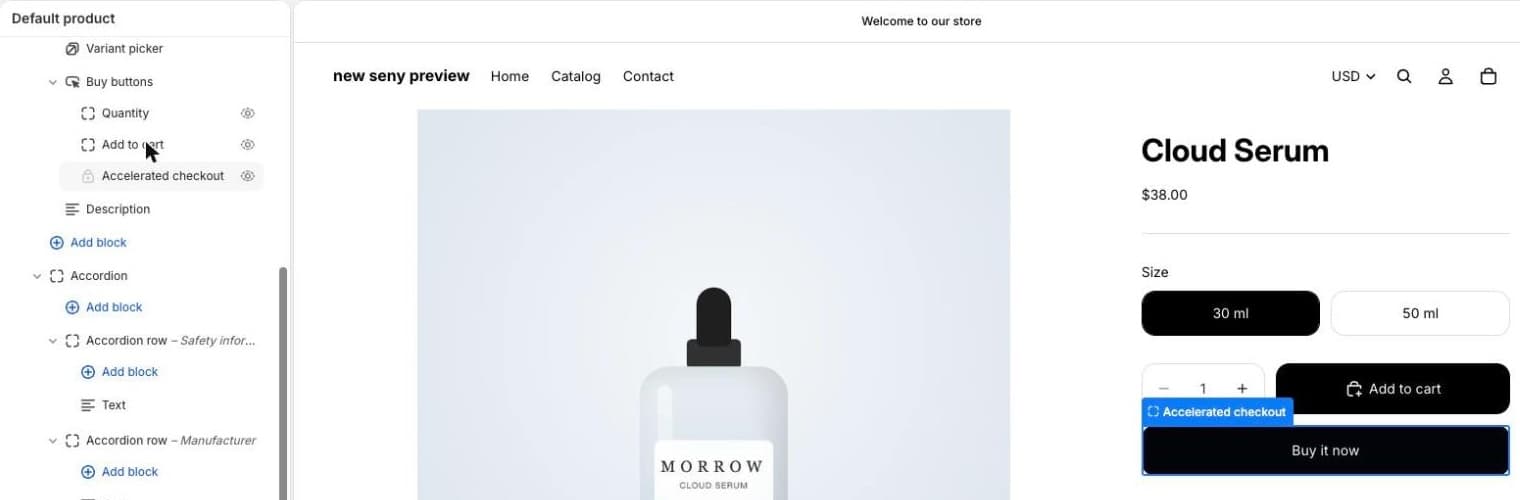
In Dawn and many older themes, open the Buy buttons block and switch off Show dynamic checkout buttons. Express checkout buttons in the cart are a separate setting, often in the cart drawer or cart page section.
Make your offers work on every path
- Use automatic discounts instead of codes for free shipping, quantity and bundle offers.
- Put the main offer on the product page, above the buy buttons, so every shopper sees it.
- Keep cart-only extras for the cart, such as small add-ons, and accept that “Buy it now” shoppers won’t see them.
- Collect must-have details at checkout, not in the cart, if every order needs them.
- Test both paths: add to cart and check out, then use “Buy it now”, and compare what the checkout shows.