
 Get started
 Shopify app not showing on your store? 8 causes and how to fix them
You installed an app, set it up, and your store looks exactly the same. It’s almost never broken. Most of the time one switch in the theme editor is off, or the app is turned on in a theme your shoppers don’t see. Here are the eight causes we see most, in the order to check them.
Installing a Shopify app doesn’t put it on your store by itself. Apps that add something to your storefront, such as a bar, a badge or a popup, have to be switched on in your theme too. That step is easy to miss, and it’s the reason behind most “the app doesn’t work” messages.
Go through these eight checks in order. The first three solve most cases.
1. The app embed is switched off
Most apps load on your store through an app embed: a switch in your theme that turns the app on for every page. Embeds are off until you turn them on. To check:
- In Shopify admin, go to Online Store and click Edit theme on your current theme.
- In the theme editor, click the App embeds icon in the left toolbar.
- Find the app, switch it on and click Save.
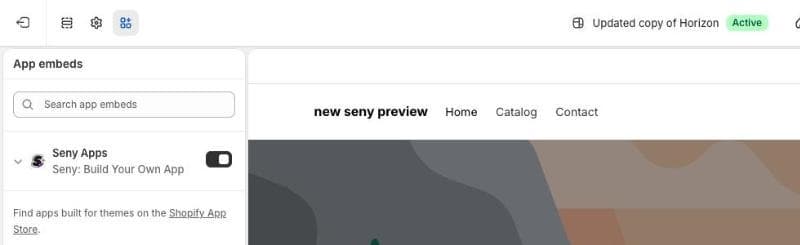
Forgetting Save is common. The switch looks on in the editor, but nothing changes on the store until the theme is saved.
2. You changed your theme
Embeds and app blocks belong to a theme, not to your store. When you publish a different theme, Shopify doesn’t carry them over: the apps aren’t active in the new theme until you turn them on again. This catches out many stores after a redesign or a move to a new theme such as Horizon.
After any theme change, open the new theme’s App embeds panel and switch on every app you use. Then check the pages where you had placed app blocks.
3. You switched it on in a theme shoppers don’t see
A store can hold several themes, but only one is live. The others are drafts. If you open Edit theme on a draft, every change you make stays on that draft, and your store doesn’t change.
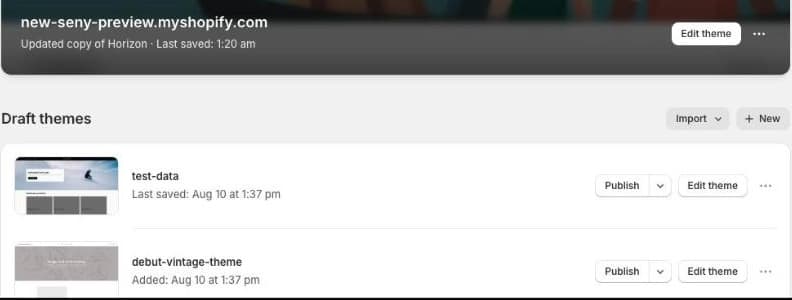
In the theme editor, the theme name at the top shows Active next to it when it’s your live theme.
4. The app needs a block you haven’t added
Some apps show inside a section of a page, such as a review list under the product description. Those use an app block, which you add yourself: in the theme editor, go to the page, click Add block (or Add section), choose the app under Apps, drag it into place and save.
App blocks only work in Online Store 2.0 themes, and only in sections that allow them. If the Apps list doesn’t appear in the block picker, the section doesn’t support app blocks. Older themes, often called vintage themes, can’t use app blocks at all, but app embeds work in every theme.
5. The embed is on for a different market
If you sell in several markets, the theme editor has a Market drop-down. An embed you switch on while a market is selected is on for that market only. Switch the embed on with no market selected, which applies it to the store default, unless you really want it in one market.
6. The app has its own on switch
Many apps keep their own settings that decide when they appear, in addition to the theme. Check that the app itself is:
- published or enabled, not left as a draft,
- set to the page you’re looking at. A widget set to product pages won’t appear on the homepage,
- set to that product. If it’s limited to some products or collections, test one of those,
- within its dates, for apps with a start or end date, such as a sale timer.
7. You’re seeing an old copy of the page
Your browser and Shopify both keep copies of pages and scripts for a short time. Wait a minute and reload, or open the store in a private window. A private window also turns off most browser extensions, and ad blockers sometimes hide popups and floating buttons.
8. Something on the page covers it
Sometimes the app loads and simply can’t be seen. A cookie banner, a chat bubble or another app’s floating button may sit in the same corner. Your theme may have its own version of the same thing, such as a second announcement bar. Try the page on a phone and on a computer, and move one of the overlapping elements to another corner.
If none of this helps, contact the app’s support with the page address and a screenshot. Telling them which theme you use saves a round of questions.
How it works with Seny
Seny loads every app you publish through one app embed, called Seny Apps. You switch it on once, and every app you publish afterwards appears on your store with no theme code to touch. The Seny dashboard shows a setup step, Enable app embed in Shopify, until the embed is on, with a button that opens the right screen in the theme editor.
- Each app has its own Publish button. A draft never shows to shoppers, so you can try an app safely in the preview first.
- Where an app shows is set in the app. Its Page and Products settings decide where it appears, so you rarely need app blocks.
- After a theme change, switch Seny Apps on in the new theme. Your apps and their settings stay the same.
Seeing two bars stacked on top of each other? Our announcement bar guide covers the bar many themes already include.