
 Get started
 How to add a rotating announcement bar to Shopify
The thin bar at the top of a store is the first thing every visitor sees. Here’s how to rotate several messages in it, link each one, show it only where it matters, and avoid the two-bars-on-top problem many themes end up with.
The announcement bar is the strip of text above your store’s header: “Free shipping over $50”, “New collection is here”, “Orders placed today ship tomorrow”. Every visitor sees it on every page, which makes it the cheapest place in your store to say something important.
Most Shopify themes include a basic one. It usually shows one message, or rotates a few with little control over speed, pages or design. This guide shows how to set up a rotating bar with Seny and what to check so it helps rather than clutters.
What to put in the bar
Good announcements are short, true and useful right now. Three or four messages is plenty:
- Shipping: your real free-shipping threshold or delivery time.
- What’s new: a new product or collection, with a link to it.
- A current offer: only if it exists, with the dates it really runs.
- Service: returns period, holiday dispatch cut-offs, store hours.
Step 1: Open the Announcement Bar in Seny
In Seny, open Apps library and choose Announcement Bar under “Turn more visits into sales”. It opens with sample messages as a bar at the top of your own store’s preview, already matched to your theme’s colours.
Step 2: Write your messages
Under Messages, edit the text of each message, pick an icon and add a link if the message should lead somewhere, such as the new product page. Add or remove messages until each one says something a shopper would want to know.
Step 3: Choose how they rotate
Under Animation, Display mode has two options:
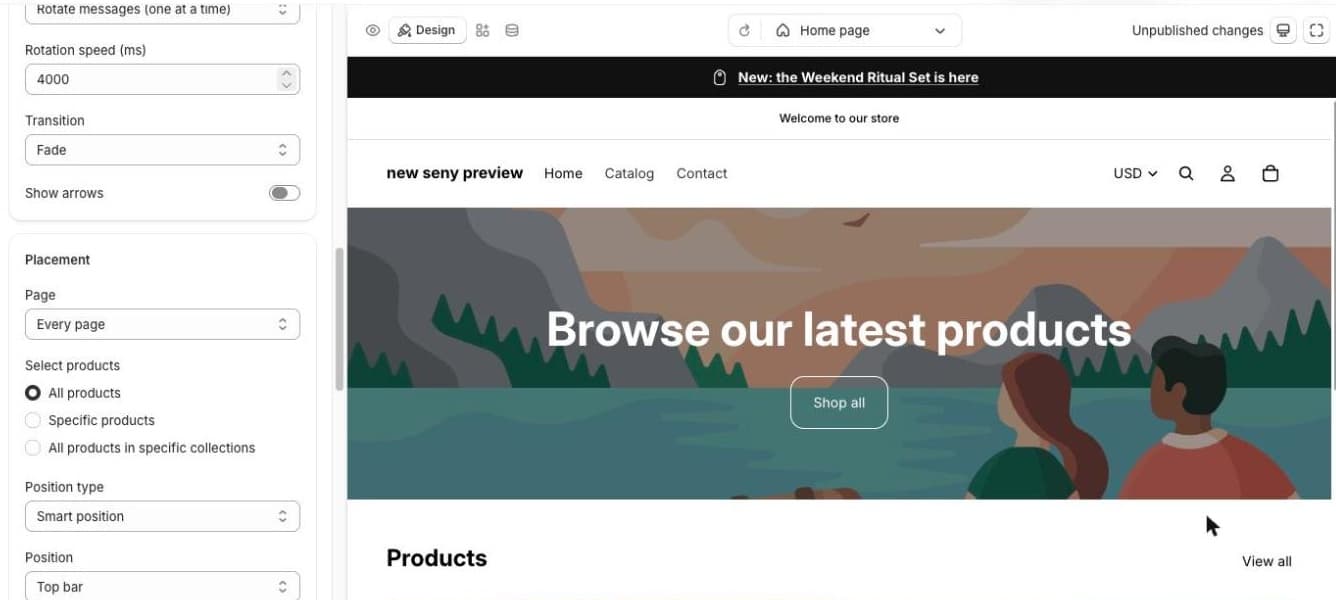
- Rotate messages (one at a time): shows one message, then the next. Rotation speed (ms) sets how long each one stays; 4000 is four seconds. Transition is Fade or Slide, and Show arrows lets shoppers click through.
- Running text (continuous scroll): all messages scroll across like a ticker, with speed, direction and pause on hover.
Rotation is easier to read for most stores. Keep at least four seconds per message: a message that changes before it’s read is lost. Running text stops for shoppers who have turned off animations in their device settings.
Step 4: Choose where it shows
Under Placement, Page decides which pages show the bar: every page, product pages, the homepage, collections, search, the cart, or content pages. Position keeps it as a top bar or moves it, for example below the header or next to the Add to cart button. With Select products a product-page message can appear only on the products it’s about.
Sticky bar keeps a top bar visible while the shopper scrolls. It’s useful for a short sale, but on a phone it takes space from every screen, so leave it off for messages that don’t need constant attention.
Step 5: Turn off the theme’s own bar
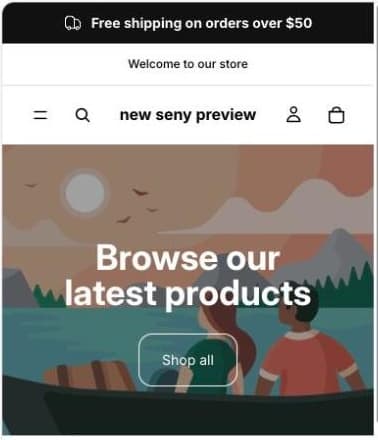
Many themes, including Shopify’s Dawn and Horizon, have their own announcement section. If you leave it on, the store shows two bars stacked on top of each other, which looks like a mistake and pushes your products further down on a phone.
- In Shopify admin, go to Online Store → Themes and click Customize.
- In the header area of the sections list, find the theme’s announcement bar section.
- Hide it with the eye icon (or remove it) and click Save.
Step 6: Publish and check it on a phone
Change the colours and font in the Design panel if you want the bar to stand out more, then click Publish. Check the store on a phone: the bar should fit on one line, and each link should open the right page.
Common mistakes
- Two bars on top. The theme’s bar and the app’s bar both left on.
- Promises checkout doesn’t keep. A code that doesn’t exist, or a free-shipping threshold that differs from the real one.
- Too many messages, too fast. Three or four messages, at least four seconds each.
- Old news. An offer that ended last week makes the whole store look unattended. Check the bar when a sale ends.
- A sticky bar on mobile for everything. Keep sticky for messages that really need it.