
 Get started
 How to show an upsell popup after add to cart on Shopify
The moment after “Add to cart” is when a shopper has just decided to buy, which makes it a good time to suggest a small add-on. Here’s how to set up a popup with the right products, show it at the right frequency, and keep it from getting in the way.
A shopper who has just clicked “Add to cart” has made a decision. Right then, a small, related extra is an easy yes: a travel size, a refill, a towel to go with the body polish. An upsell popup shows a few of these the moment the product goes into the cart, with one-click Add to cart buttons.
Done badly, it’s one more popup between the shopper and checkout. This guide shows how to set one up with Seny so it stays useful.
What to suggest
The popup shows the same products after every add to cart, so pick add-ons that make sense with most of your catalogue:
- Cheaper than the main product. An extra that costs a fraction of the order is an easy decision.
- Useful with almost anything. Accessories, refills, travel sizes, gift wrap, care products.
- In stock. Sold-out picks are skipped automatically, but a popup with one product left looks thin.
Two to four products is usually enough. If you want suggestions that change with each product, use a block on the product page instead, as in our guide to frequently bought together.
Step 1: Open the Popup Upsell in Seny
In Seny, open Apps library and choose Popup Upsell under “Turn more visits into sales”. It opens on your store’s preview with the settings on the left.
Step 2: Pick the products
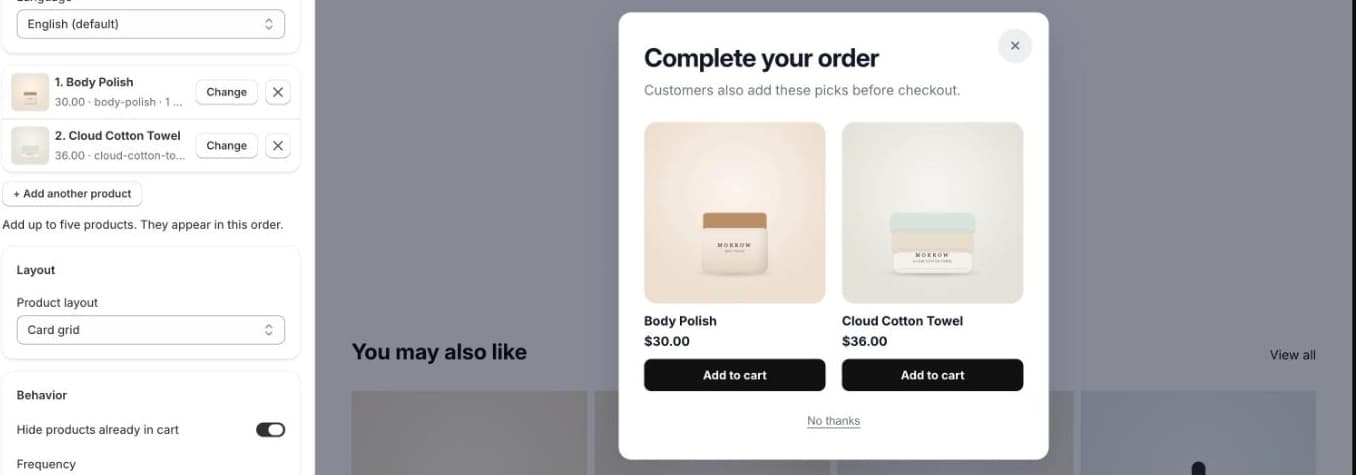
Click Choose and pick up to five products from your store. They appear in the popup in the order you picked them, so put the best match first. The preview shows the popup straight away.
Step 3: Set how it behaves
- Product layout: Card grid shows large images; Compact list fits more products in less space, which is better on phones.
- Hide products already in cart: on by default, so nobody is offered what they’re already buying.
- Frequency: Every add to cart, Once per session, or Once for days (once every few days). For most stores, once per session is enough: a shopper who adds five products shouldn’t see the same popup five times.
Under Copy and Button labels, write the headline in your own words and keep a clear way out, such as “No thanks”. You can also show a “Continue shopping” button.
Step 4: Check your cart settings and publish
The popup appears on the page where the shopper added the product. If your theme jumps straight to the cart page after every add, shoppers leave before they see it; set your theme’s cart to open as a drawer or notification instead. Shoppers who use Buy it now skip the cart, and the popup with it; see why Buy it now skips the cart.
Then click Publish, add a product on your store and check the popup on a phone: it should be easy to close and must not cover the whole screen with products.
Common mistakes
- Showing it on every add to cart. Use once per session unless your store sells one product per order.
- Expensive suggestions. A popup isn’t the place to sell something that costs more than the product just added.
- Too many popups. An upsell popup, an email popup and a spin wheel on the same visit wear shoppers out. Pick one per moment.
- Two upsells in a row. If your cart drawer already shows recommendations, the popup repeats them. Use one or the other; see upsells in the cart drawer.
- No clear way out. Keep the close button and “No thanks” visible.