
 Get started
 How to add upsells to your Shopify cart drawer
The cart drawer is the last thing shoppers see before checkout, and the best moment to suggest one more product. Here’s how to put upsells inside a slide-out cart on a real Shopify store and test the whole experience as a shopper.
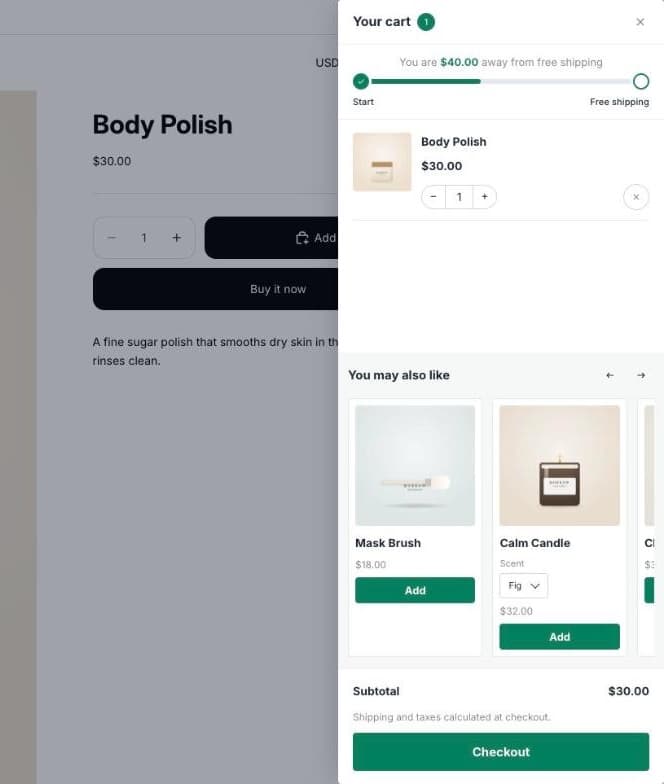
When a shopper adds a product, they look at the cart. It’s the moment they are already buying, and a small, relevant suggestion there (a brush for the mask, a candle to go with the bath set) gets added more often than anything shown earlier.
Many themes’ cart drawers simply list what’s in the cart. This guide replaces the theme cart with Seny’s Slide Cart Drawer, adds upsells inside it, and tests the full flow on a real Shopify store. No theme code. Every screenshot comes from a real test store.
What a cart drawer upsell needs to get right
- Relevant products. Things that go with what’s in the cart, not your bestsellers.
- One-click add. Shoppers add the suggestion without leaving the drawer.
- No repeats. A product already in the cart shouldn’t be suggested again.
- A reason to add. Pairing upsells with a free shipping goal gives shoppers a reason to add one more item.
Step 1: Open Slide Cart Drawer in Seny
In Seny, go to Apps library and open Slide Cart Drawer. The preview opens with the drawer showing, and Preview: With items / Empty lets you see both states. The drawer is built from modules you switch on or off: an announcement, a timer, free shipping, upsell, a discount code field, an order note and more.
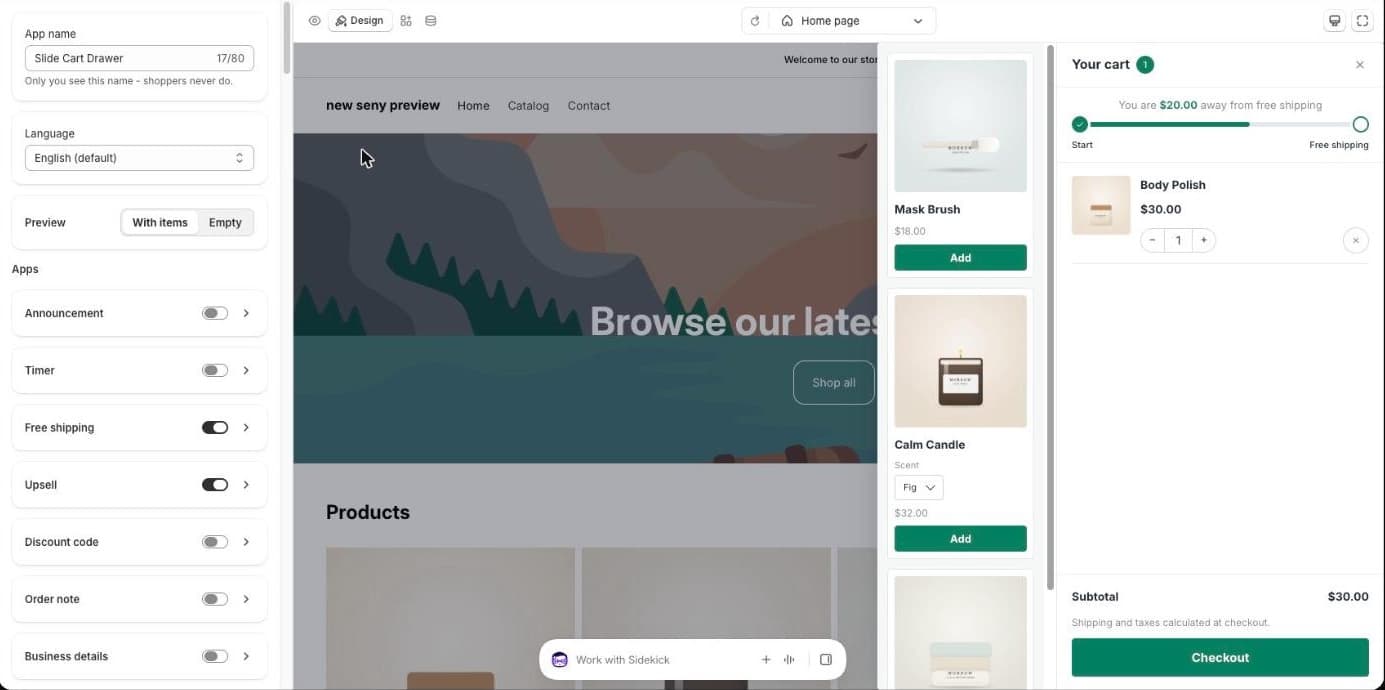
Once published, the drawer replaces your theme’s own cart drawer, so shoppers only ever see one cart.
Step 2: Choose what the upsell shows
Open the Upsell module. Products to show has three options: Shopify recommendations, Hand-picked products, or Hand-picked first, then Shopify. With Shopify recommendations, choose Complementary, then related to use the pairings you set in Shopify’s Search & Discovery app, and set how many to show.
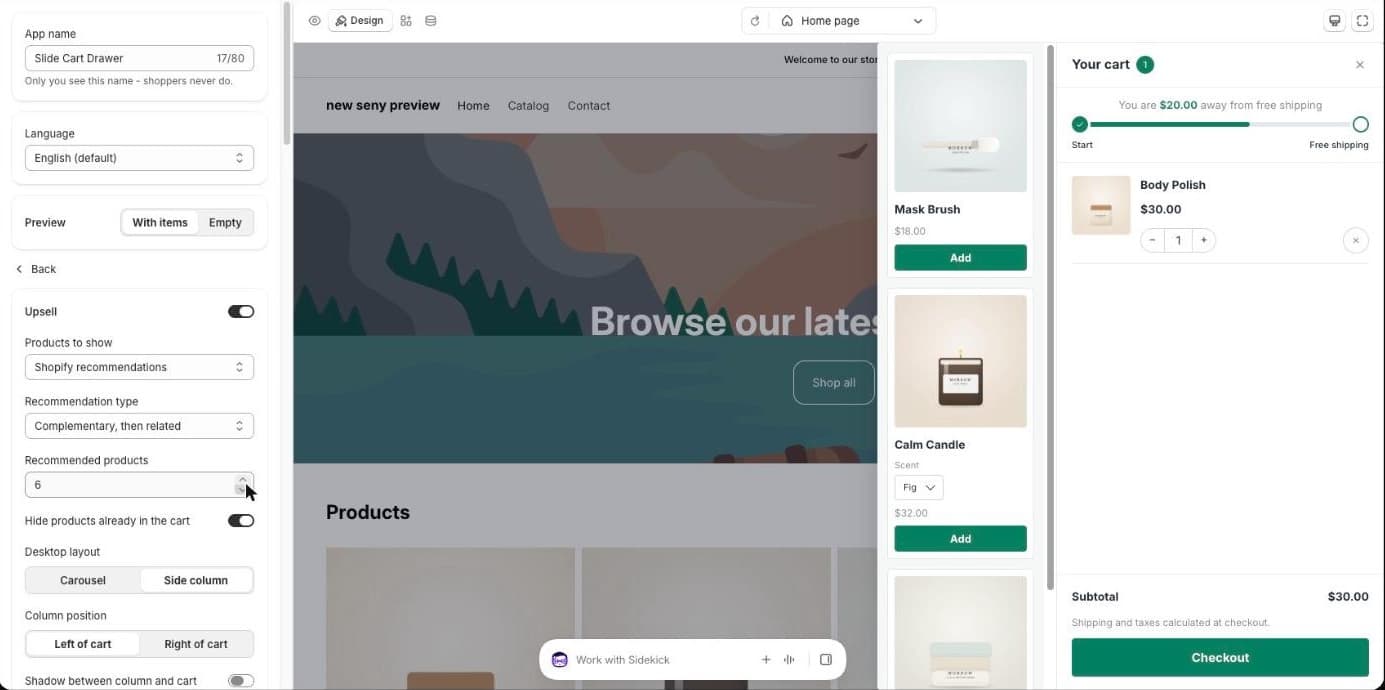
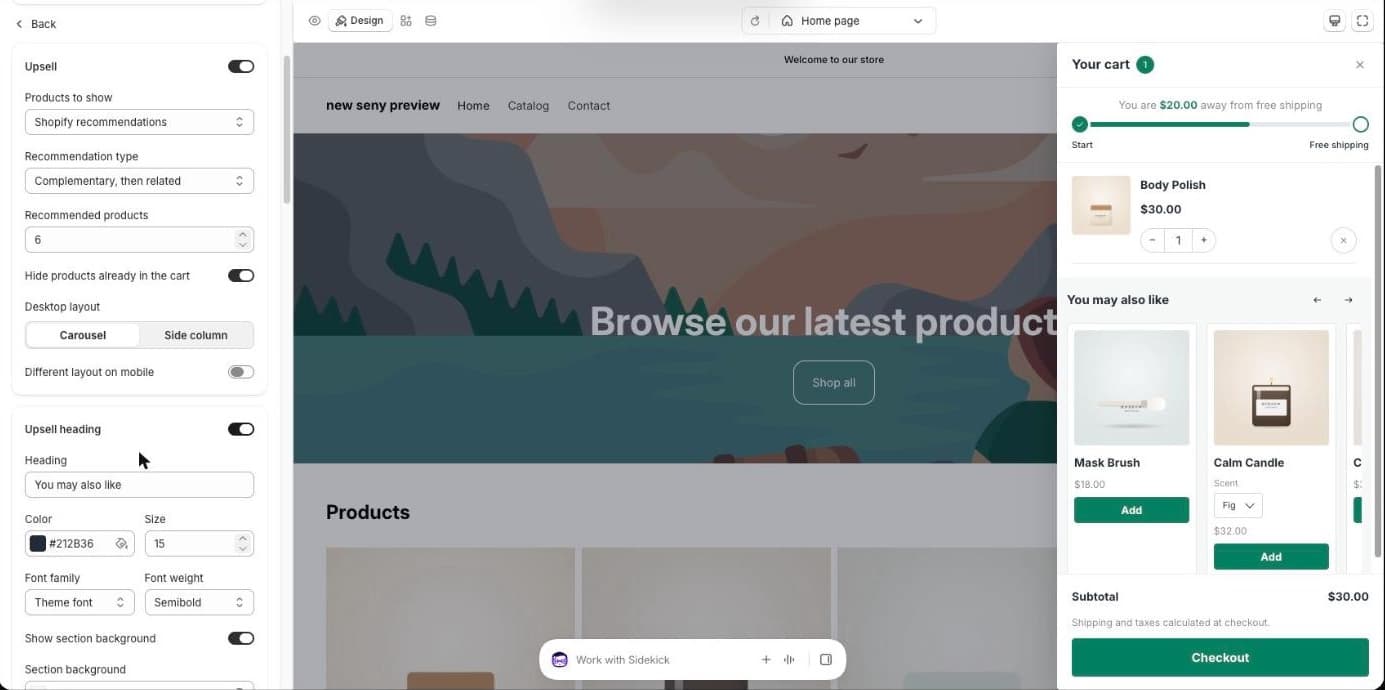
Desktop layout sets where the suggestions go: a Side column next to the cart on large screens, or a Carousel inside the drawer. We chose the carousel and switched on Upsell heading, which reads “You may also like”.
Step 3: Set the free shipping goal
Open the Free shipping module and set the Threshold. Our store ships free from $70, so we used 70. The drawer shows how much is left, and publishing creates the free shipping discount in Shopify, just like the free shipping progress bar.
Step 4: Publish and test the full cart experience
Click Publish, then open a product in a private window and add it to the cart. Your theme’s cart doesn’t appear. The Seny drawer slides in with the product, the free shipping goal (“You are $40.00 away”) and the suggestions.
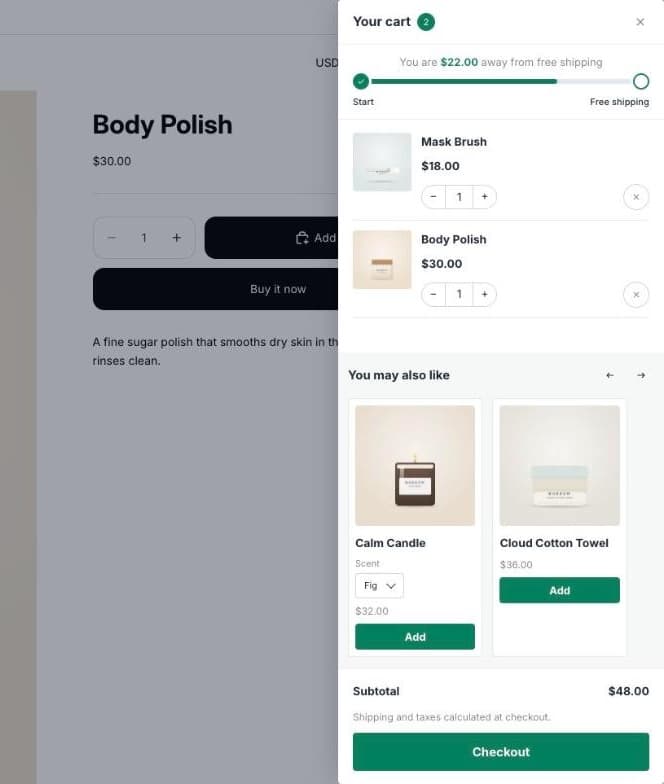
Click Add on a suggestion. It goes into the cart without leaving the drawer, the free shipping goal updates to $22.00 away, and the suggestion disappears from the list:
Also check: change a quantity in the drawer, remove an item, and click Checkout. Then try it on a phone, where the drawer takes the full width.
Common mistakes to avoid
- Suggesting expensive items. Upsells in the cart work best below the price of what’s already there.
- Too many suggestions. A long carousel pushes the Checkout button out of view. Three to six is enough.
- Two carts. If your theme’s drawer still appears, check that the Seny app embed is on and the app is published.
- Skipping the empty state. Look at the Empty preview too, so an empty cart doesn’t look broken.