
 Get started
 How to add a free shipping progress bar to Shopify without coding
A free shipping progress bar tells every shopper how far they are from free delivery and updates as they add products. Here’s how to set one up on a real Shopify store, step by step, with screenshots.
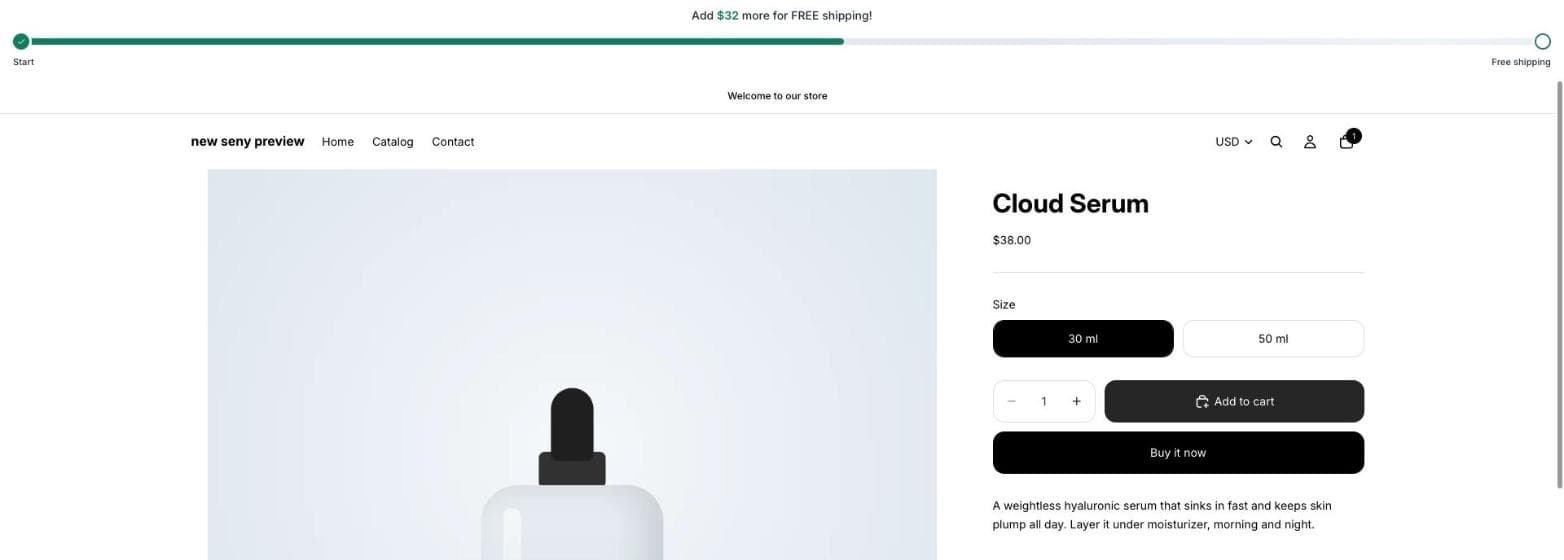
Free shipping over a set amount only grows your orders if shoppers know about it. A progress bar does that job on every page. It shows the goal before anything is in the cart, counts down as products go in, and confirms the moment free shipping is unlocked.
This guide sets one up on a Shopify store from start to finish, using Seny’s Free Shipping Upsell Booster. No theme code, no copying snippets. Every screenshot comes from a real test store.
What a free shipping progress bar shows
A good bar has three messages, one for each stage of the cart:
- Empty cart: the goal itself, for example “Spend $70 to get FREE shipping”.
- In progress: the amount still missing, for example “Add $32 more for FREE shipping!”.
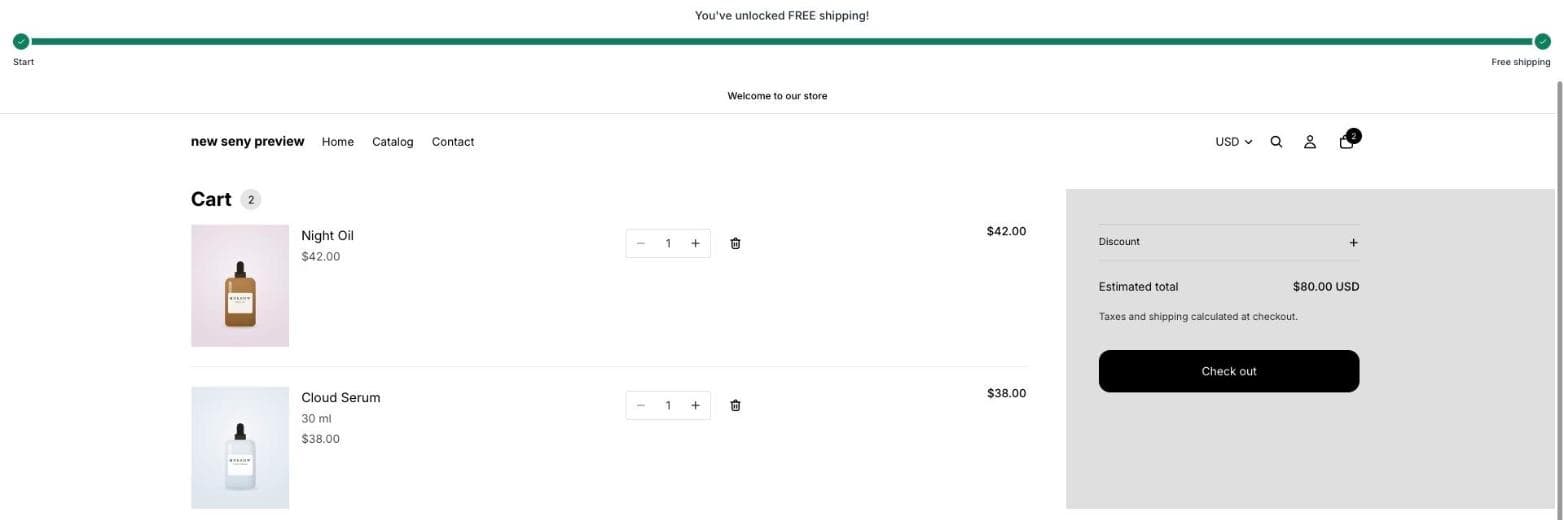
- Unlocked: a confirmation, for example “You’ve unlocked FREE shipping!”.
Shopify can make shipping free above an amount, but it doesn’t show shoppers how close they are. That’s the gap the bar fills.
Before you start: pick your threshold
Decide the amount first. A reasonable start is a little above your average order value, at a level one more product can reach. If you haven’t picked a number yet, our guide on how to set a free shipping threshold on Shopify walks through it.
Our test store already offers free standard shipping from $70 in Settings → Shipping and delivery, so the bar in this guide uses $70 too. The shopper sees one number everywhere.
Step 1: Open the free shipping app in Seny
Install Seny from the Shopify App Store, open it, and go to Apps library. Under “Grow revenue and order value”, click Free Shipping Upsell Booster.
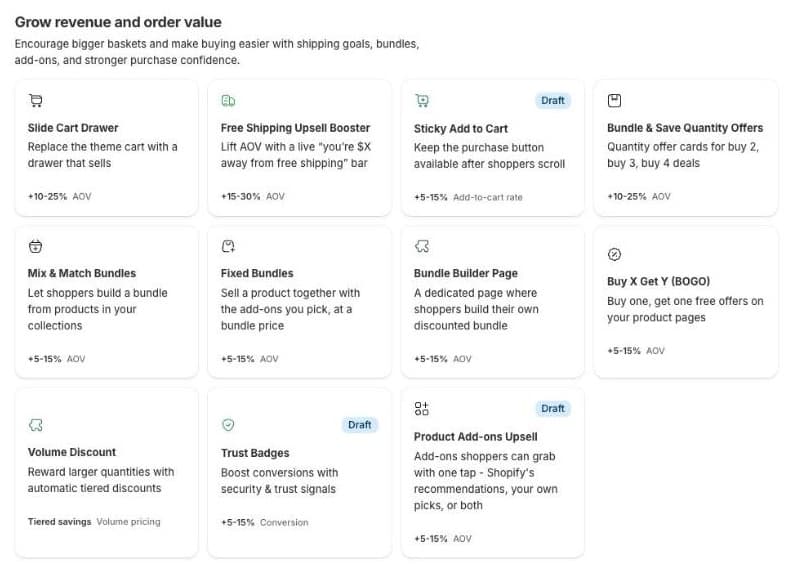
The app opens in the builder. Settings are on the left, and on the right is a live preview of your own storefront, with your theme and your products.
Step 2: Set the free shipping threshold
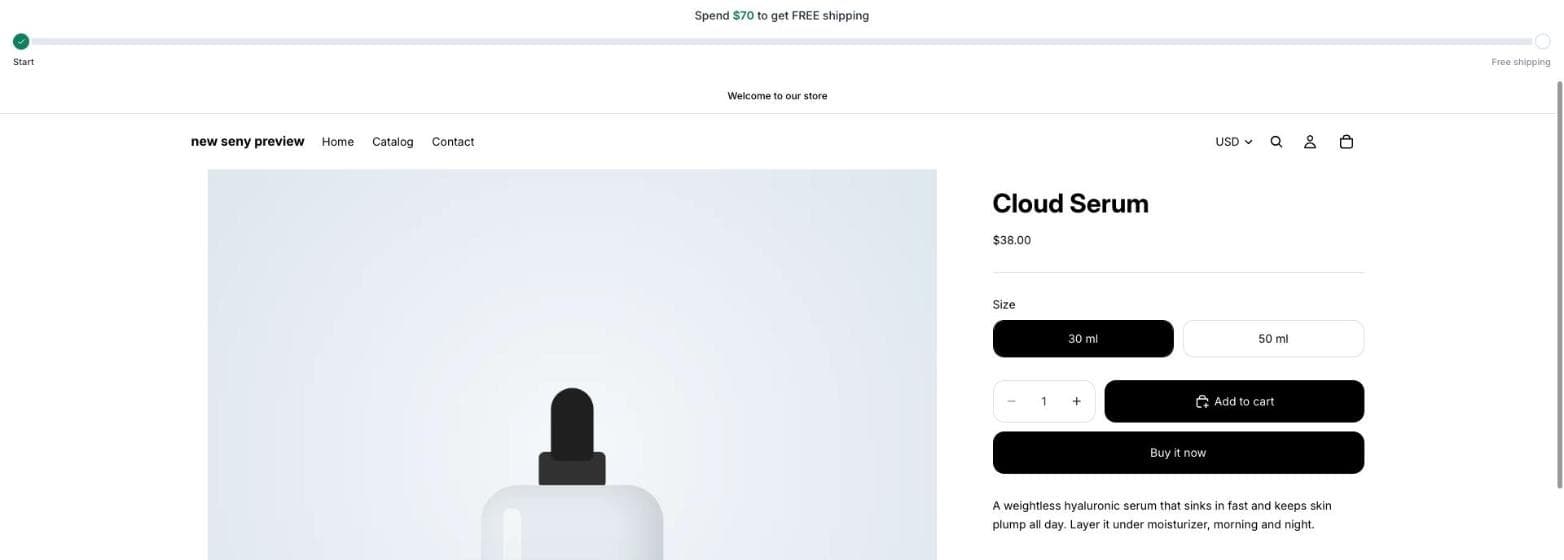
Click Free Shipping and enter your amount in Threshold, in your store currency. The preview updates as you type: the bar now reads “Spend $70 to get FREE shipping”.
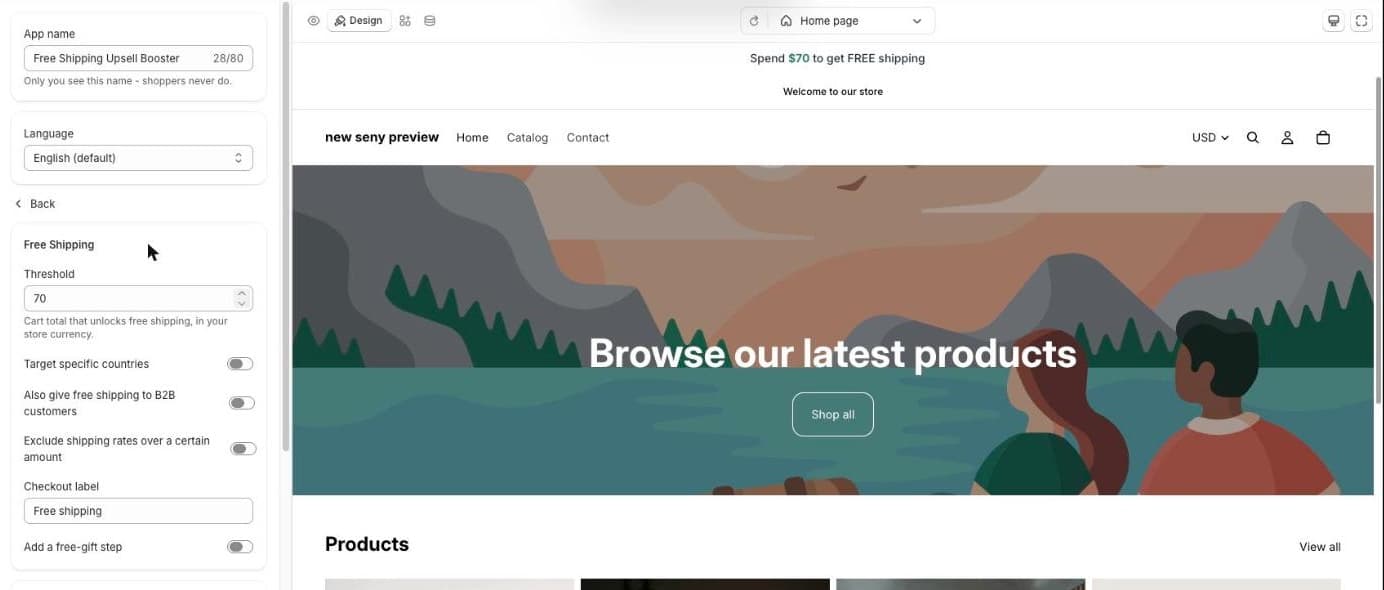
The same panel holds the options that decide who gets free shipping at checkout:
- Target specific countries: limit the offer to the countries you pick. Shoppers elsewhere don’t see the bar at all, so nobody is promised free shipping they won’t get.
- Also give free shipping to B2B customers: off by default, so company buyers and draft orders keep their normal shipping.
- Exclude shipping rates over a certain amount: keeps express or other expensive rates out of the offer.
- Checkout label: the name shoppers see on the discount at checkout, “Free shipping” by default.
- Add a free-gift step: optional second goal, for example a free gift at a higher amount.
Step 3: Turn on the progress bar and edit the messages
Go back and switch on Progress bar. A track appears under the message, filling from “Start” to “Free shipping” as the cart grows.
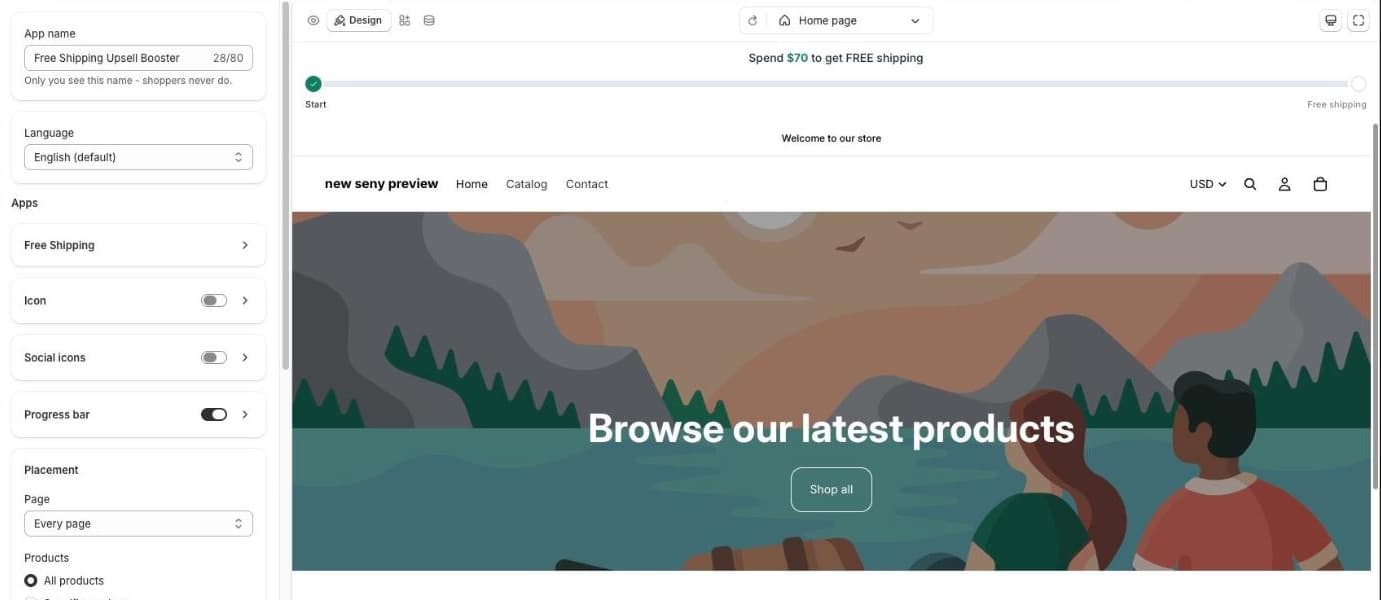
Under Messages you can rewrite all three messages: Empty cart message, In-progress message and Unlocked message. Use {threshold} for the goal and {amount} for what’s still missing, and the bar fills in the real numbers for each shopper. Colors, size, font and the color of the amount sit in the same section.
Step 4: Choose where the bar appears
In Placement, the default is Every page as a Top bar, above your theme’s header. That puts the goal in front of the shopper before they reach the cart. You can limit it to certain pages or products, or place it elsewhere, for example below the Add to cart button.
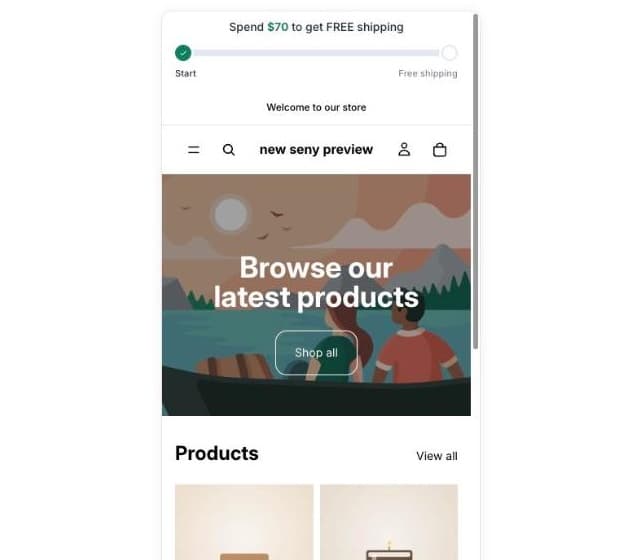
Check mobile before you publish. Use the device switch at the top right of the preview:
Step 5: Publish
Click Publish. Seny shows a short checklist before anything goes live:
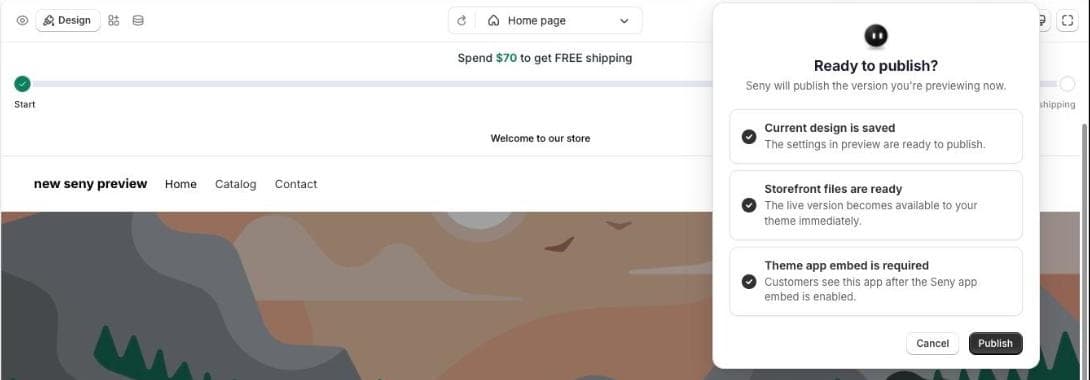
Publishing does two things. The bar goes live on your storefront, and Seny creates an automatic free shipping discount in Shopify with your threshold as the minimum. You’ll find it under Discounts, named after your checkout label. Because it’s automatic, shoppers don’t need a code, and it also applies to express checkout and “Buy it now”.
If Seny’s setup guide says the app embed isn’t enabled yet, click Enable in Theme Editor and save the theme. This is a one-time step for each theme.
Step 6: Test it as a shopper
Open your store in a private window and go through it like a customer. With an empty cart, the bar shows the goal:
Add a $38 product. The bar updates straight away, with no page reload, to “Add $32 more for FREE shipping!” and fills about halfway. Add a $42 product and the cart reaches $80:
Finally, start a checkout. The free shipping discount should take the shipping charge to $0 for the rates and countries you allowed.
Common mistakes to avoid
- Two different numbers. If your Shopify shipping settings already make shipping free above an amount, use the same amount in the bar. A bar saying $70 next to a rate that kicks in at $50 confuses shoppers.
- Promising more than you deliver. If you only ship free to some countries, turn on Target specific countries so shoppers elsewhere aren’t shown the offer.
- Forgetting the app embed. If the bar shows in the preview but not on your live store, the Seny app embed is off in your published theme.
- A threshold nobody can reach. If the goal needs three more products, the bar becomes background noise. One realistic add-on is the target.