
 Get started
 How to add frequently bought together products on Shopify
A “frequently bought together” section shows the products that go with the one a shopper is looking at, right next to the buy button. Here’s how to set one up on a real Shopify store, choose the pairings, and check what lands in the cart.
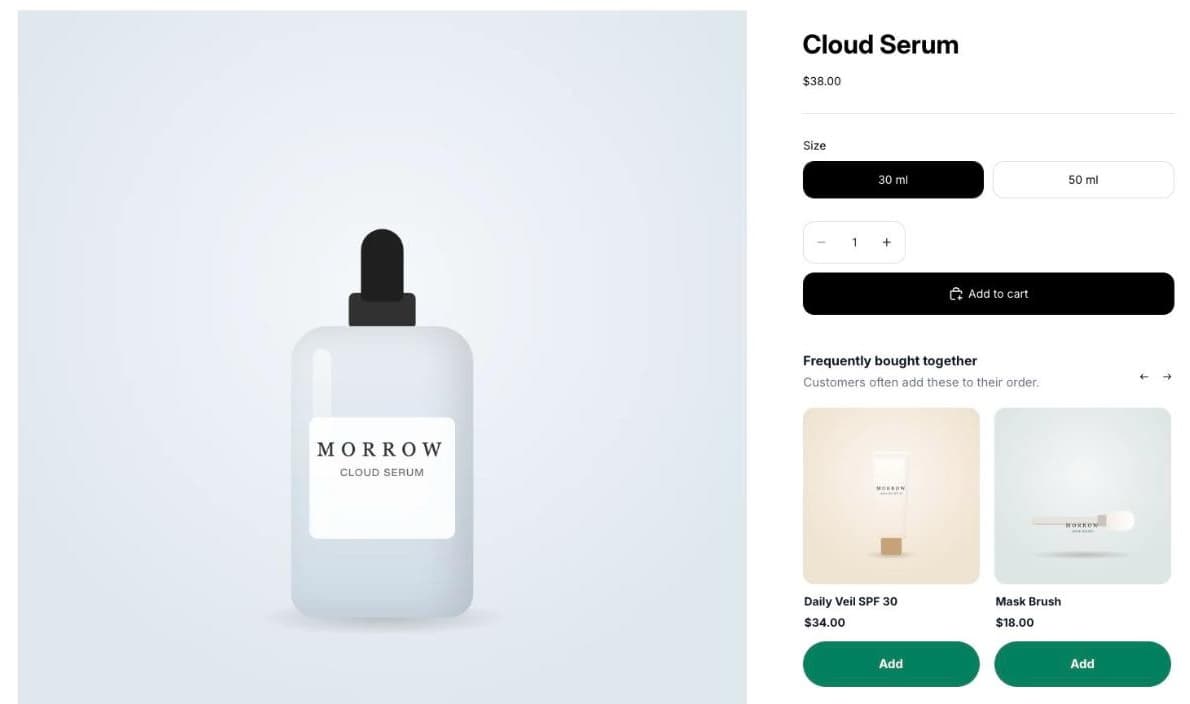
The easiest product to sell is the one that goes with what the shopper already wants: a sunscreen with the serum, a brush with the mask, filters with the coffee maker. A “frequently bought together” section puts those pairings on the product page, where the decision is being made.
This guide sets one up on a real Shopify store with Seny’s Product Add-ons Upsell, chooses the pairings by hand, and checks the cart. No theme code. Every screenshot comes from a real test store.
Where the pairings come from
You have two sources, and you can combine them:
- Your own picks. You choose exactly which products to show. Best when you know what goes together.
- Shopify’s recommendations. Shopify’s free Search & Discovery app lets you set complementary products for each product. When you haven’t set any, Shopify can suggest related products automatically.
Some themes can show complementary products in a theme block. An add-ons app adds the controls a theme block usually lacks: your own picks, one-click add buttons, hiding products already in the cart, and placement on many products at once.
Step 1: Open Product Add-ons Upsell in Seny
In Seny, go to Apps library and open Product Add-ons Upsell. The builder opens on one of your product pages, with an add-on section below the Add to cart button.
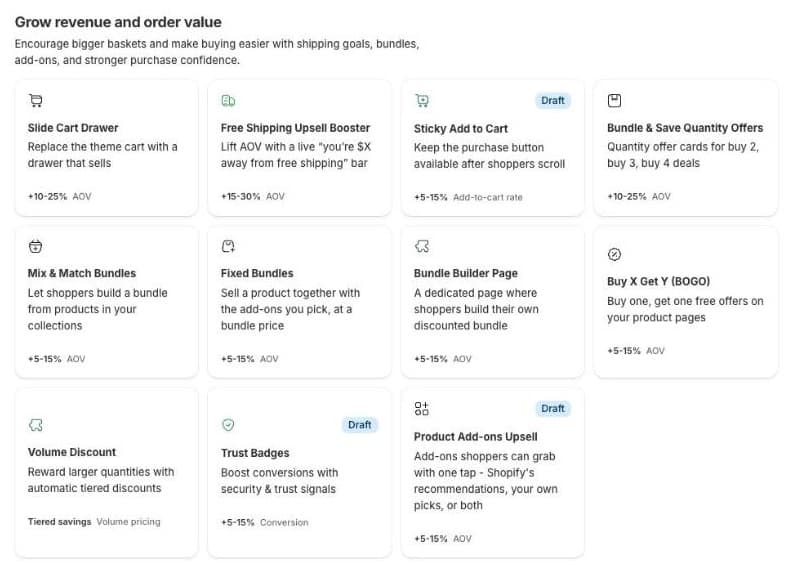
Step 2: Choose the products to show
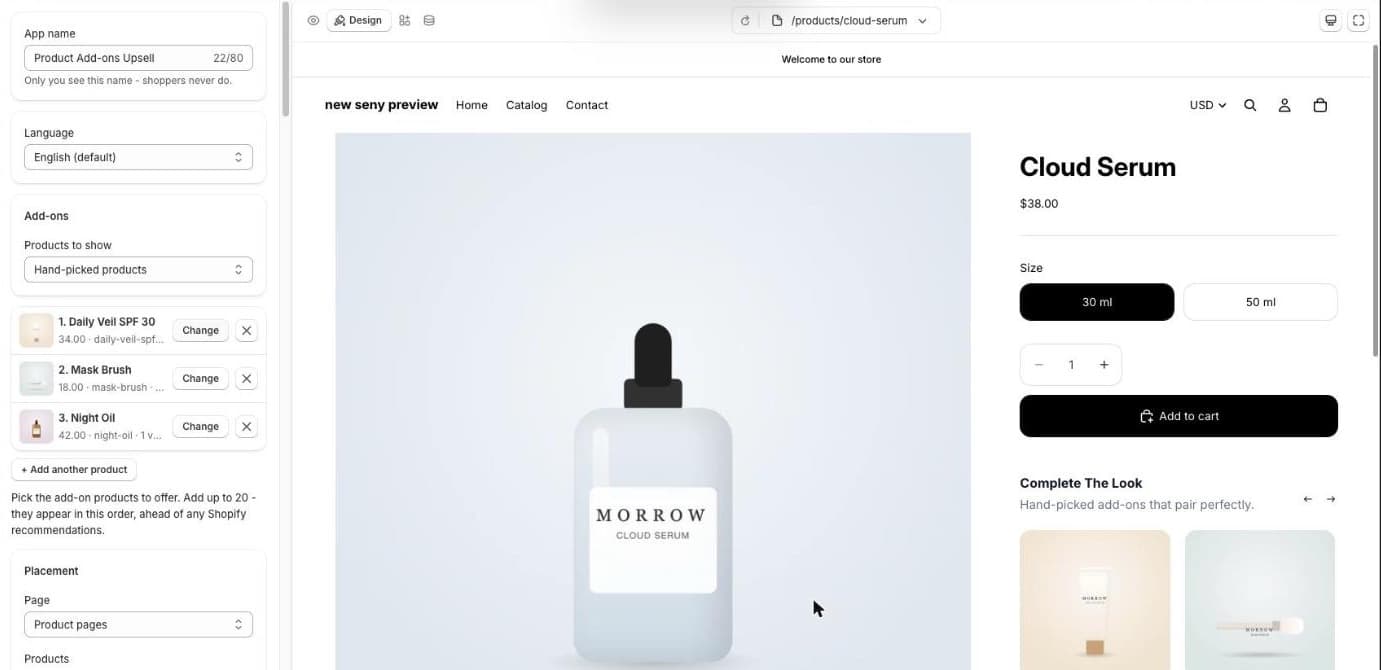
Under Add-ons, set Products to show to one of three options:
- Shopify recommendations: Shopify picks for each product. Choose Complementary, then related or Related only, and how many to show.
- Hand-picked products: you choose up to 20 add-ons, shown in your order.
- Hand-picked first, then Shopify: your picks lead, and Shopify fills the rest.
We chose Hand-picked products and added Daily Veil SPF 30, Mask Brush and Night Oil, products a serum buyer is likely to want too:
Step 3: Name it and choose where it shows
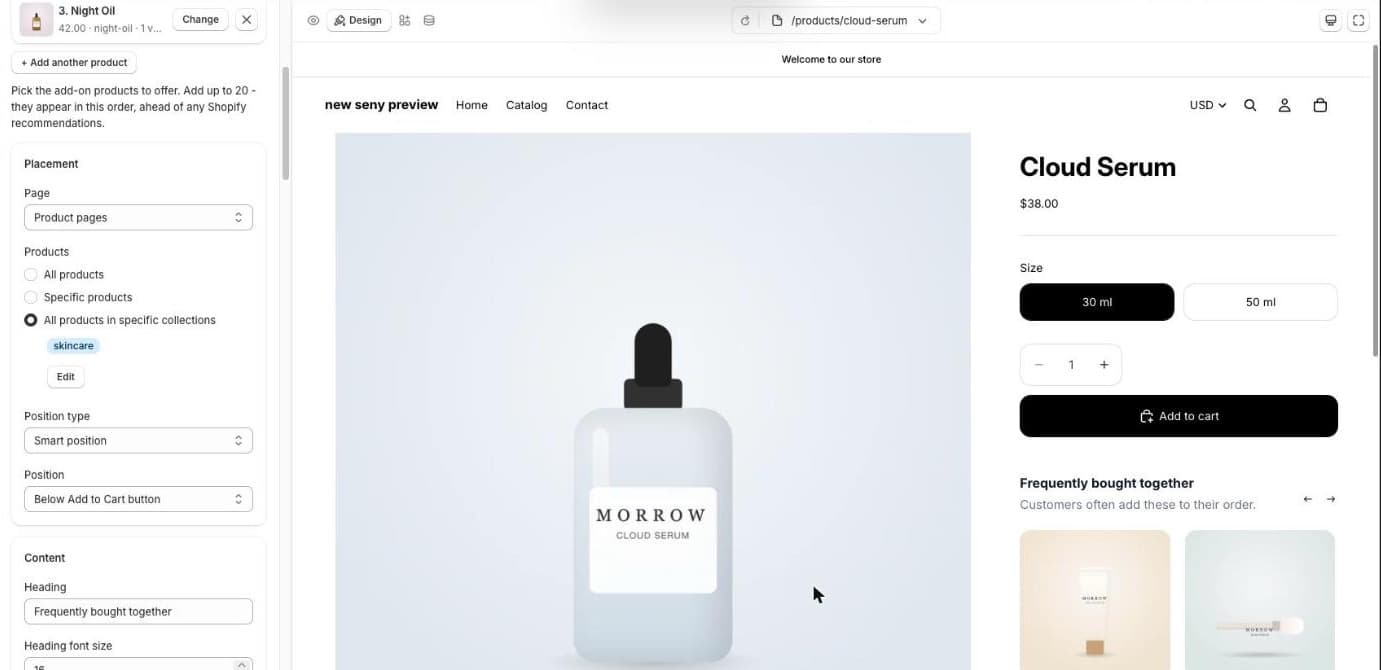
Under Content, set the Heading and Subheading. We used “Frequently bought together” and “Customers often add these to their order.” Then, in Placement, choose which products show the section. Hand-picked add-ons are the same on every page they appear, so we limited them to the Skincare collection, where they fit.
A few more settings worth knowing:
- How shoppers add: one at a time with an Add button on each product, or tick several and add them together with a running subtotal.
- Hide the current product: on by default, so a product never recommends itself.
- Hide add-ons already in cart: on by default, so shoppers aren’t offered what they’ve just added.
- Layout: a horizontal rail, a vertical grid or a list.
Step 4: Publish and test it
Click Publish, then open one of the products in a private window. The section sits under the buy button. Add the main product, then click Add on one of the add-ons. The add-on goes straight into the cart and leaves the section, and the next pairing moves up.
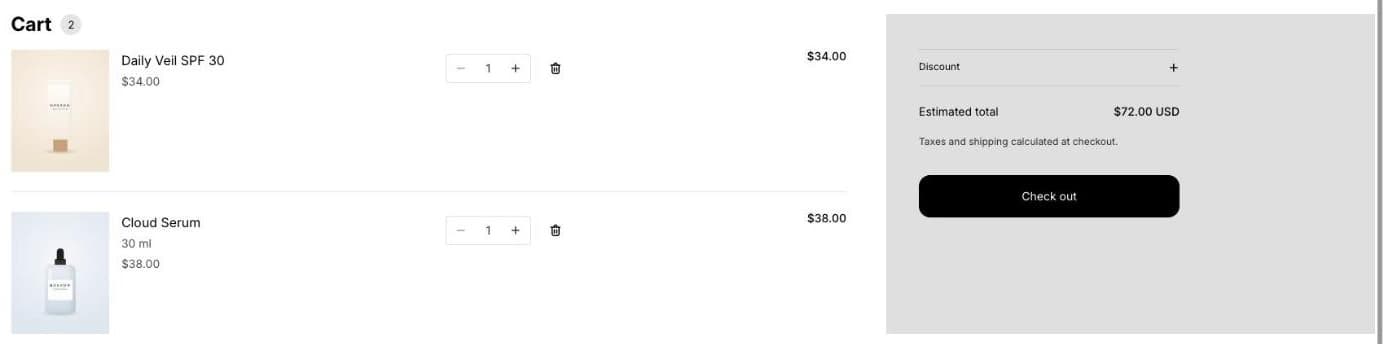
Add-ons are sold at their normal price. If you want a discount for buying the products together, use a bundle instead, for example a fixed bundle or a mix-and-match offer.
Common mistakes to avoid
- Pairings that don’t pair. Show products that are actually used together. Random bestsellers feel like ads.
- Too many add-ons. Two to four is plenty under a buy button. A long list pushes the product information down.
- One list for every product. Hand-picked add-ons are the same everywhere they show. Limit them to a collection where they fit, or use Shopify’s recommendations for the rest.
- Recommending what’s already in the cart. Keep Hide add-ons already in cart on.