
 Get started
 Trust badges and payment icons on Shopify: what actually builds trust
A row of icons under the Add to cart button can answer a shopper’s last doubts: delivery, returns, payment. Generic badges like “100% Secure” or “Money-Back” say little, and some are illegal in the EU. Here’s how to write badges that hold up, and how to show the payment methods you really accept.
Right before buying from a store they don’t know, shoppers ask themselves a few quick questions. Will it arrive, and when? Can I send it back? Is it safe to pay here, and can I pay my usual way? A short row of badges under the Add to cart button can answer all of them in one glance.
The trouble is that most badge rows say nothing a shopper can check. This guide shows how to turn them into specific, true statements, and how to add the payment methods you accept.
Generic badges vs specific badges
Compare the two versions below. The first one is what most stores show. The second one answers the actual questions.
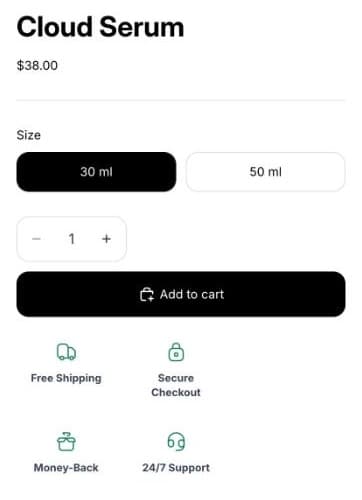
- “Free Shipping” → “Free shipping over $50”. Say the condition.
- “Money-Back” → “30-day returns, on unopened products”. Say how long and on what.
- “24/7 Support” → “Reply within 1 day, Mon–Fri by email”. Promise what you can keep.
- “Secure Checkout” → keep it, and say why: payment goes through Shopify’s checkout.
Badges you shouldn’t use
EU consumer law has a list of practices that are always unfair, and two of them catch common badges:
- Trust or quality seals you haven’t earned. Showing a certification, award or “verified” seal without having it is banned outright. Use a seal only if the issuer has given it to your store.
- Legal rights presented as a special perk. EU shoppers always have at least 14 days to withdraw from an online purchase. A badge like “14-day money-back guarantee” presents that legal right as if it were your extra. If you offer more, such as 30 days, say so.
Environmental badges such as “Eco-friendly” or “Sustainable” have their own rules since September 2026; see the EU ban on generic green claims.
Step 1: Add trust badges in Seny
In Seny, open Apps library and choose Trust Badges under “Grow revenue and order value”. It opens with four sample badges below the Add to cart button on product pages. For each badge, pick an icon, write a short Label and add Subtext with the condition.
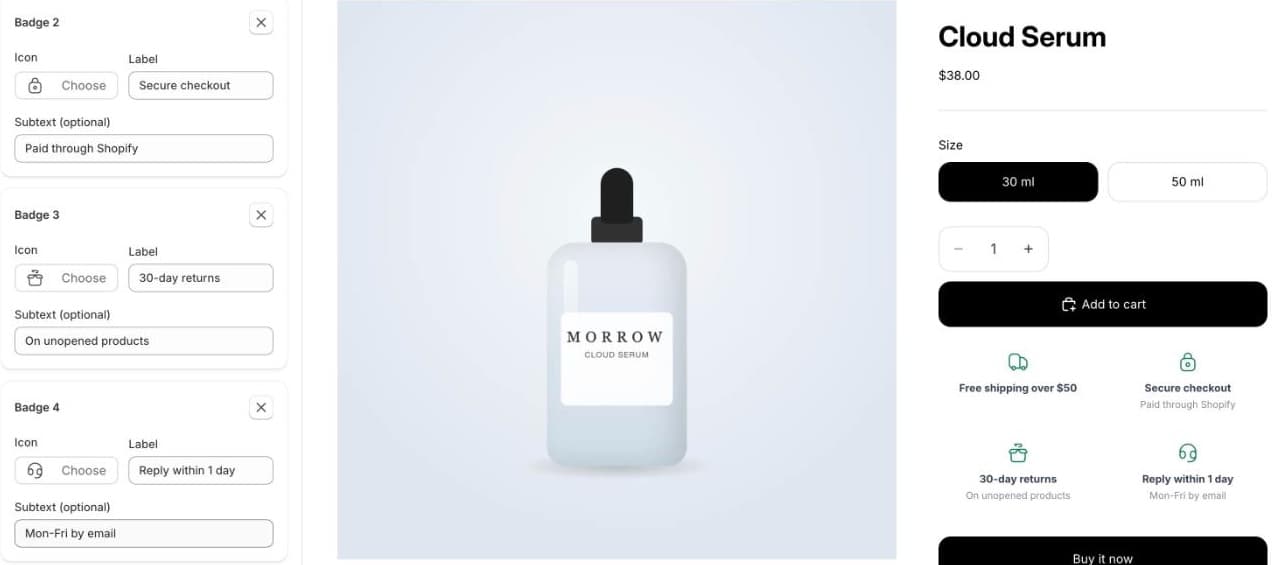
Under Layout, choose text below or next to the icon, separate cards or one card, and how many badges sit in a row on a computer and on a phone. Four badges in two rows fit most product pages.
Step 2: Show the payment methods you accept
Payment icons answer “can I pay my usual way?” before the shopper reaches checkout. In Seny, choose Payment Logos in the Apps library. It opens with Visa, Mastercard, Apple Pay and Google Pay under the Add to cart button. Click Choose on a logo to replace it, or Add badge to add one.
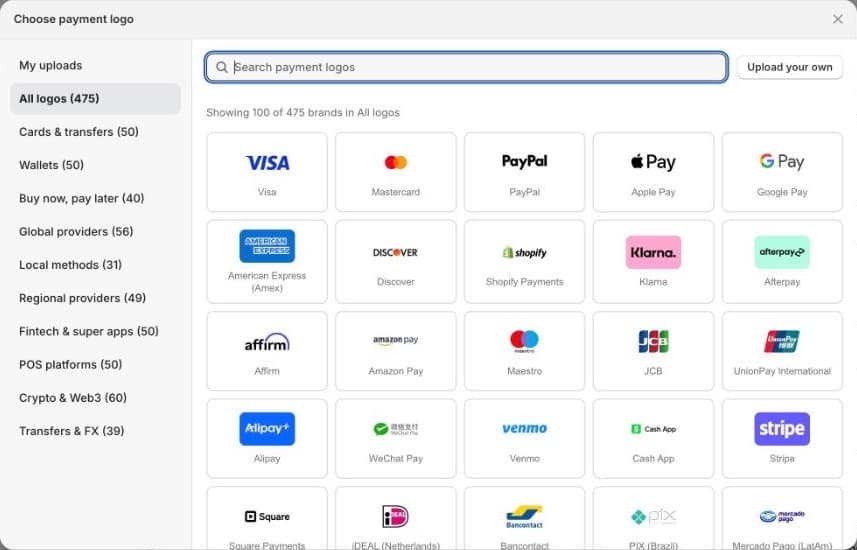
The logos aren’t read from your checkout, so check them against Settings → Payments in Shopify. Show only what a shopper can really use. If a payment method depends on the country, such as a local bank link, show it only if most of your shoppers can use it.
Step 3: Publish and check on a phone
Publish both apps and open a product page on a phone. The badges and logos should sit right below the Add to cart button, take no more than a few lines, and be readable without zooming.
Common mistakes
- Badges without conditions. “Free shipping” that only applies over $50 disappoints at checkout.
- Payment logos you don’t accept. A PayPal logo with no PayPal at checkout costs trust instead of building it.
- Too many badges. Six icons say less than three clear ones.
- Fake seals. No “Verified store” or award badge you haven’t received.
- Promises you can’t keep. “24/7 support” from a one-person store.