
 Get started
 How to create a build-your-own box on Shopify
A build-your-own box gives shoppers a page where they fill a box with products they choose and save more the more they add. Here’s how to create one on a real Shopify store, from the product list to the discount in the cart.
Gift boxes, sampler sets, “pick any 5”: a build-your-own box turns browsing into a small game. The shopper chooses every product, sees the box fill up, and gets a bigger discount with each item. It works especially well for gifting and for products that come in many varieties.
This guide creates a box page on a real Shopify store with Seny’s Bundle Builder Page. No theme code, no page template to build. Every screenshot comes from a real test store.
How a build-your-own box differs from other bundles
- It has its own page. Instead of a widget on one product, shoppers get a dedicated page with a product grid and a running box summary.
- Shoppers pick every item, from the products you allow.
- The discount grows with the box, for example 10% for 3 items, 15% for 4 and 20% for 5.
If you want shoppers to build a set while looking at one product, a mix-and-match bundle on the product page is the closer fit.
Step 1: Open Bundle Builder Page in Seny
In Seny, go to Apps library and open Bundle Builder Page. The preview shows the page as it will look: a product grid on the left and the box summary on the right.
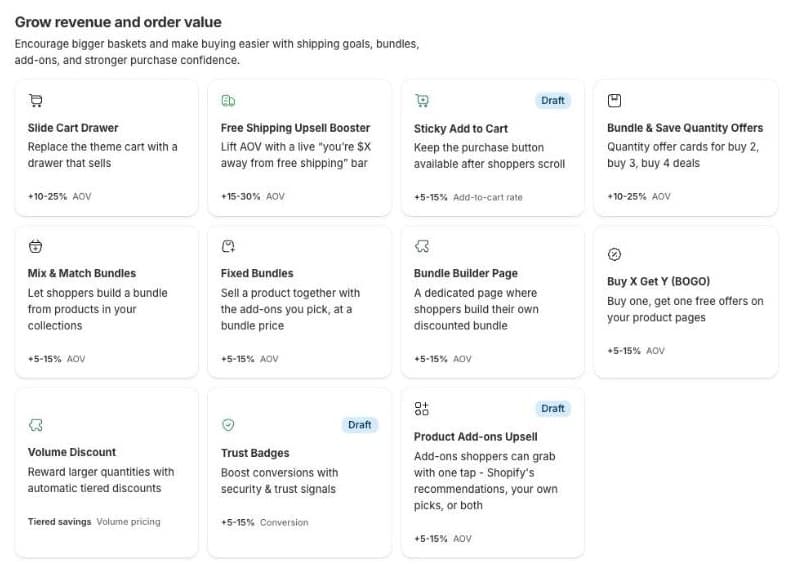
Under Page, set the Title and URL of the page. We used “Build your box” and build-your-box. Add to store menu puts a link to the page in your main menu when you publish, and Hide the theme’s page title lets the box’s own heading lead.
Step 2: Choose the products shoppers pick from
Under Products shoppers choose from, pick all products, specific products or All products in specific collections. We chose our Skincare and Body & Home collections, so gift sets stay out of the box. The discount only applies to items added from this page.
Step 3: Set the box size and discount tiers
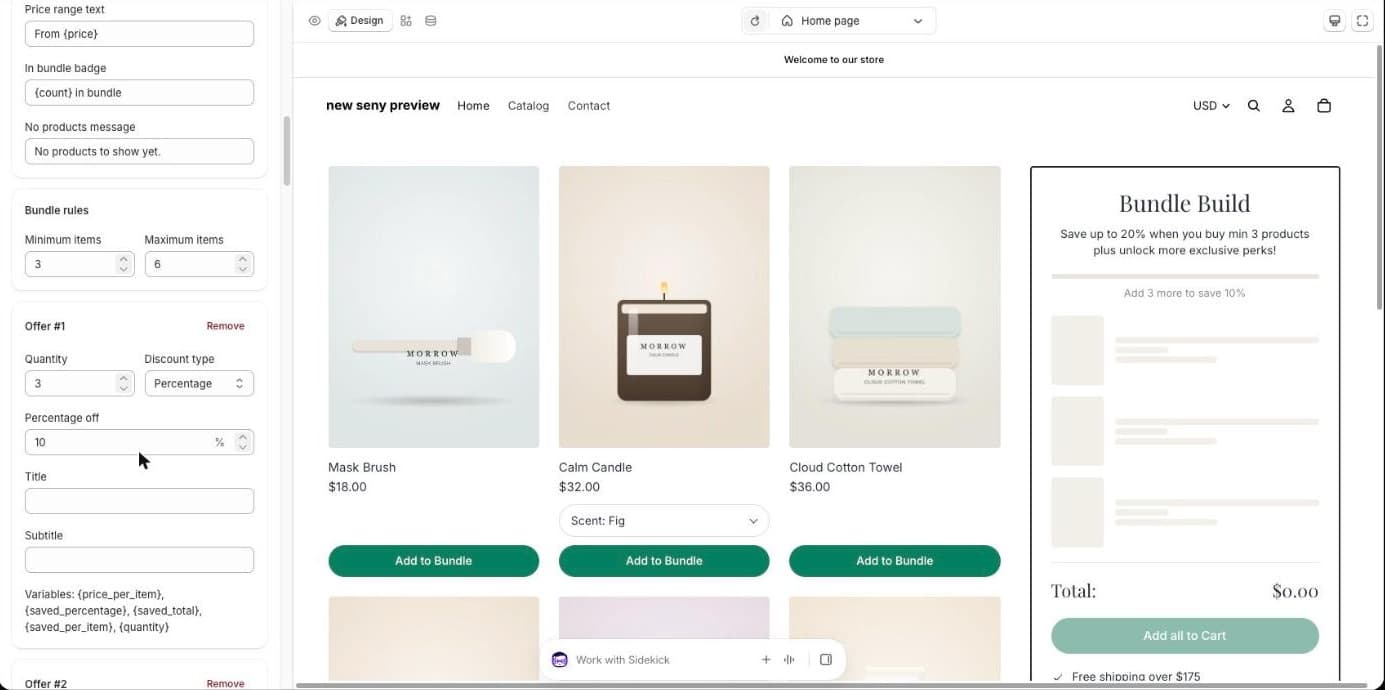
Under Bundle rules, set the Minimum items a box needs before it can go to the cart, and the Maximum items it can hold. We kept 3 and 6. Then set the tiers: each one is a quantity and a discount, as a percentage or a fixed amount. The defaults are 10% for 3 items, 15% for 4 and 20% for 5.
Step 4: Write the box summary
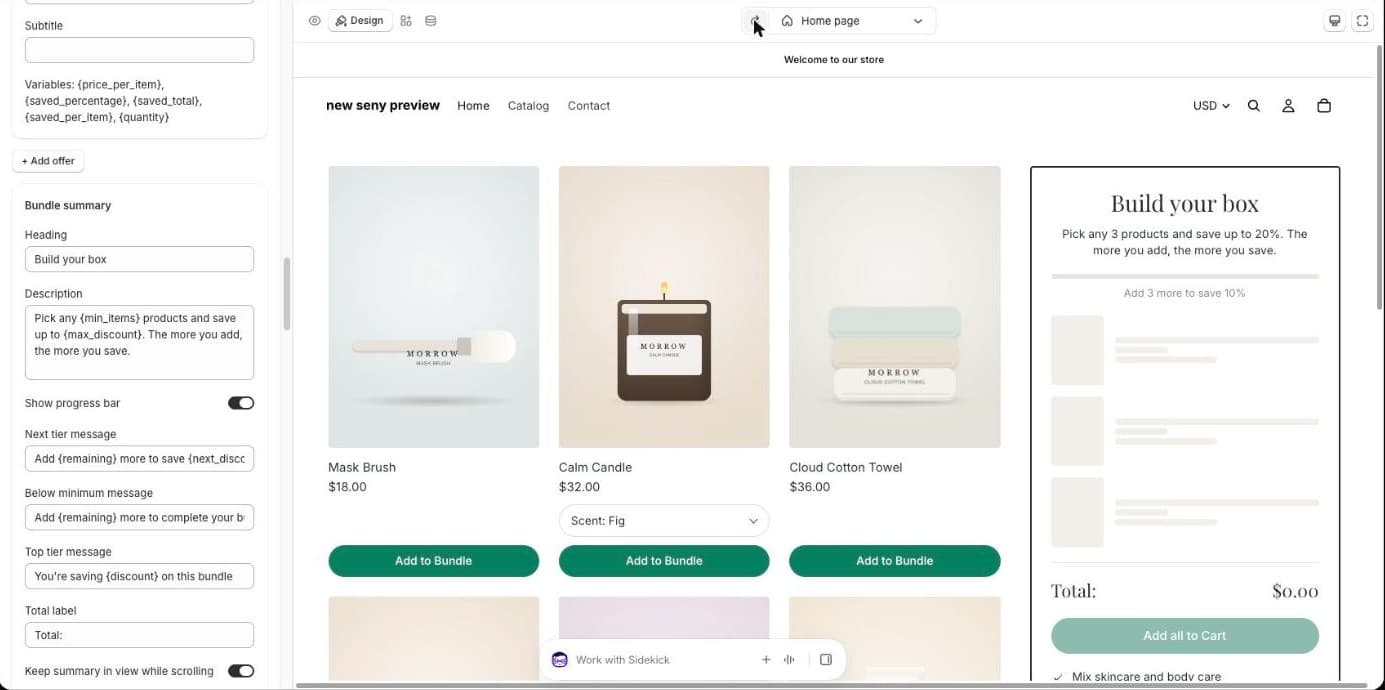
Under Bundle summary, set the Heading and Description shoppers see above their box. {min_items} and {max_discount} fill in from your rules. The progress messages tell the shopper how many more items unlock the next tier.
Step 5: Publish the page
Click Publish. Seny creates the page in your store (you’ll see it under Online Store → Pages), adds the menu link if you turned it on, and creates the automatic discount that prices the box in the cart. If you unpublish later, the page is hidden and the link comes off the menu.
Step 6: Build a box as a shopper
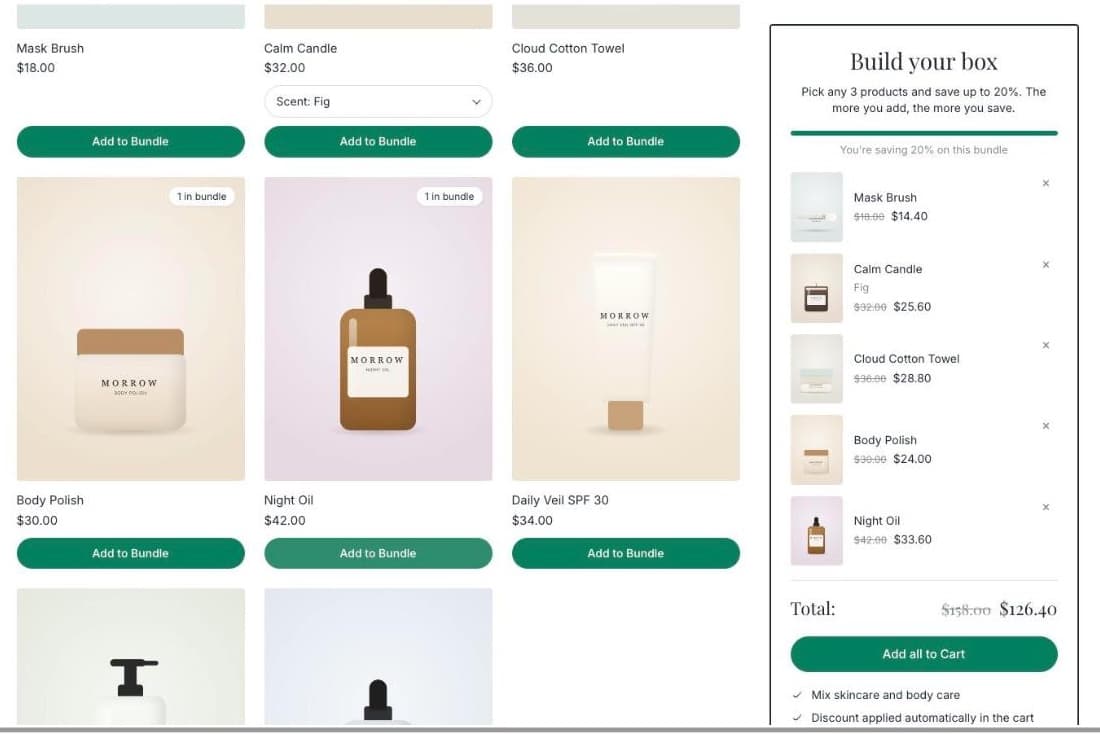
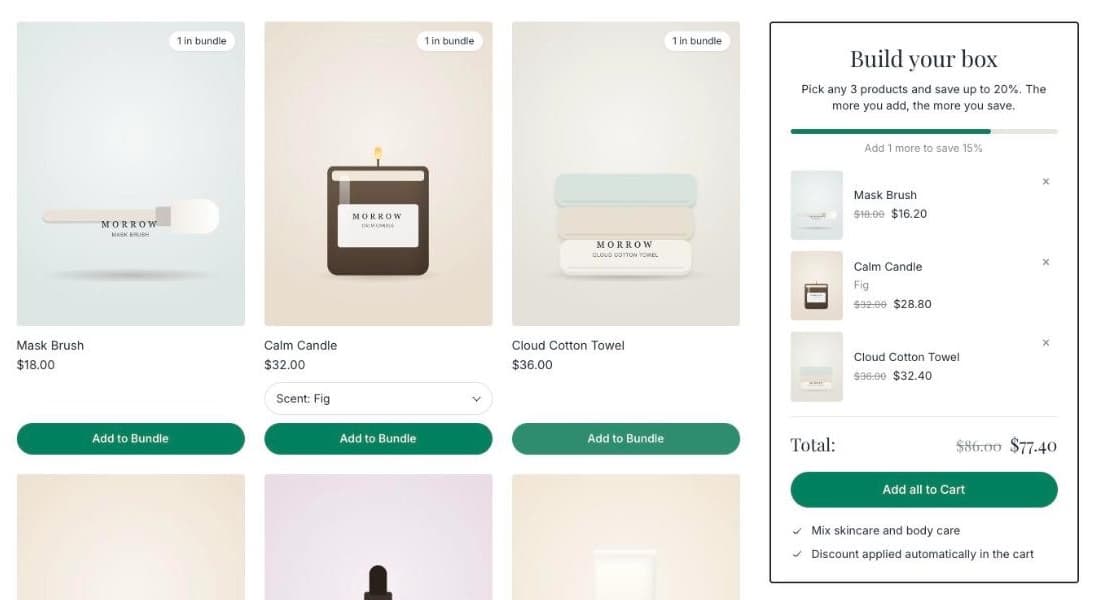
Open the page from the menu and add three products. The summary lists each one at its discounted price and shows the next goal:
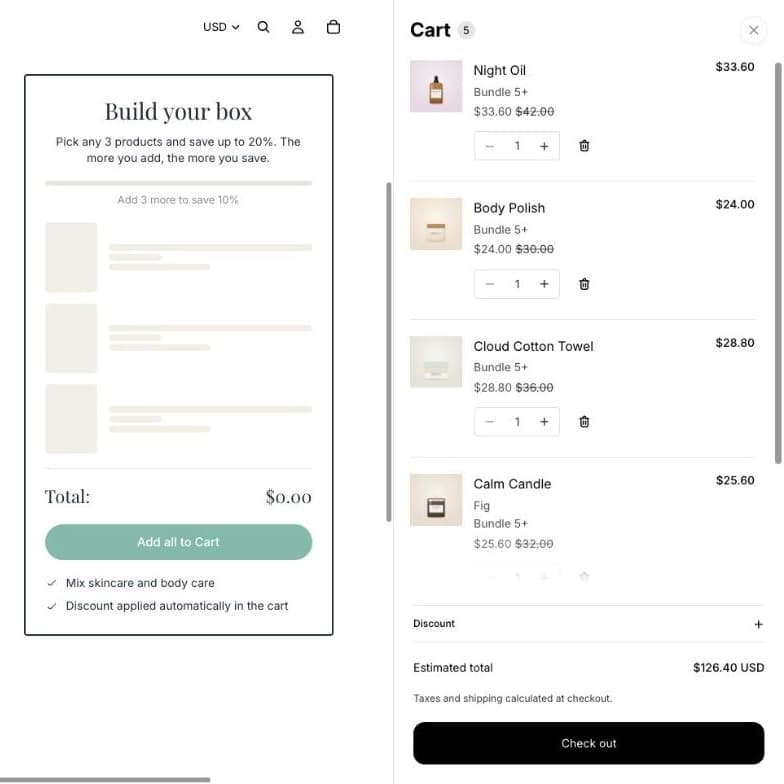
Add two more and the box reaches the top tier: “You’re saving 20% on this bundle”, $126.40 instead of $158.00. Click Add all to Cart and the cart opens with every item at its bundle price:
On phones, the summary moves below the grid and a bar at the bottom keeps the box in reach while the shopper scrolls.
Common mistakes to avoid
- Too many products. A grid of 100 items is a catalog, not a box. Pick the products that make a good set.
- Perks you don’t offer. Every line in the summary is a promise. Edit or remove the examples.
- A minimum that’s too high. If the first discount needs 6 items, most shoppers give up. Start the first tier at 3.
- Hiding the page. Turn on Add to store menu or link the page from your homepage, or nobody finds it.