
 Get started
 How to create mix-and-match bundles on Shopify
A mix-and-match bundle lets shoppers pick any products from a collection and get a discount for buying several. Here’s how to build a “choose any 3, save 20%” offer on a real Shopify store, step by step, with screenshots.
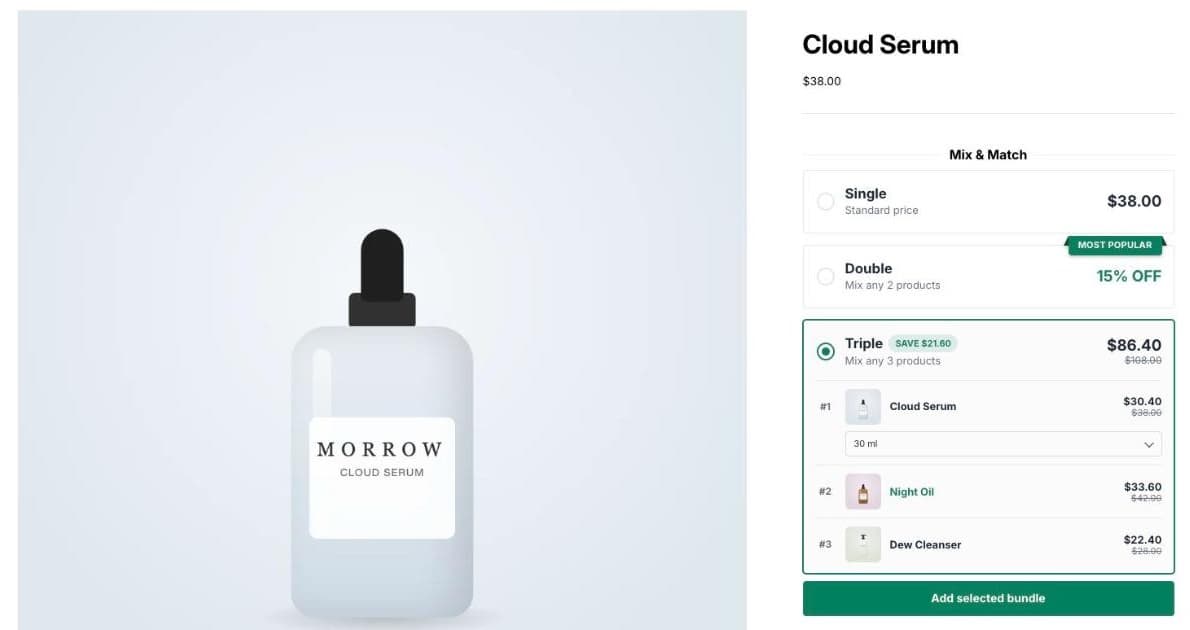
Quantity discounts work when shoppers want more of the same thing. Many stores sell ranges instead: a cleanser, a serum and an oil, or three different candle scents. A mix-and-match bundle rewards the shopper for building their own set from your range, so a single purchase becomes three.
This guide builds a “choose any 3, save 20%” bundle from a real collection, using Seny’s Mix & Match Bundles. No theme code. Every screenshot comes from a real test store.
What a mix-and-match bundle is
The shopper picks a bundle size, then chooses which products go in it, from a collection you pick. The discount grows with the bundle: for example 15% off any 2 and 20% off any 3. It’s different from:
- Quantity breaks (buy 2, buy 3 of the same product).
- Fixed bundles, where you decide which products belong together.
- Buy X get Y, where one product is discounted or free when another is bought.
Shopify can apply a discount like “20% off when you buy 3 items from a collection” with an automatic discount. What it doesn’t give you is the part on the product page: choosing the bundle size, picking the products for each slot and seeing the price before adding to cart. That part is what this guide sets up.
Step 1: Make the collection shoppers choose from
Decide which products can go into the bundle and put them in one collection in Shopify admin under Products → Collections. In our test store that’s a “Skincare” collection with four products: a cleanser, a serum, an SPF and a night oil. We built it as an automated collection from a product tag, so new skincare products join it automatically.
Step 2: Open Mix & Match Bundles in Seny
In Seny, go to Apps library and open Mix & Match Bundles. The builder opens on one of your product pages, with the bundle already in place: Single, Double and Triple offers with an Add selected bundle button.
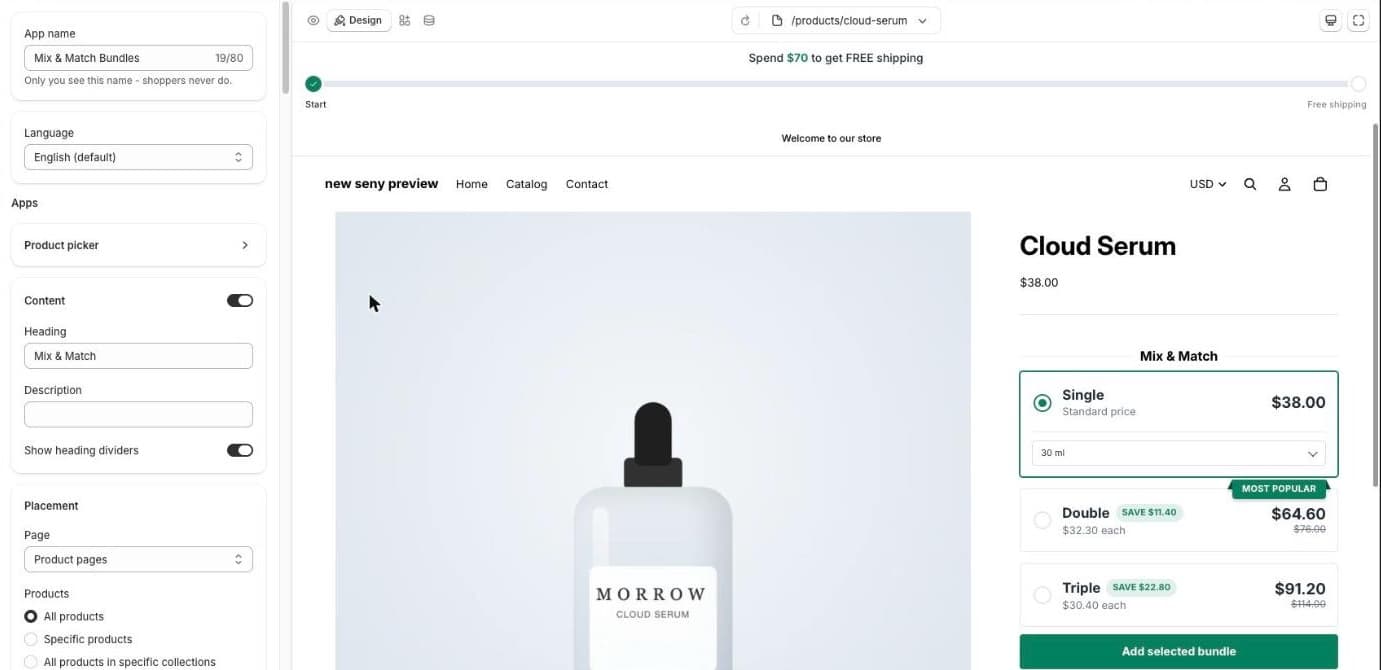
Step 3: Choose the collections shoppers can pick from
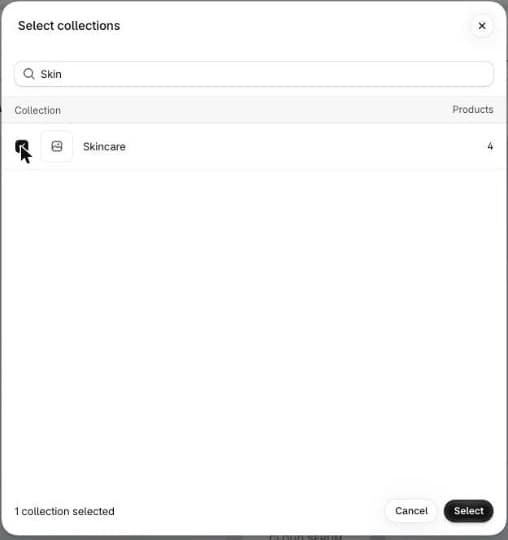
Scroll to Offers. Under Collections shoppers can pick from, click Choose collections and select your collection.
The offers change straight away. Instead of a price, the Double and Triple offers show their discount, “Mix any 2 products: 15% OFF” and “Mix any 3 products: 20% OFF”, because the total depends on which products the shopper picks.
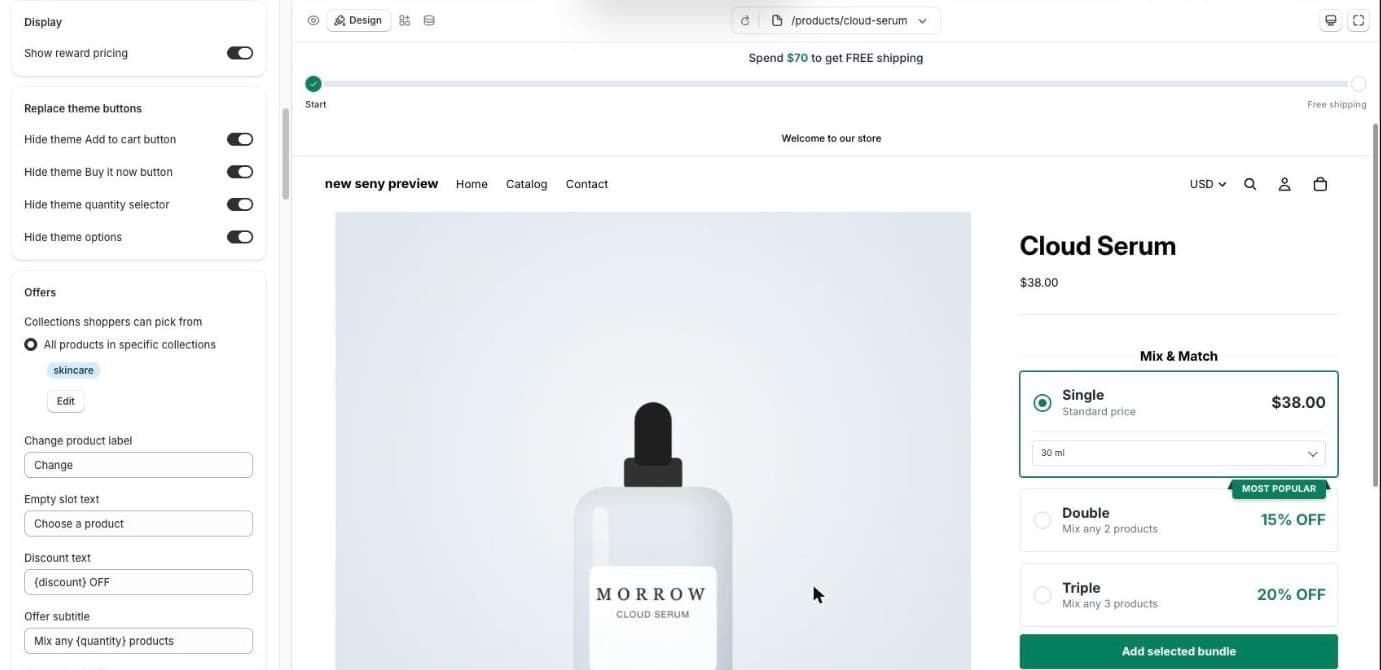
Step 4: Set the bundle sizes and discounts
Each offer has its own card under Offers: Quantity (how many products in the bundle), Discount type (a percentage or a fixed amount), the discount itself, and a Title and Subtitle. The defaults are a good start: Single at full price, Double at 15% off and Triple at 20% off.
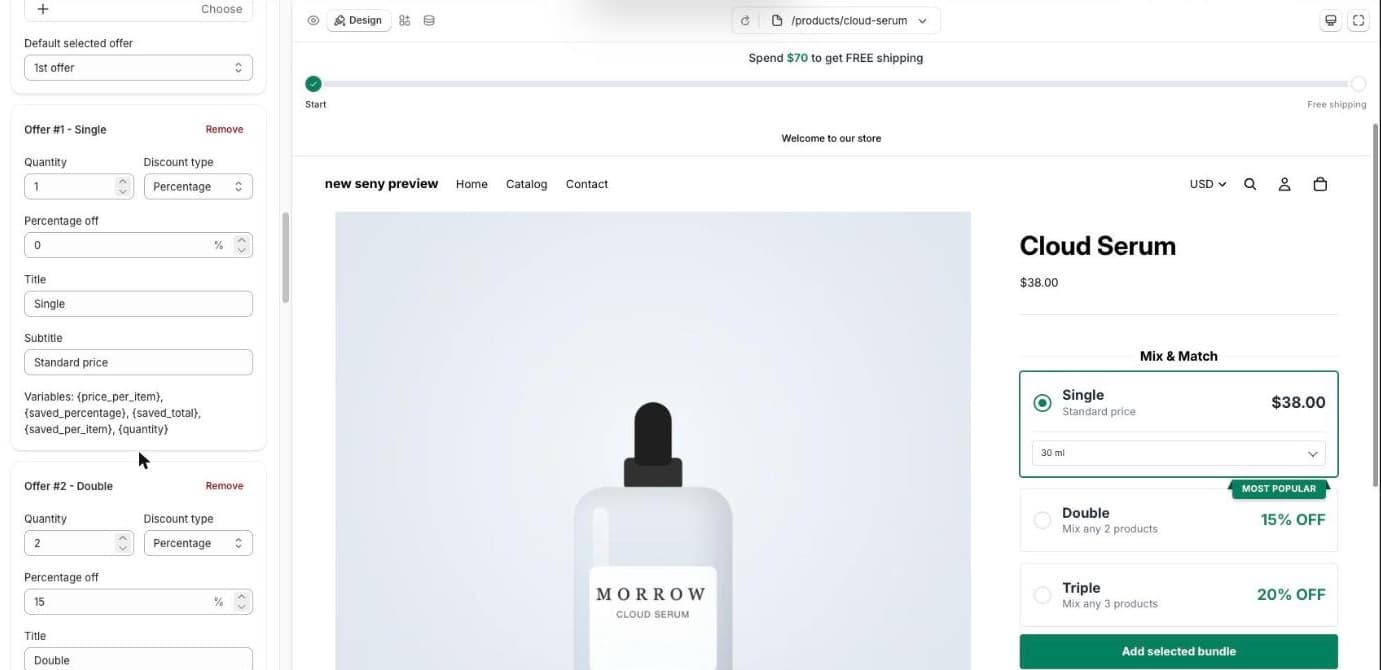
Subtitles can use variables like {price_per_item}, {saved_total} and {saved_percentage}, and they fill in once the bundle is complete. Default selected offer sets which bundle is selected when the page loads, and in the Ribbon section you choose which offer carries the “Most popular” ribbon.
Step 5: Choose which products show the bundle
In Placement, set Products to All products in specific collections and choose the same collection. Now the bundle shows on skincare product pages, and other products keep your theme’s normal buttons.
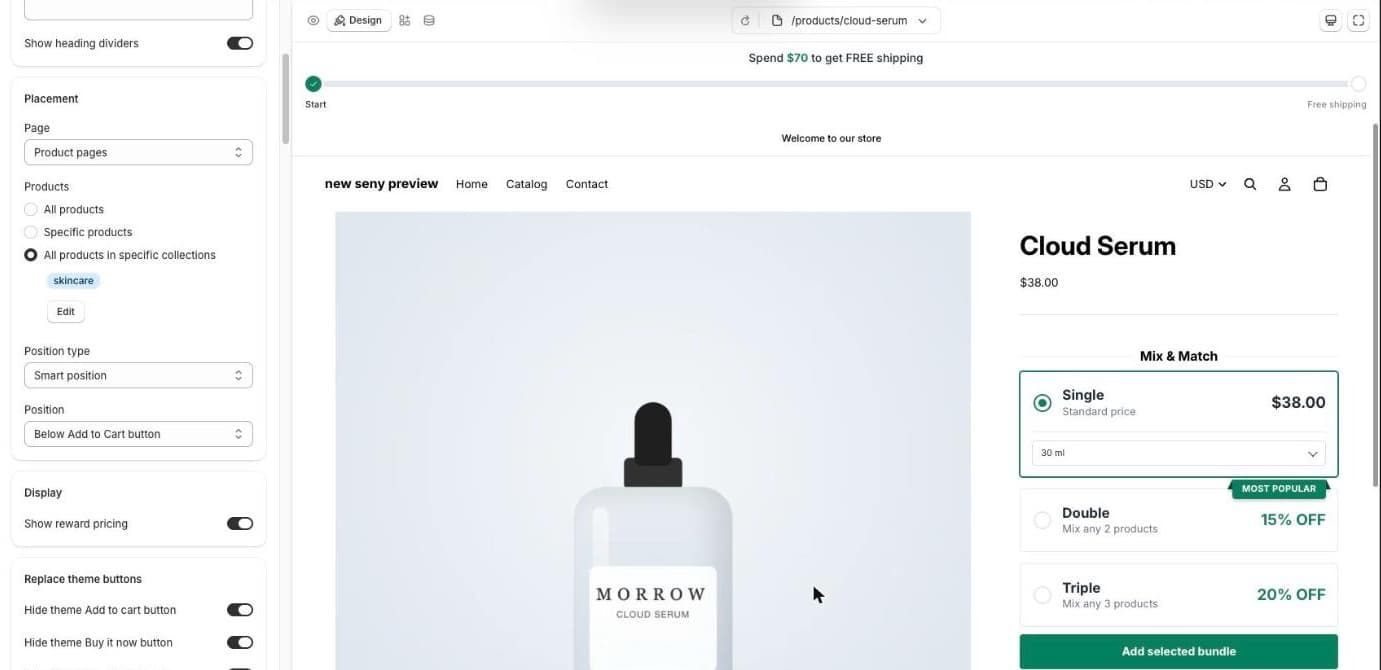
Under Replace theme buttons, Seny hides your theme’s own Add to cart, Buy it now, quantity selector and options on these pages, so shoppers aren’t shown two ways to add the same product. Each one has its own switch if you want to keep it.
Step 6: Publish
Save, then click Publish. Seny creates an automatic product discount in Shopify (you’ll see it under Discounts) that prices the bundle in the cart and at checkout. Products added together through the bundle are priced as one group, at the discount for the size they reach. Products a shopper adds one at a time somewhere else aren’t combined into a bundle.
Step 7: Test it as a shopper
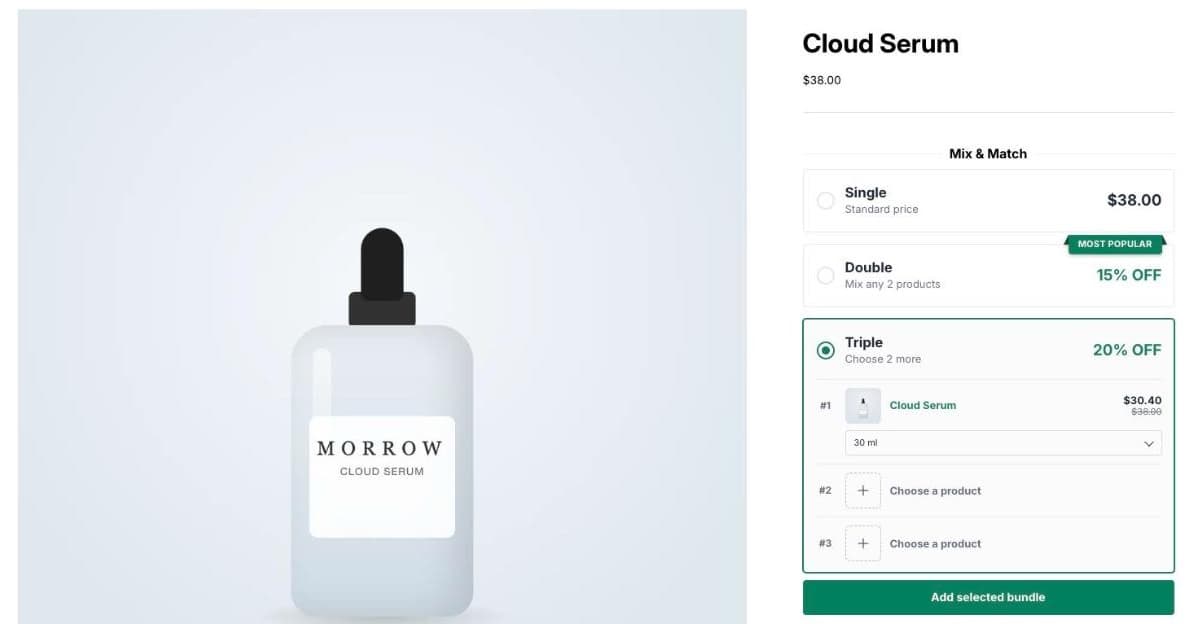
Open a skincare product in a private window and choose Triple. The first slot holds the product you’re looking at, already shown at its discounted price, and two empty slots say “Choose a product”:
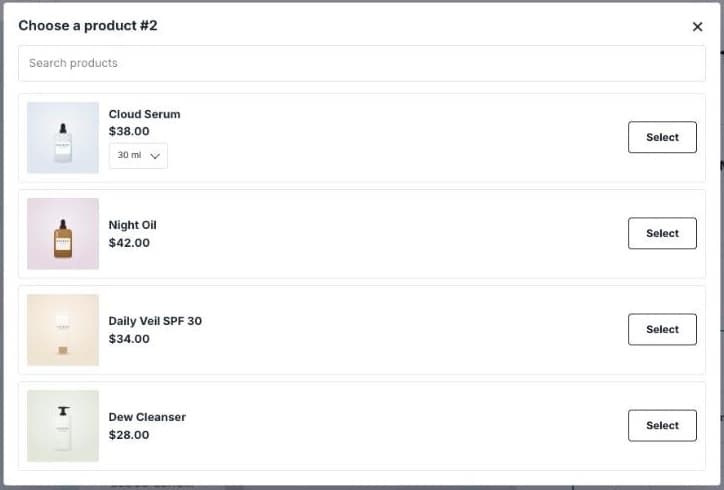
Click an empty slot. A product picker opens with the products from your collection, including their variants:
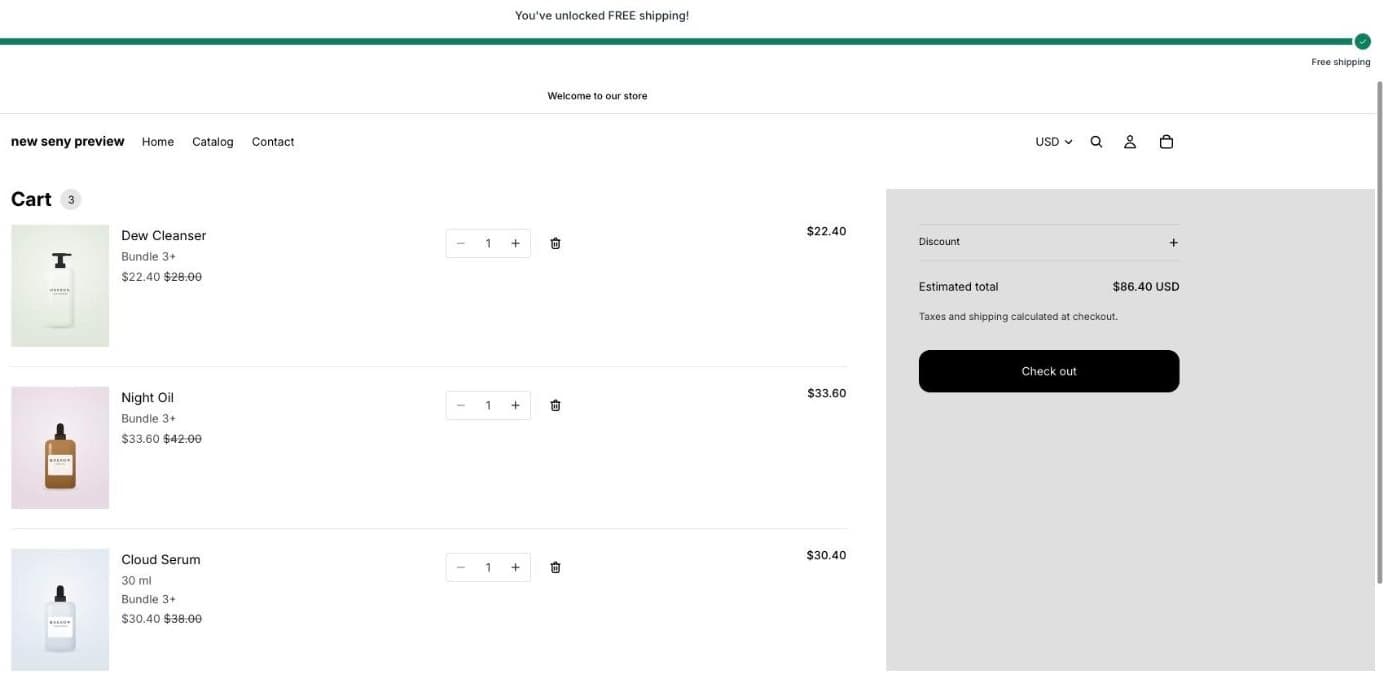
Once all three slots are filled, the offer shows the real total: $86.40 instead of $108.00, a $21.60 saving. Click Add selected bundle and open the cart. Each product is listed with its discounted price and the bundle’s name:
Common mistakes to avoid
- A collection that’s too broad. A picker with 200 products is a chore. Keep the collection to products that genuinely belong together.
- Discounts that don’t step up. If 2 items save 15%, 3 should save more. Shoppers compare the tiers.
- Showing the bundle on products that aren’t in it. Limit Placement to the same collection, or the first slot can be a product outside the range.
- Not testing the cart. Always add a complete bundle and check the cart before you announce the offer.