
 Get started
 The 30-day lowest price rule: how to run honest sales on Shopify in the EU
When you sell to people in the EU and show a crossed-out price, that price has to be the lowest one you charged in the 30 days before the sale. Here’s how the rule works, which offers it covers and doesn’t, and how to set Shopify’s compare-at price so every sale badge tells the truth.
Since 28 May 2022 every EU country applies the same rule to sales. When you announce a price reduction, you must show the prior price: the lowest price you charged for that product in the 30 days before the reduction. It comes from the Omnibus Directive, which added Article 6a to the Price Indication Directive.
The rule exists to stop one trick: raising a price for a week and then “cutting” it back to where it was. In a Shopify store, the crossed-out price is the compare-at price, so that’s the field this guide is about.
How the 30 days are counted
Take the example the Lithuanian consumer authority (VVTAT) uses. A product sold for €30. Three days before the sale, you lowered it to €27. Now you put it on sale at €25. The prior price is €27, not €30, because €27 is the lowest price in the 30 days before the sale. Showing “€30 → €25” would break the rule.
- Percentages count from the prior price too. The EU Court of Justice confirmed in 2024 (case C-330/23, Aldi Süd) that a “-20%” or “best price” claim must be calculated from the 30-day lowest price, not from a higher price you show elsewhere.
- Step-by-step sales. If you lower a price in several steps during one sale without raising it in between, you can keep the price from before the first step as the prior price. For example: €100, then €90, €80 and €70 in the same campaign, all compared with €100.
- New products. If a product has been on sale for less than 30 days, the lowest price during the time it has been on sale counts. Lithuania writes this into its Civil Code; other countries may treat it differently.
- Perishable goods such as fresh food can be excluded, depending on the country.
- Online and in-store are counted separately. If you also have a physical shop, VVTAT says to use the lowest price in the same sales channel.
What the rule covers, and what it doesn’t
The rule applies to announcements that a product’s price has gone down: a crossed-out price, a “Sale” badge, “-20%” on a product card, or a banner saying “everything 20% off”. According to the European Commission’s guidance, it doesn’t apply to:
- Conditional offers such as “buy one, get one free” or “30% off when you buy three”. The single product’s price hasn’t gone down; the shopper gets a deal for buying more.
- Comparisons with other prices, such as a competitor’s price or the manufacturer’s recommended price, as long as they don’t suggest your own price was cut.
- Genuine loyalty programmes and personal discounts, such as a voucher sent to one customer after a purchase. A “loyalty” discount that every registered customer gets isn’t one: VVTAT fined a large Lithuanian online store over exactly that in 2023.
Offers outside the 30-day rule still have to be honest. The Unfair Commercial Practices Directive bans misleading prices of any kind, so a “buy 2, save 20%” must really save 20% on the price the shopper pays today.
How sale prices work in Shopify
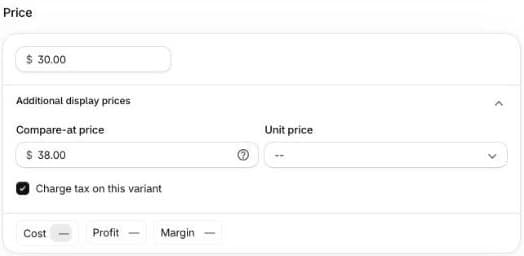
Shopify shows a sale with two numbers on each variant: the Price the shopper pays and the Compare-at price. When the compare-at price is higher, your theme crosses it out and usually adds a “Sale” badge. Shopify doesn’t check where that number came from. If it’s higher than your 30-day lowest price, every place that shows it repeats the mistake.
Setting up an honest sale, step by step
- Keep a record of your prices. Shopify’s admin doesn’t show a price history. Before each sale, export your products under Products, Export and keep the CSV with the date. It lists every variant’s price and compare-at price, which is your proof of the 30-day lowest price.
- Find the lowest price of the last 30 days for each product you’re putting on sale. Include short price drops and earlier sales.
- Open the variant and, in the Price card, open Additional display prices. Enter the 30-day lowest price as the Compare-at price and the sale price as the Price. For many products at once, use Bulk edit on the product list.
- Check percentages and banners. A “-20%” label or a “20% off” banner must be calculated from the same prior price.
- Remove the compare-at price when the sale ends. A product that shows “Sale” all year is the kind of “permanent discount” authorities look for.
Some stores also add a short line under the price, such as “Lowest price in the 30 days before the sale: €38”, so shoppers know what the crossed-out price means. Shopify themes don’t add it by default, but you can show it from a product metafield with a theme block.
Discount codes and automatic discounts
Shopify’s discounts take a percentage or an amount off the price the shopper sees today. That keeps them honest as long as today’s price is your normal one. The 30-day rule matters as soon as you advertise the reduction, for example with a banner saying “20% off everything”: the 20% must be counted from prices you actually charged in the last 30 days.
How Seny’s offer apps fit in
Quantity offers, BOGO deals and bundles are conditional offers: the shopper saves by buying more. The “Save 20%” on a Bundle & Save or Buy One Get One card is the offer’s own discount on today’s price, the same amount the Shopify discount takes off at checkout. It never counts from your compare-at price.
The cards do show your compare-at price crossed out, the same way your theme does, so a product page doesn’t look full price while the theme shows it on sale. That makes the step-by-step list above the one place to fix: set the compare-at price correctly and every widget follows.
Countdown timers belong to the same family of rules. A deadline on a sale must be real: a timer that restarts for every visitor or quietly extends the sale is a banned practice under EU consumer law. See how to add an honest countdown timer.
Common mistakes
- Crossing out the original price after a short price drop instead of the lowest price of the last 30 days.
- Compare-at prices copied from a supplier or an old price list that you never actually charged.
- Sales that never end. The compare-at price stays after the sale and the badge with it.
- Percentages counted from a different number than the crossed-out price.
- A “members only” price that every registered shopper gets, presented as a loyalty discount.