
 Get started
 How to add a countdown timer to Shopify (without fake urgency)
A countdown timer works because a deadline is real. Fake ones that restart for every visitor are banned in the EU and quickly noticed by shoppers. Here’s how to add a timer for a real sale or a real cut-off, and which settings to avoid.
A countdown timer is one of the oldest tricks in e-commerce, and it still works for a simple reason: people act when there’s a real deadline. A sale that ends on Sunday, an order cut-off for same-day dispatch, the last day to order for Christmas delivery.
The trouble starts when the deadline isn’t real. Timers that restart for every new visitor are easy to spot, they cost trust, and in the EU they are illegal. This guide shows how to set one up honestly.
When a countdown timer is honest
- A real sale with an end date, where the price really goes back up when the timer hits zero.
- A real order cut-off, such as “Order within 3 hours for dispatch today”, if you really dispatch the same day.
- A real event, such as a product launch or the last order day for holiday delivery.
And when it isn’t: a timer that starts again for every visitor, restarts when it reaches zero, or counts down to a “sale” that never ends.
What the law says
In the EU, the Unfair Commercial Practices Directive bans falsely stating that a product or a price is available only for a very limited time to push shoppers into a quick decision. It’s on the list of practices that are always unfair, so there’s no “it depends”. If the timer also advertises a price reduction, EU stores must show the lowest price of the previous 30 days next to the reduced price.
Step 1: Open the Countdown Timer in Seny
In Seny, open Apps library and choose Countdown Timer under “Turn more visits into sales”. It opens as a bar at the top of every page, with a preview of your own store.
Step 2: Pick the right timer type
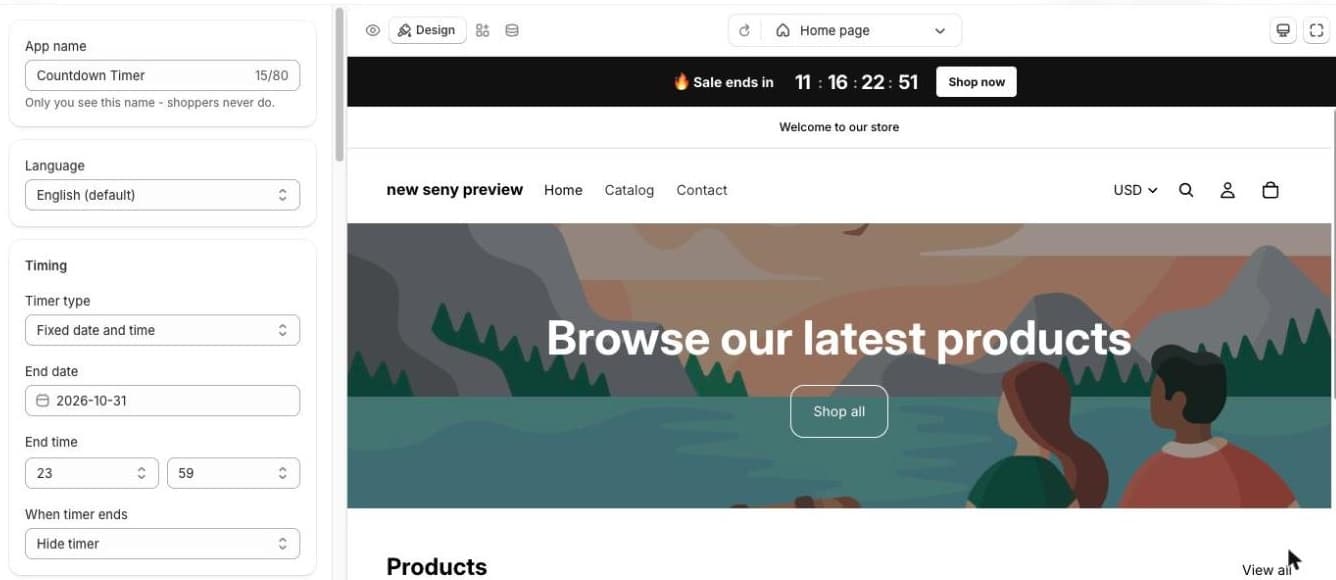
Under Timing, the Timer type has three options:
- Fixed date and time: counts down to one moment, such as the end of your sale. This is the one to use for sales.
- Daily at a set time: counts down to the same time every day, such as a dispatch cut-off.
- Per visitor: starts a fresh timer for each visitor. Use it only for an offer that really is personal and really expires, such as a welcome code valid for 24 hours.
For our demo we chose Fixed date and time, with the end date 31 October at 23:59.
Step 3: Decide what happens at zero
When timer ends has three options. Choose Hide timer for a sale, so no “00:00:00” is left on the page. Show zeros can fit a launch page. Avoid Restart automatically for a sale: a deadline that starts again isn’t a deadline.
Step 4: Choose where it appears
Under Placement, keep the sticky top bar for a store-wide sale, or show the timer only on the products that are really on sale with Select products. A timer next to the Add to cart button on a product that isn’t discounted only confuses shoppers.
Step 5: Match it to the discount and publish
- Create the discount itself in Shopify (or in a Seny offer app), with the same end date and time as the timer.
- Change the text and colours in the Design panel so the bar looks like your store.
- Click Publish, then check the bar on your store, on a phone and on a computer.
- After the sale, check that both the timer and the discount have ended.
Common mistakes
- A per-visitor timer on a sale everyone gets anyway. Shoppers notice when the timer resets in a new browser.
- Restarting at zero. The clearest sign of a fake deadline.
- A timer without a real discount behind it. If nothing changes at zero, don’t count down to it.
- The timer and the discount ending at different times. Shoppers who see time left must still get the price.
- A timer on every page for a sale on a few products. Show it where the offer applies.