
 Get started
How to translate a Shopify store into Lithuanian (and Latvian or Estonian)
Selling in the Baltics usually means more than one language. Shopify translates part of your store for you in Lithuanian, but not in Latvian or Estonian. Here’s how to add a language, what you have to translate yourself, and how to check that apps follow along.
Shoppers buy more easily in their own language, and in the Baltics that often means two or three languages in one store: Lithuanian and English, or Lithuanian, Latvian and Russian. Shopify can sell in up to 20 languages on its regular plans (30 on Plus), and each published language gets its own web addresses, such as yourstore.com/lt.
Adding a language takes a minute. Translating it well takes longer, and how much work it is depends on the language. This guide walks through both.
What Shopify translates for you
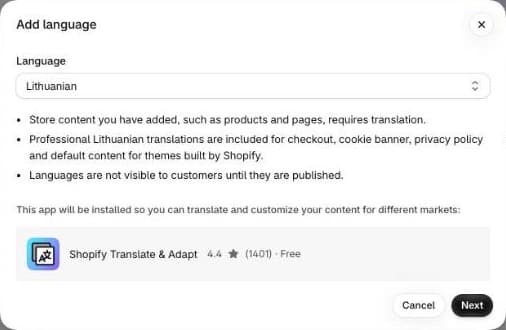
Shopify ships professional translations for the checkout, cookie banner, privacy policy and the default text of Shopify-made themes (“Add to cart”, “Your cart is empty” and so on) in 33 languages. Lithuanian is one of them. Russian, Polish and Finnish are too.
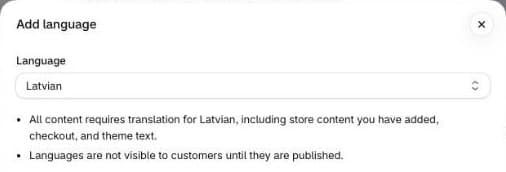
Latvian and Estonian are not. When you add either one, Shopify says plainly that everything needs translating, including the checkout and the theme’s own text. A Latvian shopper who reaches an untranslated checkout sees your default language at the most sensitive step.
Step 1: add the language
- In your Shopify admin, go to Settings, Languages and click Add language.
- Pick the language and click Next. Shopify installs its free Translate & Adapt app at the same time, if you don’t have it yet.
- Choose the domains (and so the markets) that should offer the language, and click Done.
The language is now added but unpublished: shoppers can’t see it yet. Use that time to translate.
Step 2: translate your own content
Products, collections, pages, menus, blog posts and any text you typed into the theme editor are yours to translate. You have three ways to do it:
- Translate & Adapt, automatically. The app can machine-translate your store into up to two languages for free. Use it for a first draft, then read every product page yourself.
- Translate & Adapt, by hand. A side-by-side editor shows the original next to your translation. Manual translation has no such language limit, so it’s the way to add a third language for free.
- CSV files. Under Settings, Languages you can export your store’s text, fill in the translations in a spreadsheet and import it back. It’s handy for a translator who doesn’t use Shopify.
Step 3: checkout and emails
For Lithuanian, the checkout is already done. For Latvian or Estonian, open the checkout in Translate & Adapt and translate it, or import the translations from a CSV file. Either way, place a test order in each language before you publish.
Order confirmation and shipping emails are sent in the language the customer ordered in, when a translation exists. To check or edit them, go to Settings, Notifications, open a notification and click Localize.
Step 4: publish and let shoppers switch
- In Settings, Languages, open the menu next to the language and click Publish.
- In the theme editor, turn on the language selector. Most Shopify themes have it in the header or footer settings.
- Open your store in the new language on your phone and click through a product, the cart and the checkout.
If a text has no translation, Shopify shows it in your default language, so a half-translated store mixes languages rather than breaking. Look out for those mixed pages during the test.
Don’t forget your apps
Apps add their own text to your store: banners, popups, reviews, bundle offers. Shopify’s translations don’t cover it, and some apps don’t support more than one language at all. An English “Free shipping over €50” bar on a Lithuanian page undoes a lot of careful translation, so check every app in each language before you publish.
Seny’s apps follow the language the store is showing. In a store whose main language is Lithuanian, a ready-made app opens with Lithuanian text that we wrote and reviewed. For every other store language, pick it in the Language list at the top of the design panel and click Translate N missing: the missing texts are translated with AI for you to check and save.
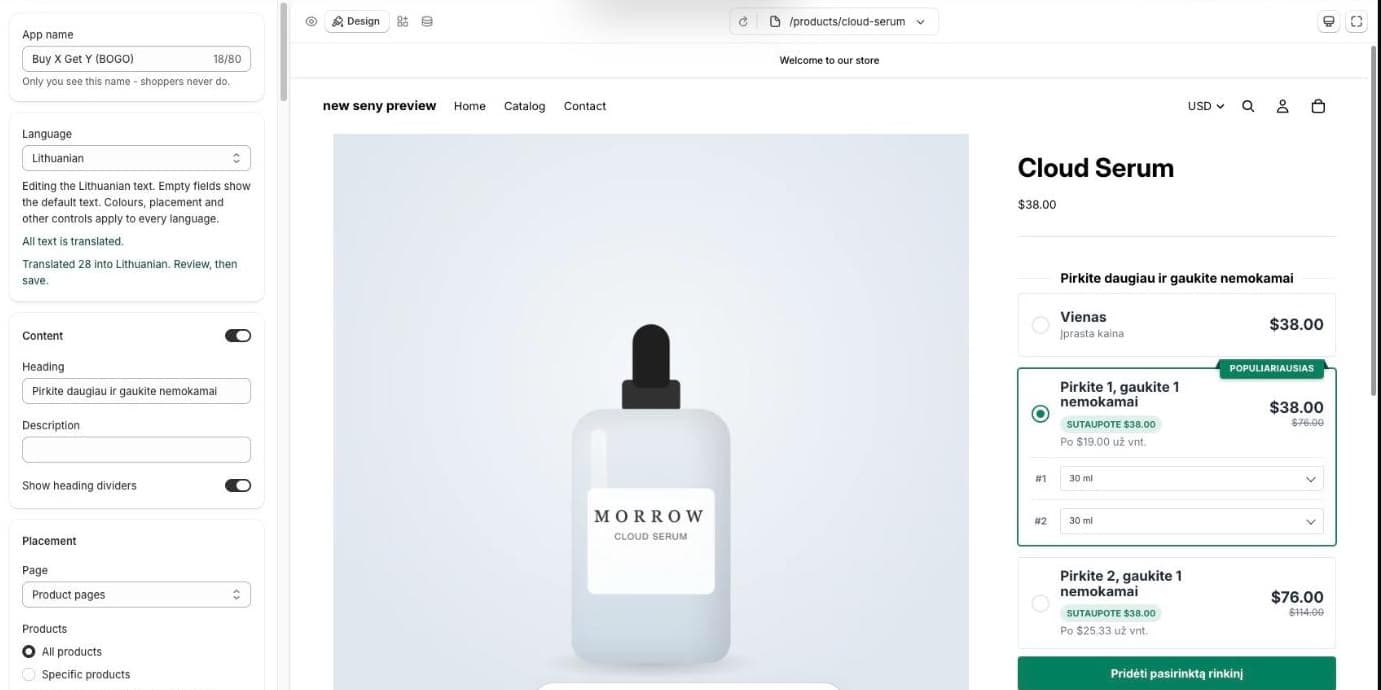
- Shoppers see their language automatically. The app shows the language the storefront is currently in. There’s nothing to set up per page.
- Only text is translated. Colours, placement and products apply to every language.
- Nothing goes blank. A field you haven’t translated shows the main language text.
Common mistakes
- Publishing before translating. Shoppers get a store that switches languages halfway down the page.
- An untranslated Latvian or Estonian checkout, because Shopify translated Lithuanian and you assumed the rest worked the same way.
- Machine translation nobody read. Product names and sizes are where it goes wrong most often.
- Apps left in English. Banners, popups and offers stay in one language unless the app supports more.
- No language selector. The language exists, but shoppers can’t find it.