
 Get started
 How to set up Shopify quantity discounts: buy 2, buy 3, save more
Quantity discounts reward shoppers for buying more of the same product. Here’s how to set up “buy 2, save 15%, buy 3, save 20%” on a real Shopify store, show the tiers on the product page, and see exactly how the discount behaves in the cart.
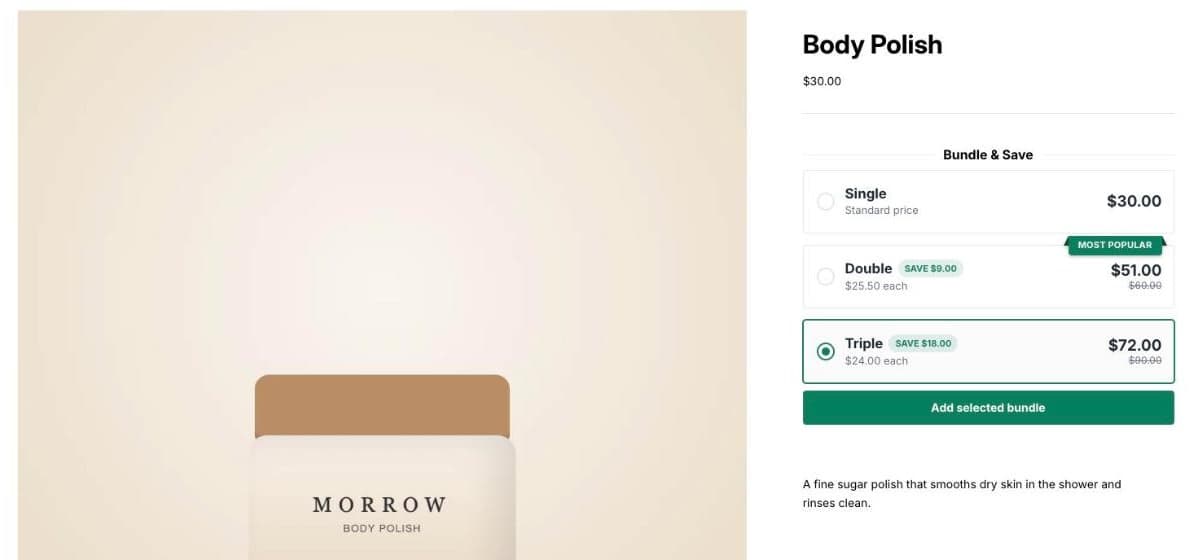
Some products are bought again and again: a body scrub, a candle refill, a coffee blend. For those, a quantity discount is the simplest way to grow the order. The shopper already wants the product, and a clear “buy 3, save 20%” turns one into three.
This guide sets up three tiers on a real Shopify store with Seny’s Bundle & Save Quantity Offers, then checks what happens in the cart when the shopper changes the quantity. No theme code. Every screenshot comes from a real test store.
What Shopify gives you on its own
Shopify can create an automatic Amount off products discount with a minimum quantity, for example 20% off when a shopper buys 3. Two things are missing:
- One tier per discount. “2 for 15%, 3 for 20%” means several discounts, and you have to check how they combine.
- Nothing on the product page. The discount only appears in the cart, so most shoppers never know the offer exists.
Volume pricing with quantity price breaks exists for B2B on Shopify Plus, but not for regular shoppers. A quantity offer app fills both gaps: the tiers are shown where the shopper decides, and the right discount is applied automatically.
Step 1: Open Bundle & Save Quantity Offers in Seny
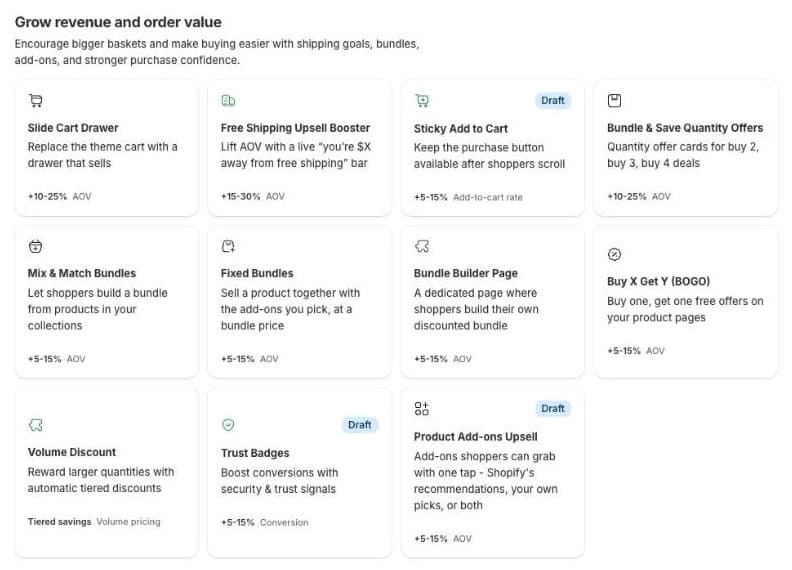
In Seny, go to Apps library and open Bundle & Save Quantity Offers from “Grow revenue and order value”.
Step 2: Choose which products get the offer
In Placement, keep Page on Product pages and choose which products show the tiers. In our test store we picked All products in specific collections and the “Body & Home” collection, because those are the products people restock. Use the page picker at the top of the preview to open one of those products.
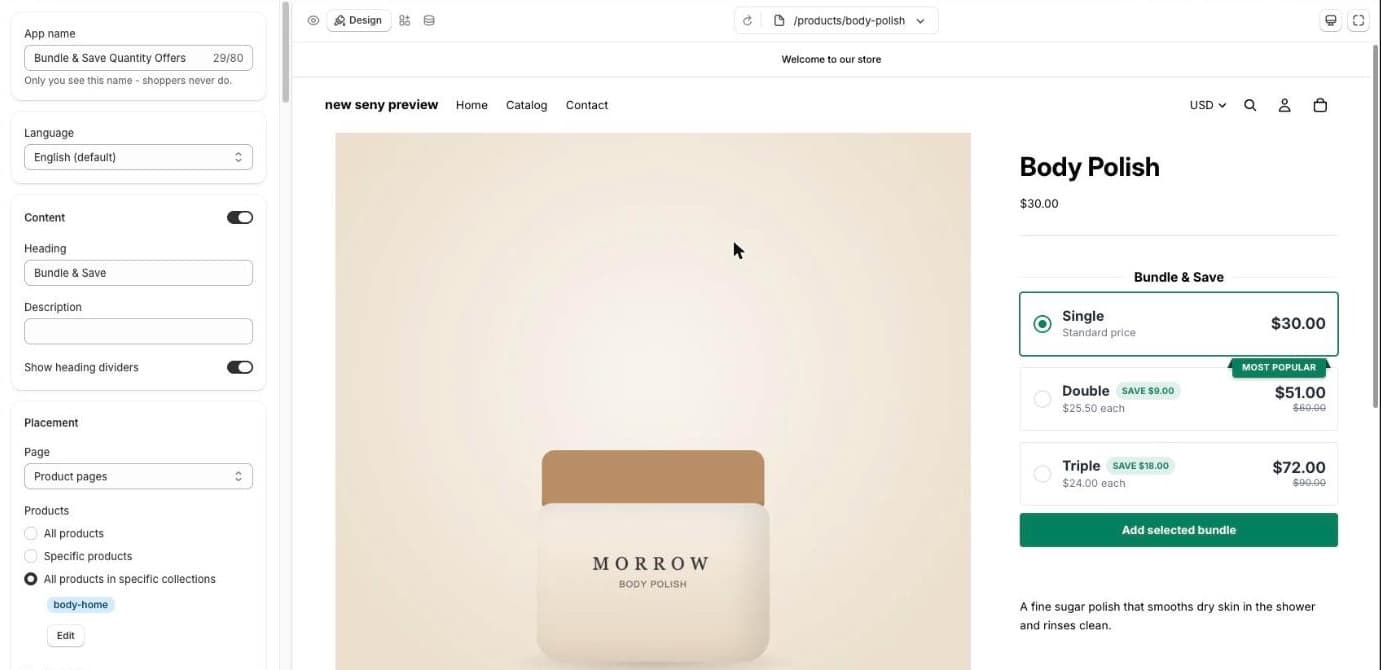
On these pages the offer takes over your theme’s Add to cart, Buy it now, quantity and options, so shoppers have one clear way to buy. Each one has its own switch under Replace theme buttons if you want to keep it.
Step 3: Set the quantities and discounts
Scroll to the offers. Each tier is a card with a Quantity, a Discount type (a percentage or a fixed amount) and the discount itself, plus a Title and Subtitle. The defaults match the classic set-up: Single at full price, Double at 15% off and Triple at 20% off.
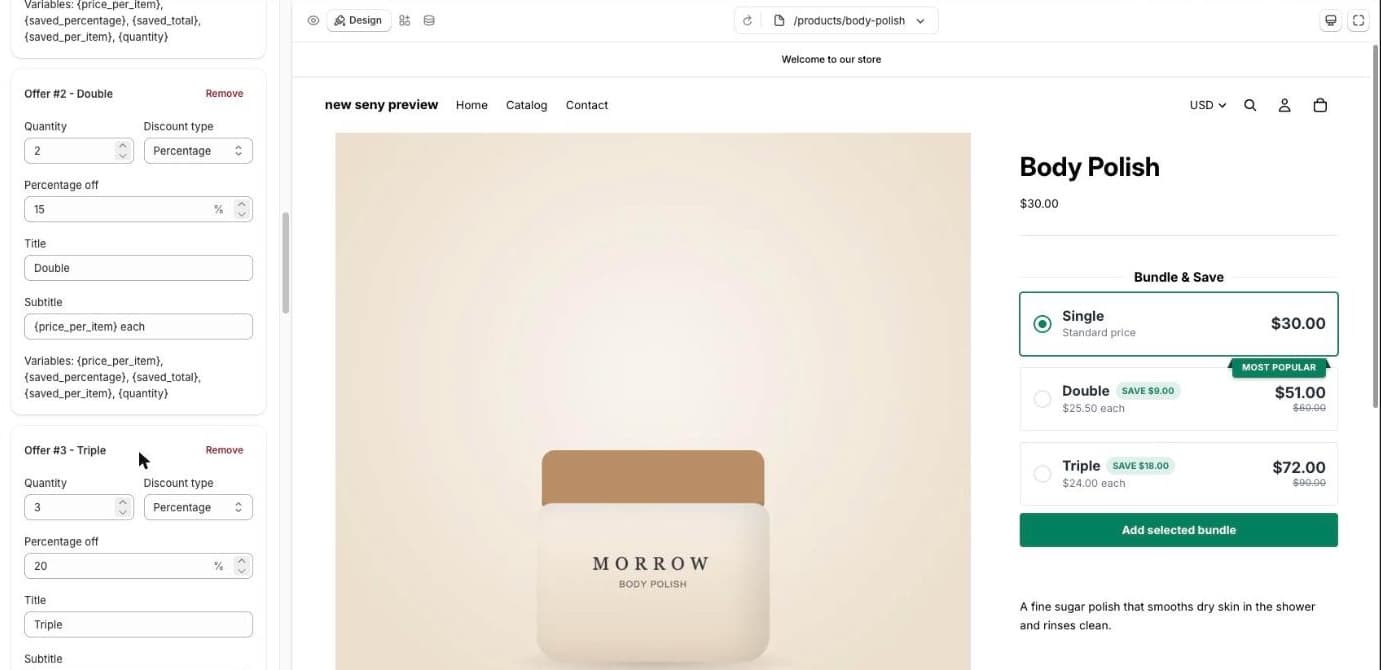
Subtitles can use variables. {price_per_item} shows the price per unit, like “$24.00 each”, which is often more convincing than the total. {saved_total} and {saved_percentage} show the saving.
Step 4: Publish
Click Publish. The tiers appear on your product pages, and Seny creates an automatic product discount in Shopify (listed under Discounts) that applies the tier in the cart and at checkout. Shoppers don’t need a code.
Step 5: Test it in the cart
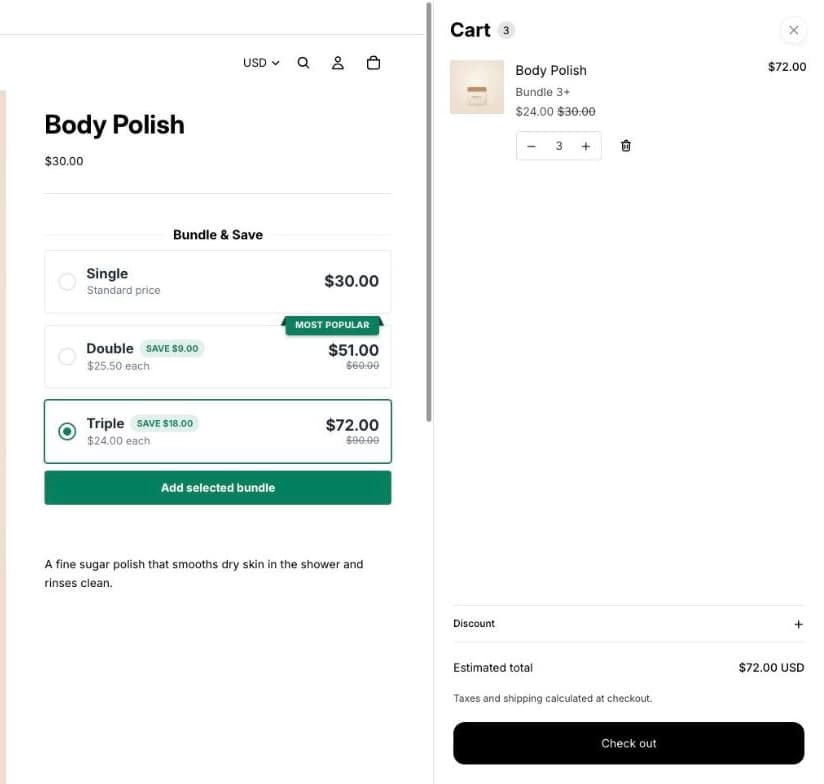
Open one of the products in a private window, choose Triple and add it. The cart shows three units at $24.00 instead of $30.00, labelled “Bundle 3+”, for $72.00:
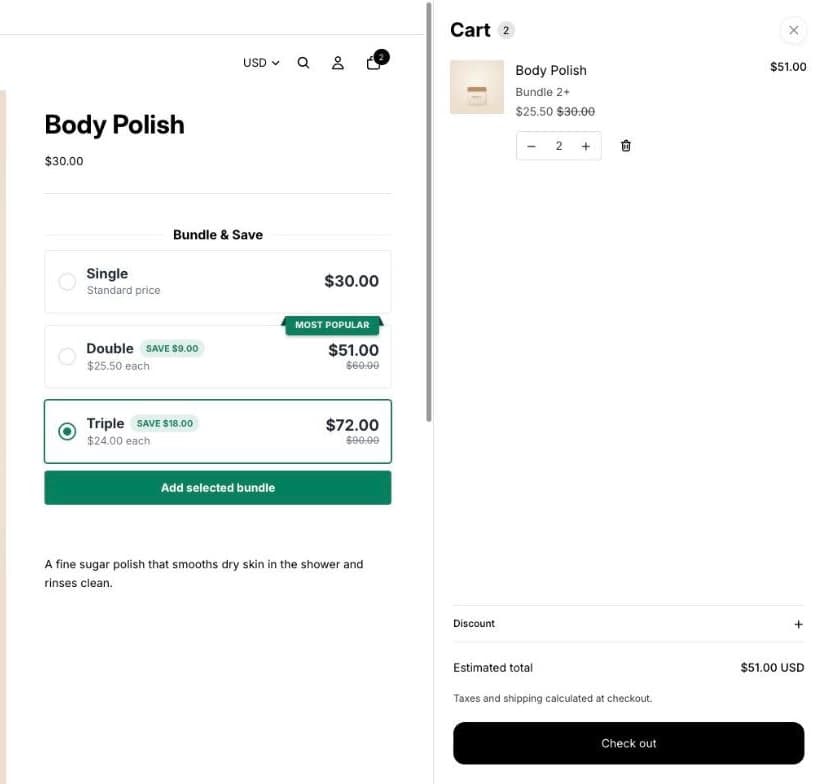
Now lower the quantity to 2 in the cart. The discount follows the quantity: the line becomes “Bundle 2+” at $25.50 each, $51.00 in total. Lower it to 1 and the product goes back to full price.
If a product has variants, shoppers can mix them in one bundle, for example two scents, and the tier still counts the combined quantity.
Quantity offers or a volume discount table?
Bundle & Save shows the tiers as cards on the product page and is best when you want the shopper to choose a pack size. If you’d rather apply tiered pricing quietly across many products, collections or tags, with a simple table, Seny’s Volume Discount does that instead. Use one or the other on the same products, not both.
Common mistakes to avoid
- Offering it on everything. Quantity offers fit products people restock or gift in multiples. On a $300 jacket they’re just noise.
- Tiers that don’t step up. Shoppers compare the cards. If three units don’t save noticeably more than two, they stop at one.
- Not checking the cart. Always add each tier and change the quantity in the cart before you announce the offer.