
 Get started
 How to create Buy One, Get One offers on Shopify
“Buy one, get one free” is one of the easiest offers for shoppers to understand. Here’s how to show BOGO offers on your product pages, add the free item to the cart in one click, and check that Shopify actually charges $0 for it.
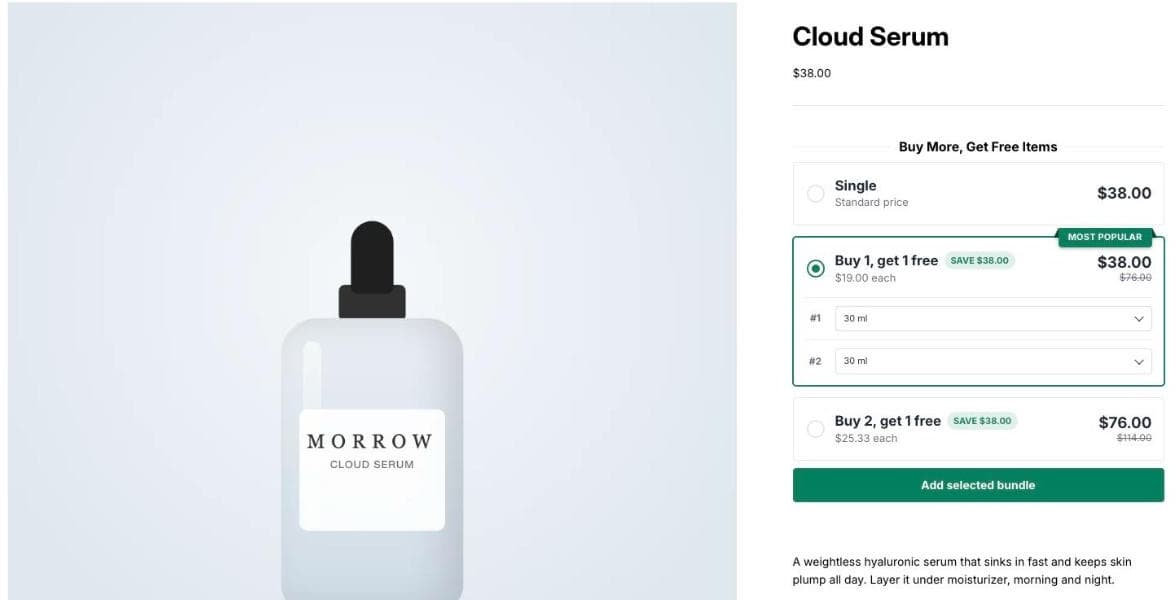
A BOGO offer (buy one, get one free) needs no maths from the shopper. It works well for products people use up and buy again, like skincare, coffee, candles or socks, where a second unit is genuinely useful.
This guide sets up Buy 1 Get 1 Free and Buy 2 Get 1 Free on a real Shopify store, with no theme code, and checks the result in the cart. Every screenshot comes from a real test store.
What Shopify does on its own
Shopify has a built-in Buy X get Y automatic discount (Discounts → Create discount). It works, but the discount only applies once the shopper has put both items in the cart themselves. Nothing on the product page tells them about the offer, and the free item isn’t added for them.
So shoppers who never notice the offer pay full price for one item and leave. The fix is to show the offer where they decide, on the product page, and add the paid and free items together.
Step 1: Open Buy X Get Y (BOGO) in Seny
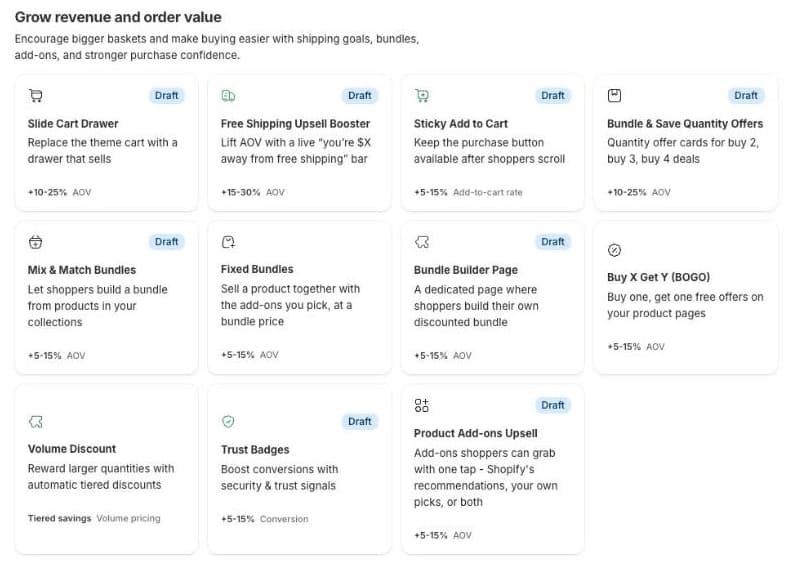
In Seny, go to Apps library and open Buy X Get Y (BOGO). It opens with three offers already set: Single, Buy 1, get 1 free and Buy 2, get 1 free, previewed on one of your products.
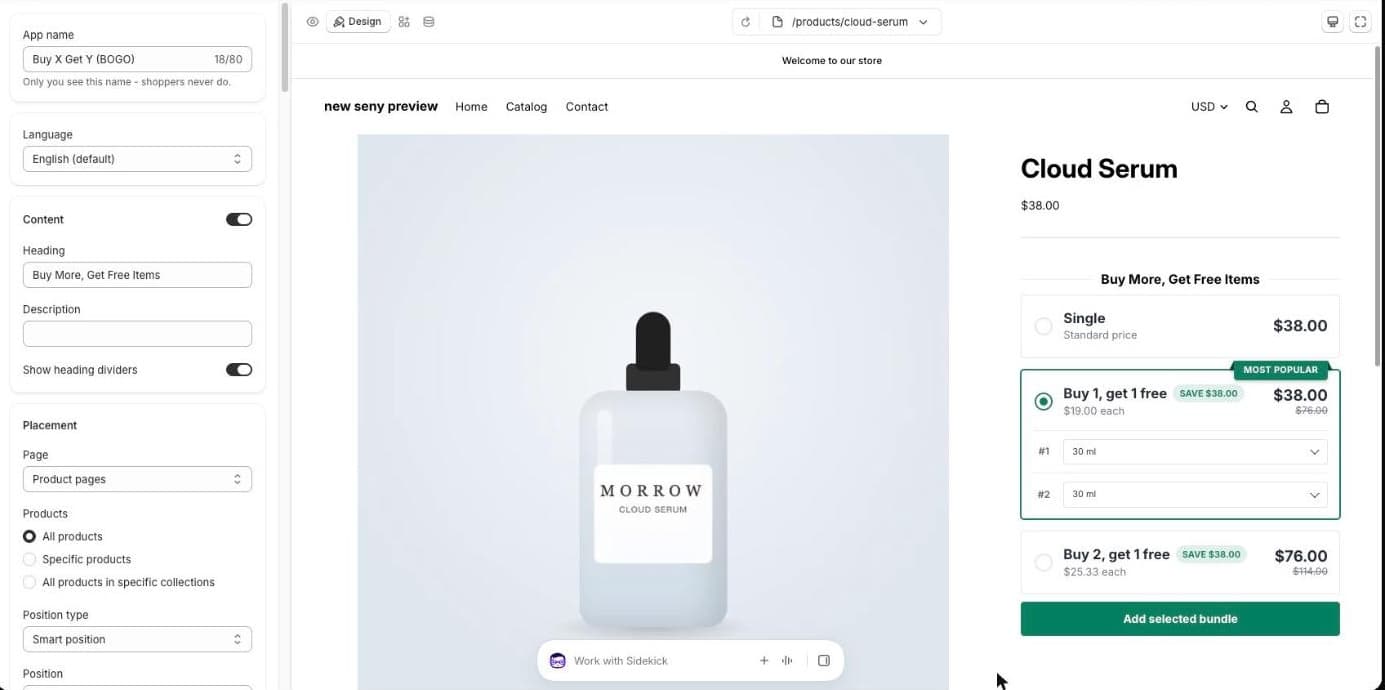
Under Placement, choose which products get the offer: All products, Specific products or All products in specific collections. We kept all products.
Step 2: Set the offers
Scroll to Offers. Each Buy X Get Y offer has a Discount type of Buy X, get Y free, then Customer buys and Customer gets free. Buy 1, get 1 free is 1 and 1. Buy 2, get 1 free is 2 and 1. The title and subtitle are yours to write, and the subtitle can use variables like {price_per_item}.
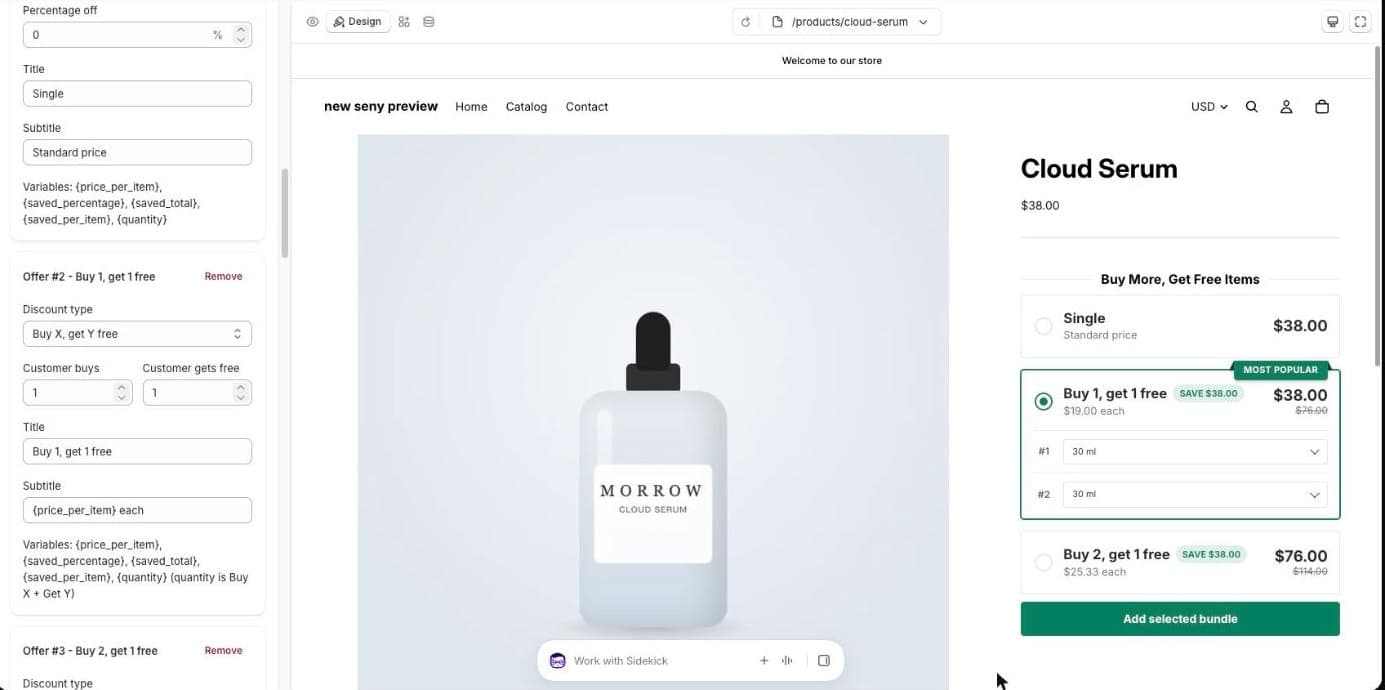
Keep the Single offer. The app hides your theme’s own Add to cart button by default (you can turn that off under Replace theme buttons), so the single row is how a shopper buys just one.
Default selected offer sets which card is ticked when the page opens. The default is the 2nd offer, Buy 1, get 1 free, so shoppers see the deal first.
Step 3: Publish and test it as a shopper
Click Publish. Publishing also creates the automatic discount in Shopify that makes the free item $0. Before you publish, the cards are only a preview and nothing is discounted.
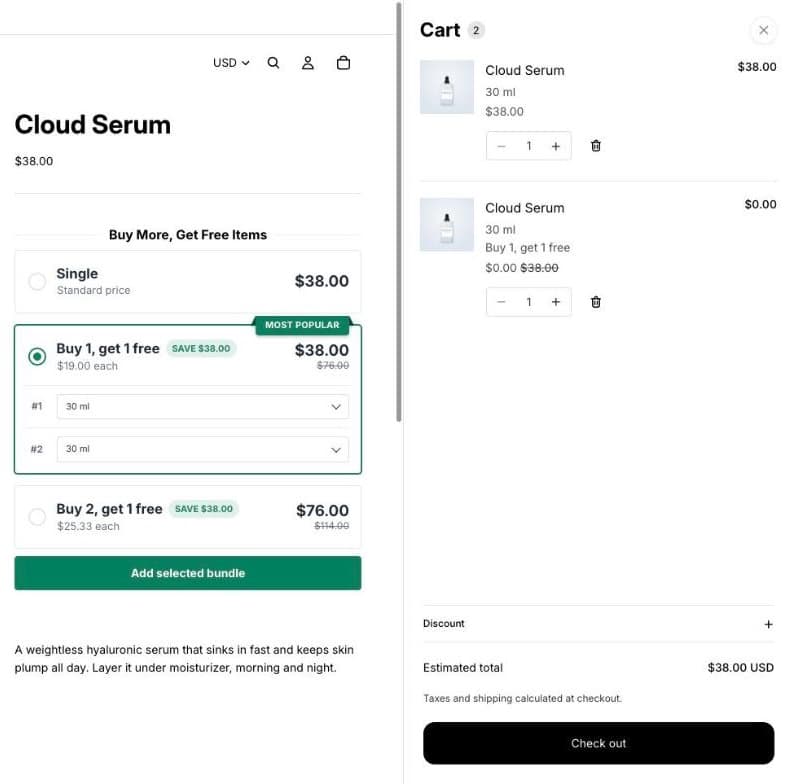
Open a product in a private window, pick Buy 1, get 1 free and click Add selected bundle. Both units go into the cart in one click, and the second one is free:
Which item is free when sizes differ?
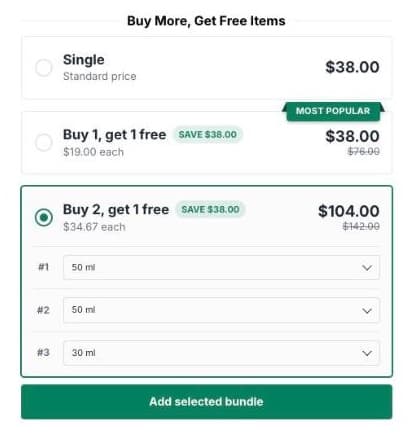
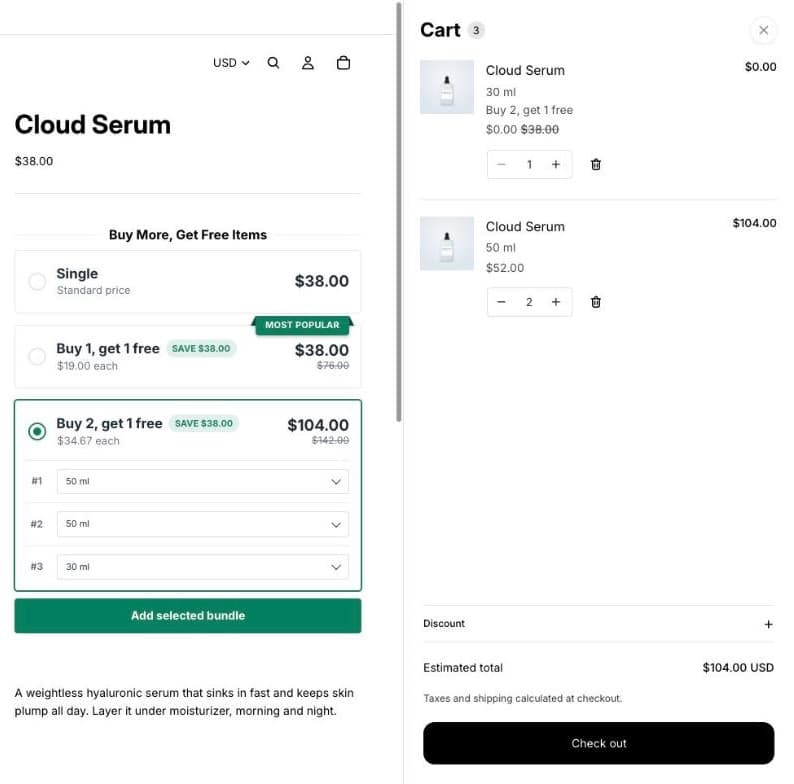
Shoppers can choose a size or colour for each item. When they mix them, the cheapest item is the free one. On our test store, the 50 ml serum costs $52 and the 30 ml costs $38. Picking two 50 ml and one 30 ml on Buy 2, get 1 free shows $104.00 instead of $142.00:
The cart charges exactly that: the 30 ml is $0.00 and the total is $104.00.
Common mistakes to avoid
- Testing before publishing. The discount is created when you publish. A draft shows the cards but charges full price.
- Removing the Single offer. With the theme’s Add to cart hidden, shoppers who want one item have no other way to buy it.
- BOGO on everything. On expensive or rarely re-bought products, a free second unit costs a lot and adds little. Start with products people use up.
- Clashing offers. One product page should show one offer. If you also run quantity discounts, point each app at different products.