
 Get started
 How to add a WhatsApp chat button to your Shopify store
A shopper with one question about size or delivery often leaves rather than write an email. A WhatsApp button lets them ask in the app they already use. Here’s how to build the right link, add the button to Shopify and keep it from getting in the way.
Many shoppers have one last question before they buy: will it fit, when will it arrive, does it work with what they already have? If the only way to ask is a contact form, most of them won’t. They leave and maybe come back, maybe not.
A WhatsApp button lets them ask in an app they already have open all day. This guide shows how to add one to Shopify with Seny, along with buttons for Instagram, email or anything else you want shoppers to reach.
Before you start: will someone answer?
A chat button sets an expectation. A message that waits a day for a reply feels worse than an email that waits a day. Add the button if someone can usually answer within a few hours during your working day. The free WhatsApp Business app helps: it can send an automatic away message outside your hours and keeps your shop chats apart from personal ones.
Step 1: Build your WhatsApp link
WhatsApp chats open from a link in the form https://wa.me/ followed by your number. The number has to be in full international format, written as digits only:
- start with the country code (1 for the US, 44 for the UK, 370 for Lithuania),
- leave out the plus sign, any leading zeros, spaces, brackets and dashes.
So the UK number +44 7700 900123 becomes https://wa.me/447700900123. Open the link on your own phone before you use it: it should open a chat with your shop’s number.
Step 2: Open Social Media Buttons in Seny
In Seny, open Apps library and choose Social Media Buttons under “Build loyalty and shopper confidence”. It opens with three example buttons, Instagram, Facebook and WhatsApp, pointing at example addresses. Replace each one with your own, or remove the ones you don’t need with the cross next to it.
Step 3: Add your links
Each button has an icon, a Link, email, or phone field, an optional label and its own colours. Paste your wa.me link into the WhatsApp button’s link field. The same field understands other kinds of contact too:
- A profile or page address, such as your Instagram or TikTok profile, opens that page.
- An email address opens the shopper’s email app with your address filled in.
- A phone number opens a phone call. On a WhatsApp button, use the wa.me link instead, so the shopper gets a chat rather than a call.
Under Button style you choose between Separate buttons, each with its own colour and label, and One grouped panel, where the icons share one background and labels are hidden. The grouped panel takes less room on small screens.
Step 4: Choose where the buttons sit
In the Placement settings, Page decides where the buttons appear: every page, or only product pages, the homepage, collections, the cart and so on. Position picks the corner, or the middle of the left or right edge. Stack direction sets whether several buttons line up side by side or on top of each other.
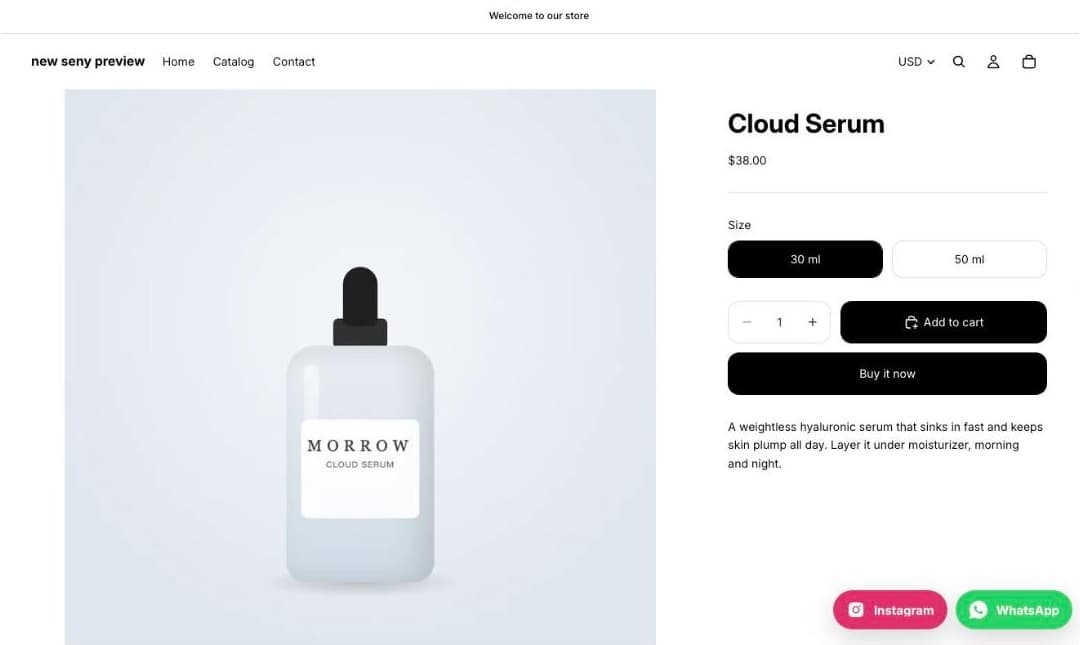
Step 5: Publish and test on your phone
Click Publish, then open your store on a phone. Tap the WhatsApp button: it should open the WhatsApp app with a chat to your shop. On a computer, the same link opens WhatsApp Web or the desktop app. Check that the buttons don’t cover your Add to cart button, a sticky buy bar or the cookie banner.
No WhatsApp code on your pages
Each button is a plain link with its icon drawn into the page. No WhatsApp or Meta script loads on your store, so the button doesn’t slow your pages down and sets no cookies. Nothing is shared with WhatsApp until the shopper taps the button and chooses to write to you.
Common mistakes
- The number in local format. A wa.me link without the country code, or with a leading zero, opens the wrong chat or none at all.
- Example links left in place. The starting buttons point at example profiles. Replace every one before you publish.
- Too many buttons. Two or three channels you actually answer beat seven icons. Each extra button makes the choice slower.
- Buttons on top of other buttons. On a phone, a corner can already hold your theme’s chat, a cookie banner or a sticky bar. Pick a free corner.
- A personal number. Use a separate business number so shop messages don’t get lost among private ones.