
 Get started
 How to add a free gift with purchase on Shopify (added to the cart automatically)
“Spend $80, get a free gift” is easy to set up in Shopify, with one catch: shoppers have to find the gift and add it to the cart themselves. Here’s how to set up the discount, add the gift automatically and show shoppers how close they are.
A free gift with purchase is a simple offer: spend a set amount and get a small product free. It works well when the gift is something people like but wouldn’t buy on its own, such as a sample, a travel size or an accessory.
Shopify can give the discount on its own. What it can’t do is put the gift in the cart. This guide covers both parts: the discount in Shopify, and the bar that shows the goal and adds the gift for the shopper.
What Shopify does on its own
In Shopify admin, a Buy X get Y discount can be “spend $80, get this product free”. It’s automatic, so no code is needed. But on the discount page Shopify says it plainly under Customer gets: customers must add the gift to their cart themselves.
In practice that means most shoppers never get the gift. They don’t know the offer exists, or they reach $80 and check out without looking for the gift product. Some then contact you asking where their gift is.
So you need two things on top of the discount: a message that shows the goal while the shopper is browsing, and something that adds the gift to the cart the moment the cart qualifies.
Before you start: choose the gift and the amount
- Pick a gift with a real value but a low cost to you, such as a sample, a travel size or a small accessory. It should feel like a reward, not a clearance item.
- Set the amount above your average order. Check average order value under Analytics and set the gift goal above it, so it encourages a bigger order instead of rewarding orders you would get anyway.
- Combine it with free shipping. Two goals work well together: free shipping first, the gift a step higher. In this guide shipping is free from $50 and the gift comes at $80.
- Make sure the gift is in stock, or allow it to sell when out of stock. A gift that can’t be added can’t be given.
Step 1: Create the free gift discount in Shopify
- In Shopify admin, go to Discounts → Create discount and choose Buy X get Y.
- Under Method, choose Automatic discount and give it a title shoppers will understand, such as “Free Mask Brush”. The title appears in the cart and at checkout.
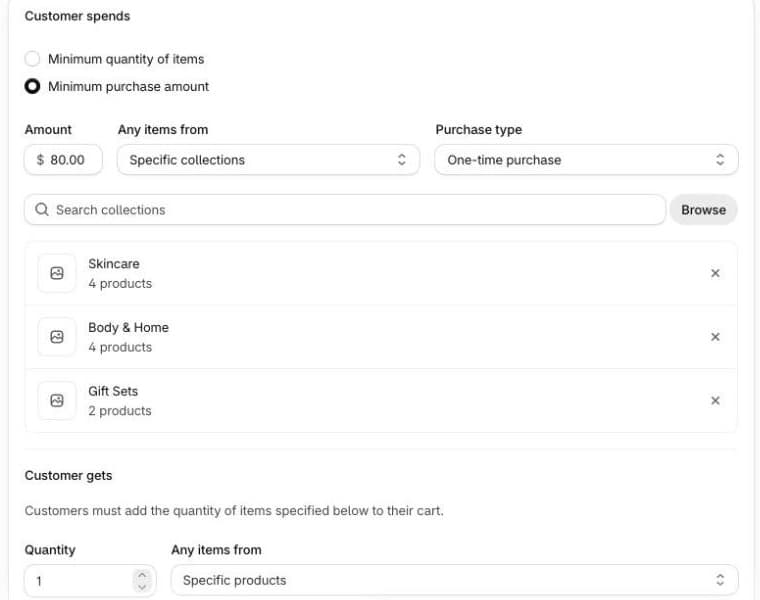
- Under Customer spends, choose Minimum purchase amount, enter the amount (80) and select the collections that count towards it. Pick collections that cover everything you sell, so every product counts.
- Under Customer gets, set quantity 1, pick the gift product and choose Free.
- Tick Set a maximum number of uses per order and enter 1, so one order gets one gift.
- Under Combinations, allow Shipping discounts. Otherwise shoppers would have to choose between the gift and free shipping.
- Save. The discount is active from today unless you set dates.
Step 2: Turn on the free gift step in Seny
In Seny, open Apps library and choose Free Shipping Upsell Booster. Open the Free Shipping section:
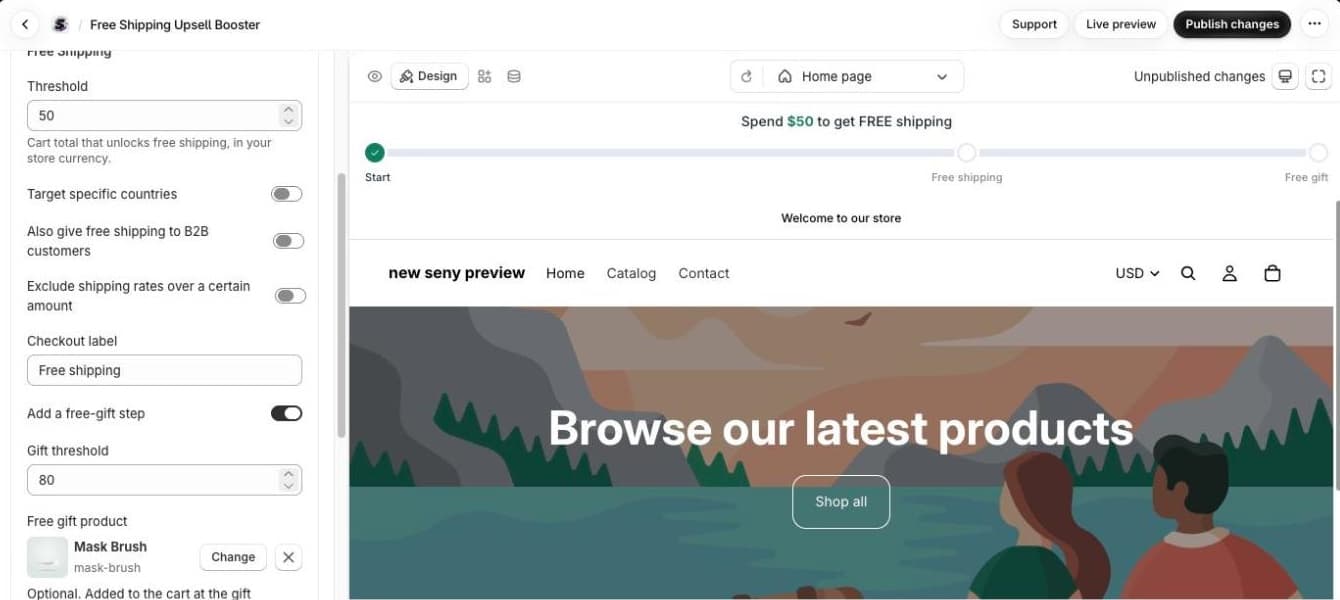
- Set Threshold, the free shipping amount (50 in this example).
- Switch on Add a free-gift step.
- Set Free gift threshold to the same amount as your Shopify discount (80).
- Under Free gift product, click Choose product and pick the same gift as in the discount.
- Open Messages if you want to change the wording. The defaults are “You unlocked FREE shipping! Spend {amount} more for a FREE gift” and “You unlocked FREE shipping and a FREE gift!”.
Step 3: Publish and test it as a shopper
Click Publish. Then open your store in a private window and test the whole path:
- Add products worth less than the gift amount. The bar shows how much is left: “You unlocked FREE shipping! Spend $28 more for a FREE gift”.
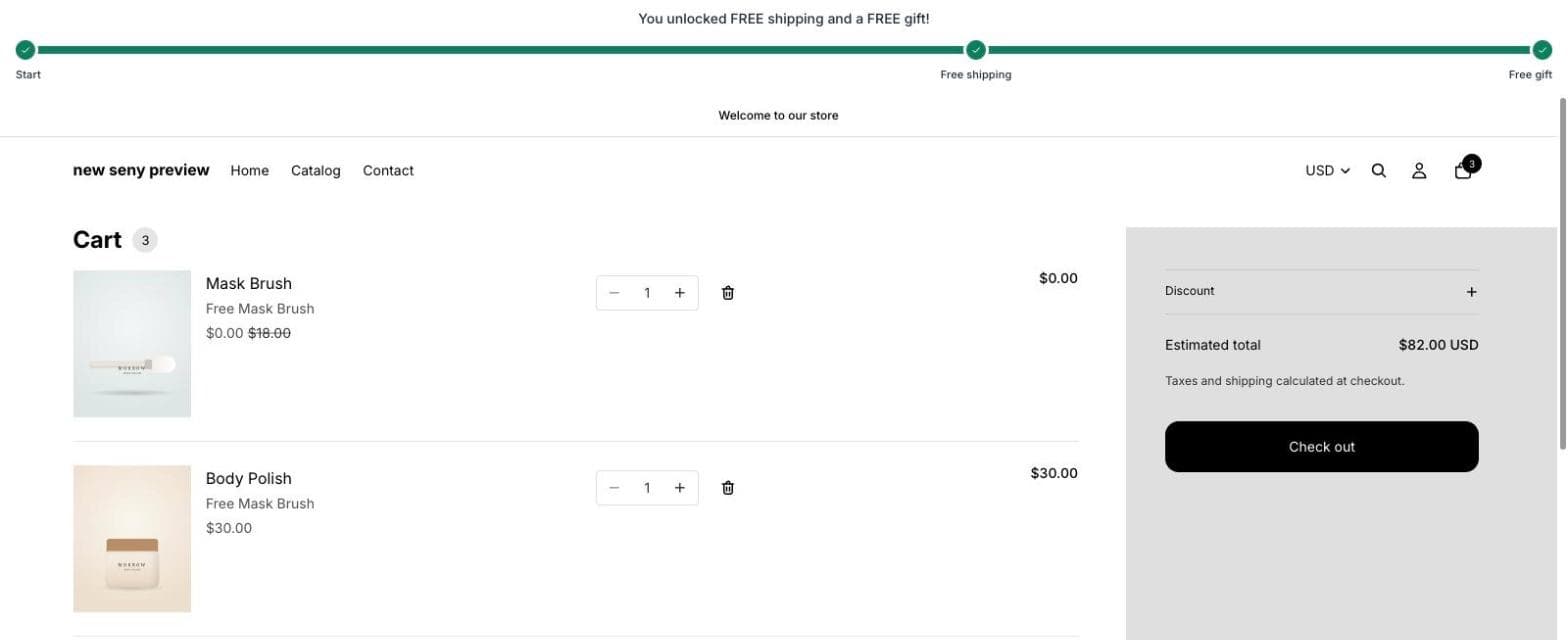
- Add one more product to pass the amount. The gift appears in the cart by itself, at $0.00 with its usual price crossed out, and the bar says both rewards are unlocked.
- Remove a product so the cart drops below the amount. The gift is taken out of the cart again.
- Go to checkout and check that both the gift and free shipping apply.

A few details that help in practice. The gift is added once and kept at a quantity of one. The gift’s own price never counts towards the goal, so a shopper can’t qualify by adding the gift itself. And the same gift step is available in the slide-out cart, if you use Slide Cart Drawer instead of a bar.
Common mistakes
- Different amounts in Shopify and Seny. Use one number in both.
- The gift isn’t free. Seny adds the gift but doesn’t discount it. Without the Shopify discount, the shopper pays full price for it.
- Collections that don’t cover the whole catalogue. Shopify only counts products from the collections you selected. If some products are missing, a cart can pass the goal on the bar and still not get the free gift.
- No combination with shipping discounts. The shopper gets either the gift or free shipping, not both.
- A gift that runs out. When the gift product sells out, it can’t be added. Keep stock or allow selling when out of stock.
- Forgetting Buy it now. “Buy it now” and express checkout skip the cart, so the gift isn’t added there. The discount still applies if the shopper adds the gift themselves.