
 Get started
How to add an FAQ section to Shopify product pages
Every unanswered question is a reason to leave the page. Here’s how to add a collapsible FAQ to your Shopify store, what to put in it, and why adding FAQ markup for Google no longer gets you rich results.
Shoppers who can’t find an answer rarely email you. They leave. How long does delivery take? Can I return it? Will it suit my skin? A short FAQ next to the product answers these before they become a reason not to buy, and it saves your support inbox the same questions every week.
Most Shopify themes have a collapsible content block you can fill by hand on each template. This guide shows how to add an FAQ section with Seny, where the questions live in one list you can update in seconds, and what makes an FAQ actually useful.
What to put in your FAQ
Start from the questions you really get. Your inbox, chat history and order notes are the best source. For most stores, these cover the main doubts:
- Delivery: how long it takes, to which countries, and what it costs.
- Returns: how many days, in what condition, and who pays for return shipping.
- Product fit: sizing, skin type, compatibility, materials or ingredients.
- Payment and security: which payment methods you accept, and when the card is charged.
- Contact: how to reach you and how fast you reply.
Keep answers short and specific. “Orders placed before 2 pm ship the same day” is more useful than “We ship quickly”.
Step 1: Open the FAQ Accordion in Seny
In Seny, open Apps library and choose FAQ Accordion under “Turn more visits into sales”. It opens with three sample questions, already matched to your theme’s font.
Step 2: Write your questions in the Database tab
The questions and answers are not in the Design panel but in the Database tab above the preview. Click Add to add a question, or Edit in a row’s menu to change one. Changes appear in the preview right away, and on your live store as soon as you save them, without publishing again.
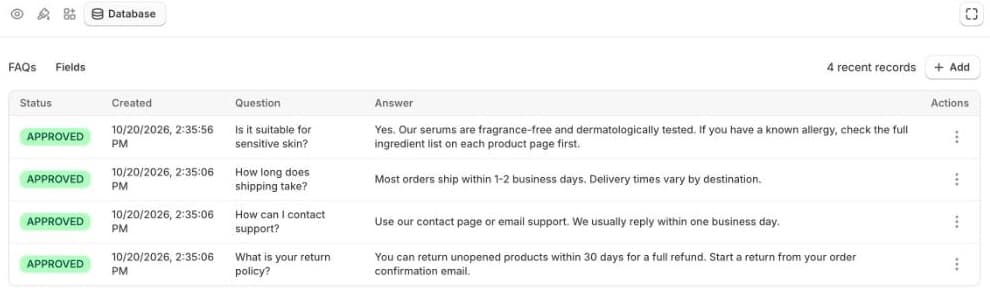
The FAQ shows the newest question first, up to 50 questions. If one question matters most, add it last so it appears at the top.
Step 3: Choose how it opens
Under Behavior, Open first question shows the first answer straight away, which tells shoppers the section can be opened. Allow multiple open lets several answers stay open at once; with it off, opening one closes the others, which keeps a long FAQ tidy. Icon style is a chevron or a plus/minus.
Step 4: Choose where it appears
Under Placement, the FAQ shows Above footer on every page by default. For questions about buying, product pages work best: set Page to Product pages, or pick a Position such as Below product description, so the answers sit close to the Add to cart button.
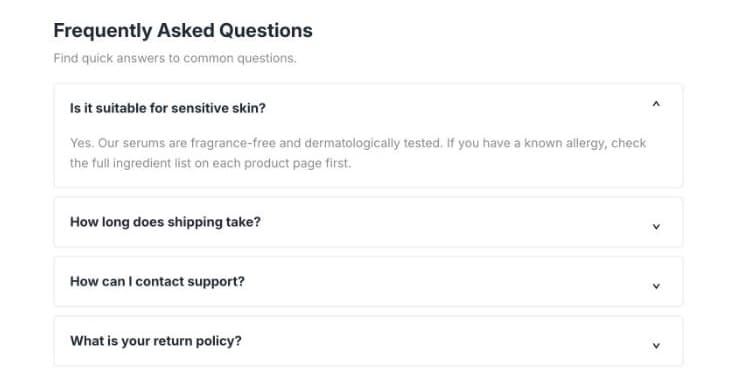
If some questions only apply to certain products, such as a size guide for clothing, use Products to show the FAQ only on those products or collections. For a different set of questions on a different range, duplicate the app from its ⋯ menu on Seny’s Home page: the copy keeps the questions, and you can edit them and point it at other products.
Step 5: Publish and check it
Click Publish, then open a product page on your store, on a phone and on a computer. Read every answer once more as a shopper would: is it clear, is it still true?
Will an FAQ get rich results on Google?
Not any more for most stores. Since August 2023, Google shows FAQ rich results only for well-known, authoritative government and health websites. Adding FAQ markup to a product page won’t make your answers appear as expandable questions in search. Write the FAQ for your shoppers; that’s where it pays off.
Common mistakes
- Questions nobody asks. “Why choose us?” is marketing, not an FAQ. Use the questions from your inbox.
- Answers that contradict your policies. Delivery times, return days and costs must match your shipping and refund policies.
- Vague answers. “Fast delivery” doesn’t answer “When will it arrive?”. Give days and cut-off times.
- A long FAQ at the bottom of every page. Put buying questions on product pages and keep the list short.
- Never updating it. Change the answers when your carriers, prices or policies change.