
 Get started
 How to build a custom Shopify feature with AI, without a developer
Not every idea has an app. Some are too small to hire a developer for, others too specific for any app in the store. Here’s how to describe a feature in plain words and get it working on your Shopify store, with a real example from start to finish.
Most stores reach the same point sooner or later. You want one small thing on the product page that no app does quite right, and hiring a developer for it feels like too much. So it never happens.
In Seny you describe the feature in plain words and the AI builds it for your theme. You check it in a live preview, adjust it, and publish when you’re happy. To show what that looks like in practice, we built one feature on our demo store and kept every step, including the parts that needed fixing.
The example: a “How to use” block
Our demo store sells skincare. Shoppers often ask how to use a product, and the answer is buried in the description. We wanted three short, numbered steps right under the Add to cart button. Here’s where it ended up:
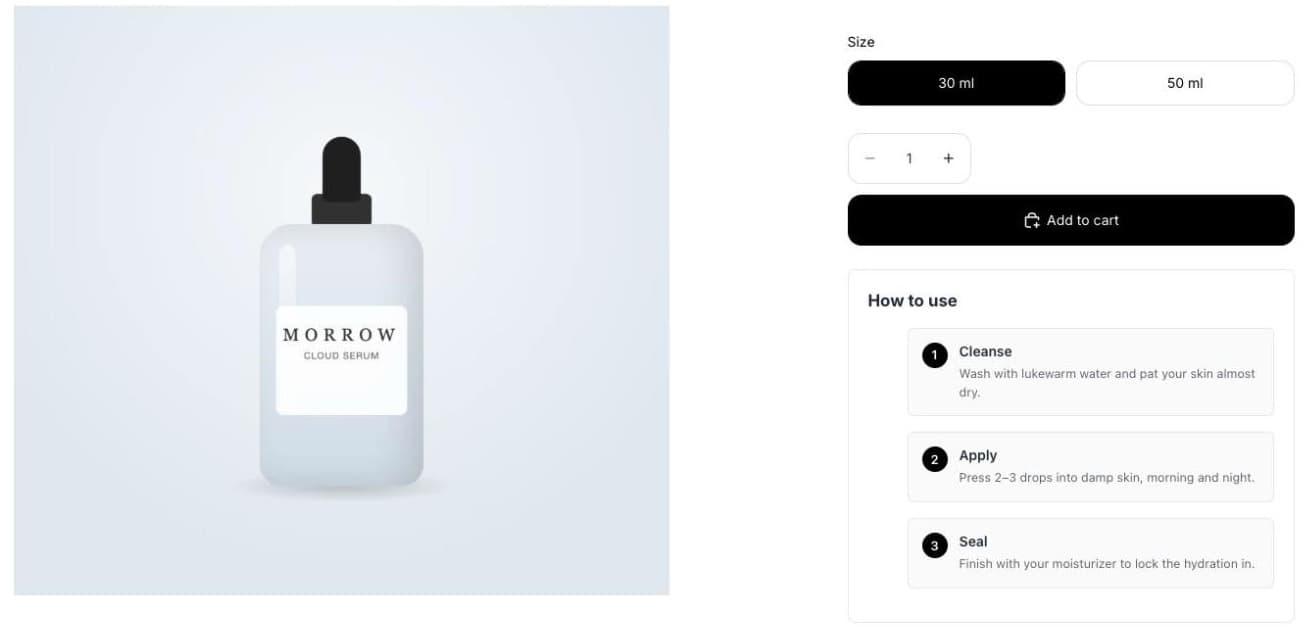
Step 1: Describe what you want
Open Seny and type the request into the box under Or describe something custom. Write it the way you’d explain it to a person: what it is, where it goes and what it should look like.
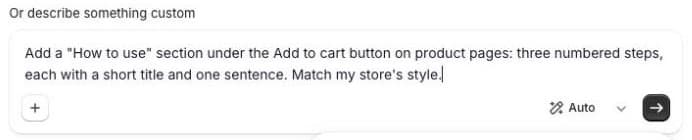
A few things make the result better:
- Say where it goes: “under the Add to cart button”, “on product pages”, “in the cart”.
- Say what it contains: “three numbered steps, each with a short title and one sentence”.
- Mention style once, for example “match my store’s style”. Colours and fonts are easy to change later.
- Write in your own language. Seny understands requests in Lithuanian, English, German or any other language.
Step 2: Let it build, and watch the preview
Seny first reads your theme, so it knows your colours, fonts and where the Add to cart button sits. Then it writes the feature and shows it in a live preview of your own store. Our first version took about two and a half minutes.
Nothing is live yet at this point. The preview is only for you.
Step 3: Change the text in the Design panel (free)
Everything a shopper reads becomes a setting in the Design panel. Our first version had placeholder text, so we typed in our own steps: Cleanse, Apply and Seal, each with a sentence. Changes in the Design panel are free and don’t use any credits.
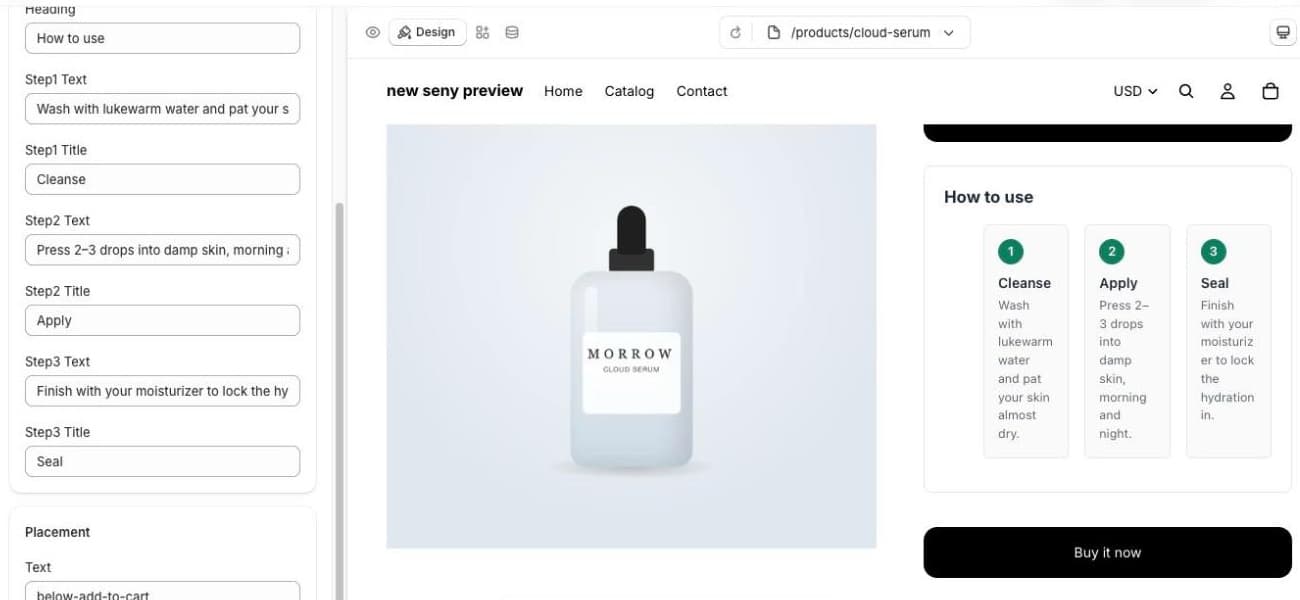
Step 4: Ask for changes in plain words
The first layout squeezed three cards side by side into a narrow column, and the numbers were green instead of black like our buttons. So we asked in the chat:
“Stack the three steps vertically so they use the full width, and make the step numbers black like my buttons.”
About a minute later the steps were stacked, full width, with black numbers. If a change goes wrong, Revert this build takes the app back to the previous version.
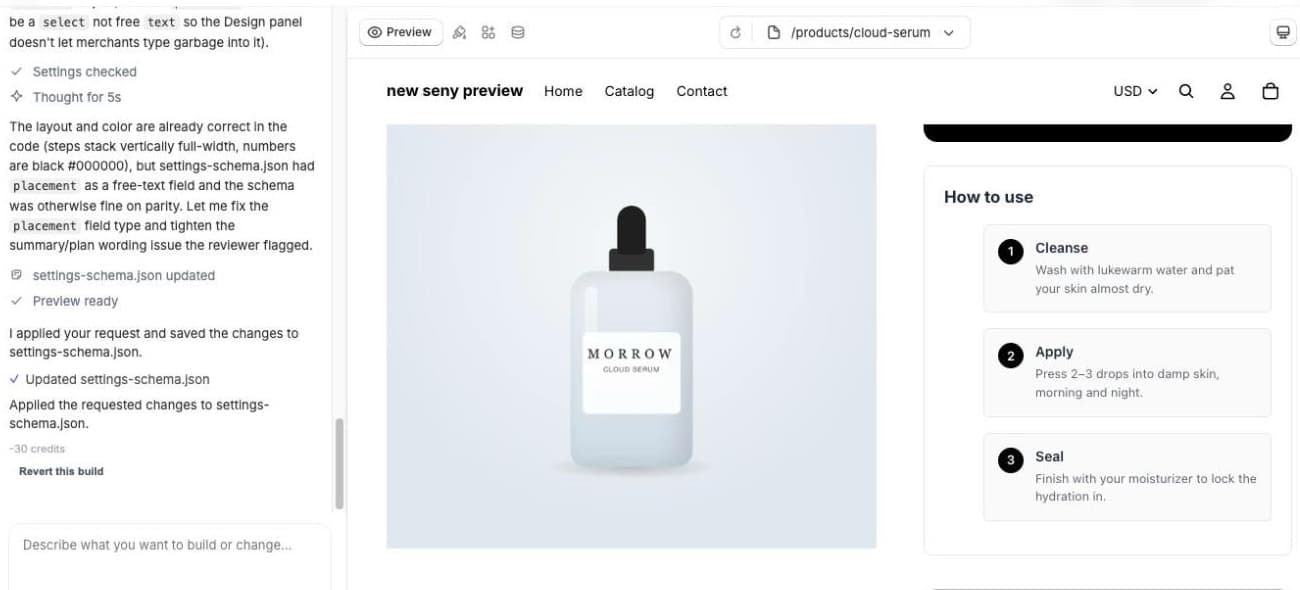
Step 5: Publish
Click Publish. Seny checks that the design is saved and the files are ready, then the feature goes live on your storefront. Until you publish, customers keep seeing the last published version, so you can keep experimenting safely.
What it cost
- First build: 105 credits.
- Text changes in the Design panel: free.
- One change by chat: 30 credits.
- Total: 135 credits. The Free plan includes 200 credits once, so a feature like this fits in it.
Credits are based on the actual work the AI does, so a bigger feature costs more and a small tweak less. Seny shows the credits used under each reply.
What works well, and what doesn’t
Good candidates are things that show information or help shoppers decide: how-to steps, size or ingredient notes, banners for one collection, small calculators, custom badges, extra blocks in the cart. Ready-made apps already cover the common revenue features, such as bundles, upsells and free shipping bars, and those are tested on many themes.
Some things are outside what a storefront feature can do: changing Shopify checkout, building a new admin page, or connecting to an outside system that needs its own server. For those you still need Shopify’s own settings, a dedicated app or a developer.
Tips for better results
- One feature per request. Ask for the next one as a new app, so each can be changed and published on its own.
- Change text in the Design panel, not by chat. It’s free and instant.
- Describe the problem, not the code. “The steps are too narrow on my product page” works better than CSS words.
- Check it on mobile with the device switch above the preview before you publish.