
 Get started
 How to set up tiered pricing on Shopify for a whole collection or tag
Tiered pricing rewards shoppers who buy more of the same product: 5% off two, 10% off three, 15% off five. Here’s how to set it up for a whole collection or tag at once, show a clear pricing table on the product page, and check what the cart really charges.
Tiered pricing, also called volume pricing, lowers the price per item as the quantity goes up. It works best for products people use up and buy again, such as skincare, coffee, supplements or cleaning products, and for gifts bought in several.
This guide sets up one set of tiers for a whole collection, shows the table shoppers see, and tests the cart, using our demo skincare store.
What Shopify gives you on its own
Shopify’s Amount off products discount can have a minimum quantity, but each discount is a single tier. For three tiers you need three discounts, and there’s no table on the product page telling shoppers the offer exists. That’s the part that sells it: a shopper who sees “3+ = 10% off” next to the quantity selector is much more likely to change 1 to 3.
Step 1: Open Volume Discount in Seny
In Seny, open Apps library and choose Volume Discount under “Grow revenue and order value”. It opens with an example rule you can edit.
Step 2: Choose which products the tiers apply to
Under Applies to, pick one of four options:
- All products: one set of tiers for the whole store.
- Specific products: a hand-picked list.
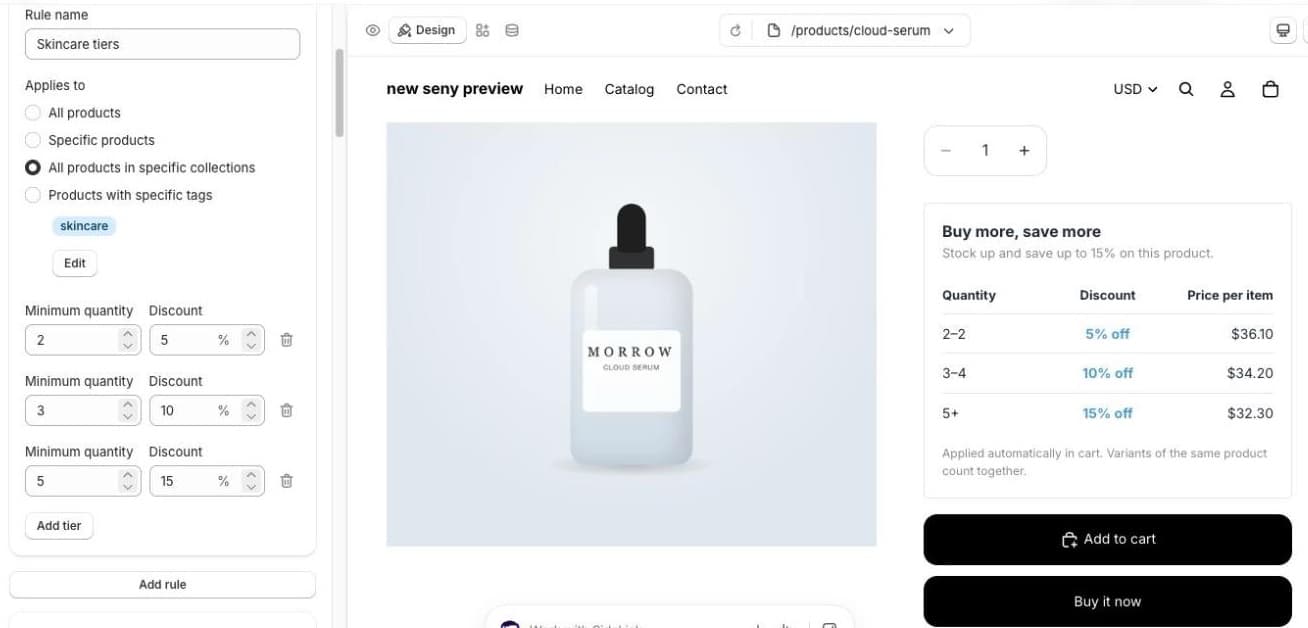
- All products in specific collections: we used this for the Skincare collection.
- Products with specific tags: handy when your tags already mark product types, such as “refill”.
Collections and tags are checked live. A product you add to the collection or tag later gets the tiers automatically, with no need to publish again.
Step 3: Set the tiers
Each tier is a Minimum quantity and a Discount in percent. We used 2 items = 5% off, 3 items = 10% off, 5 items = 15% off. Click Add tier for more, or Add rule for a different set of tiers on another collection, for example bigger discounts on candles than on serums.
Step 4: Check the pricing table and combinations
The table appears above the Add to cart button by default, with Quantity, Discount and Price per item columns, and a note that the discount is applied automatically. All the wording can be changed in the Design panel, and the table can be translated into every language your store sells in.
Under Discount combinations, the tiers combine with other product discounts and with shipping discounts by default, so free shipping still applies. Combining with order discounts is off unless you switch it on.
Step 5: Publish and test the cart
Click Publish. Seny creates an automatic discount in Shopify, so there’s no code to type and it also works with “Buy it now”. Then test it:
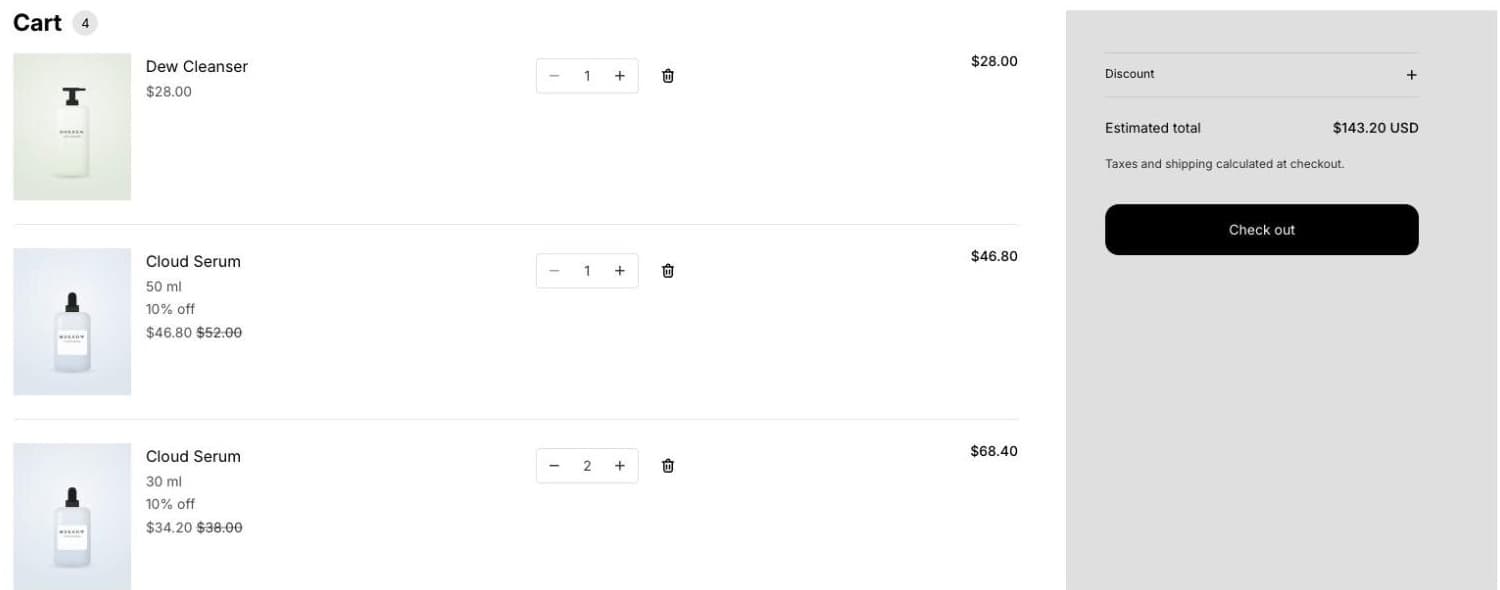
- Variants count together. Two 30 ml and one 50 ml serum make three serums, so all three got 10% off.
- Different products count separately. The cleanser is in the same collection, but one cleanser is one cleanser, so it stayed at full price.
- Subscriptions are left out. Tiers apply to one-time purchases only.
Common mistakes
- Expecting a mixed collection to add up. Tiers count per product. For “any 3 from the collection”, use a mix & match bundle instead.
- Tiers too close together. 5%, 6%, 7% doesn’t change anyone’s mind. Make each step worth it.
- Forgetting your margin on the top tier. Check that 15% off still leaves a profit after shipping.
- Hiding the table. Without it, shoppers only find the discount in the cart, if at all.
- Another product discount on the same item. Shopify applies only one product discount per item (the best one), unless you’re on Shopify Plus.