
 Get started
 Payment methods for a Shopify store in Lithuania: cards, bank links and the fees in between
Lithuanian shoppers are used to paying by bank link: pick your bank, confirm in its app, done. Shopify Payments has been available in Lithuania since 2025, but it doesn’t offer Lithuanian bank links. Here’s how to add them, how each provider looks at checkout and the Shopify fee that catches many stores out.
Ask a Lithuanian shopper how they pay online and many will say “through the bank”: they choose Swedbank, SEB, Luminor or another bank at checkout and confirm the payment in their banking app. A store that only takes cards works, but it asks those shoppers to change their habit at the last step.
This guide covers what Shopify offers in Lithuania out of the box, how to add bank payments, and what each choice costs you in fees and checkout steps. Prices change often, so check each provider’s current price list before you decide.
What Shopify Payments gives you in Lithuania
Shopify Payments has been available to stores in Lithuania since March 2025. It lets you accept cards and Shop Pay without a separate payment contract, and Shopify charges no extra transaction fee on payments it processes.
What it doesn’t have is Lithuanian bank links. Shopify’s list of local payment methods covers methods such as iDEAL in the Netherlands or BLIK in Poland, but nothing for Lithuanian, Latvian or Estonian banks. For those you need a payment provider app alongside it.
Adding bank links: the main options
Several Baltic providers have Shopify apps. They differ mainly in how the shopper picks a bank:
- Montonio offers a separate app for each bank. You install the ones you want, and each bank appears as its own payment option at checkout, so the shopper picks their bank right there. It covers major banks in Lithuania, Latvia and Estonia.
- Paysera has one Shopify app that adds its payment page with many methods, including Lithuanian bank links.
- MakeCommerce (Maksekeskus) has one app covering Baltic and Finnish banks, cards and pay-later options. The shopper chooses MakeCommerce at checkout and then picks the bank on its payment page.
One option per bank is one less step for the shopper. One option for everything keeps the checkout list short. Neither is wrong: try the checkout on your own phone and choose the one that feels quicker.
To add a provider, install its app from the Shopify App Store, then activate it under Settings, Payments. Most bank-link providers send the shopper to the bank and back, so the last step of payment happens outside your store.
The fee that catches stores out
Shopify charges its own third-party transaction fee on every order paid through a provider other than Shopify Payments. That fee applies even when Shopify Payments is switched on, and it comes on top of the provider’s own fee. The percentage depends on your Shopify plan.
So a bank payment can cost you the provider’s fee plus Shopify’s. Bank links are often cheaper than cards at the provider, so the total can still be lower, but do the sum for your own plan and average order before deciding.
Show shoppers how they can pay
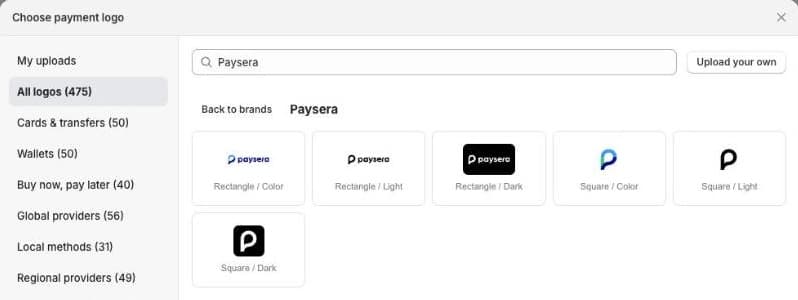
Shoppers look for their bank’s logo before they start checkout. Showing it near the Add to cart button answers “can I pay the way I like?” early. Seny’s Payment Logos app has a picker with hundreds of logos, including Paysera, EveryPay and Revolut. For a Lithuanian bank’s logo, use Upload your own with the logo from the bank’s brand guidelines.
Only show methods you actually accept. A logo for a bank your checkout doesn’t offer is a promise you can’t keep at the most sensitive moment of the purchase.
Common mistakes
- Cards only. Shoppers who prefer their bank have to change their habit at the last step.
- Missing the big banks. With one app per bank, install every bank your customers use, not just one.
- Forgetting Shopify’s extra fee when comparing provider prices.
- Logos for methods you don’t offer. Check your checkout before adding a logo.
- Not testing refunds. Refunds go back through the provider. Check how they work before your first return.