
 Get started
Out of stock products on Shopify: hide them, show them or keep selling?
When a product sells out, Shopify gives you three choices: show it as sold out, hide it, or keep taking orders. Each one is right for some products and costly for others. Here’s how each works, which to choose, and two settings that quietly decide it for you.
Sooner or later every store has products that run out. What happens next is up to you, and it matters more than it looks: a sold-out product can still bring in search traffic, collect wishlist saves and sell its alternatives, or it can fill your collections with things nobody can buy.
You have three options. The right one depends on whether the product is coming back and how soon.
First, check that Shopify knows the product is out of stock
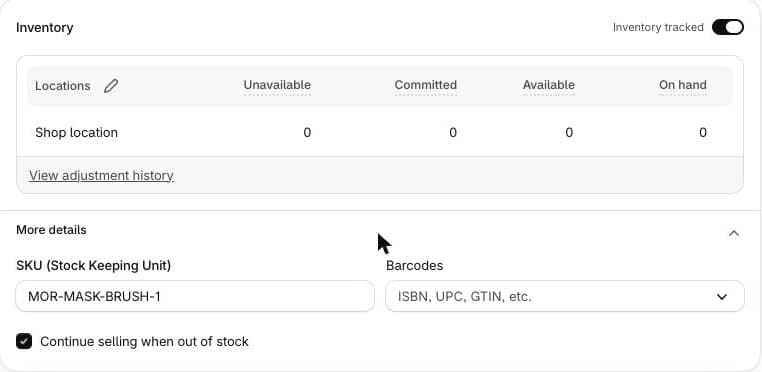
A product is only ever sold out if Shopify tracks its stock. In the product’s Inventory card, the switch at the top says Inventory tracked or Inventory not tracked. A product that isn’t tracked can always be bought, at any quantity, which is easy to miss after a CSV import.
The second setting sits under More details in the same card: Continue selling when out of stock. When it’s ticked, shoppers can keep ordering after stock reaches zero. Check it whenever you switch tracking on. On our demo store it was already ticked on an imported product.
Option 1: Show it as sold out (best for most products)
With tracking on and Continue selling unticked, the product stays on your store and your theme shows it as sold out, with the buy button switched off. This is the right default for products that will come back:
- Its page keeps its search ranking. A page that disappears and returns later has to earn its place again.
- Links keep working. Shared links, saved wishlists and old emails still land on a real page.
- The page can sell something else. Related products, a similar size or colour, or a note about when it’s back keep the visitor in your store.
The downside is clutter. A collection where half the products are sold out looks empty. If that happens, use option 2 for those collections only.
Option 2: Hide it from collections
Shopify has no single switch that hides every sold-out product. The usual way is an automated collection with the condition Inventory stock is greater than 0: only products with stock appear in it, and you link that collection from your menu instead of the full one.

- It counts the product’s whole stock. A product with only one size left still has stock, so it still appears.
- It works for automated collections only. Products you add to a collection by hand aren’t checked.
- The product page itself stays live, so links and search ranking are kept. It just doesn’t take up space in your grids.
Avoid hiding sold-out products by setting them to Draft. A draft product’s page stops existing on your store, so its links break and it loses its place in search. Use draft only for products that will never come back, and redirect their address to the closest alternative under Content, Menus, URL redirects.
Option 3: Keep selling (preorders and backorders)
Ticking Continue selling when out of stock lets shoppers order products you don’t have yet. It’s useful for made-to-order products or stock that is already on its way. It also creates an obligation: in the EU, shoppers must be told before they order when the goods will be delivered, and goods must be delivered within 30 days unless you agree otherwise.
- Say it on the product page: “Ships from 12 November” is clear, “Pre-order” on its own isn’t.
- Keep it per product. Leaving it ticked by accident on normal products means selling stock you don’t have.
- Watch negative stock. Stock going below zero is the sign that you have orders waiting.
Which option to choose
- Coming back soon: show it as sold out, with a note about when.
- Coming back, but your collections look empty: keep the page live and hide it from collections with an in-stock collection.
- Made to order or already ordered from the supplier: keep selling, with a clear delivery date.
- Never coming back: set it to draft or archive it, and redirect its address.
Common mistakes
- Inventory not tracked. The product never sells out, whatever the stock really is.
- Continue selling ticked by accident. Often left over from an import. Check it on every product that tracks stock.
- Deleting sold-out products. Their links break and their search ranking is lost.
- Preorders without a date. Shoppers have to be told when the order will arrive.
- Sold-out pages with nowhere to go. Show related products or a note about restocking, so the visit isn’t wasted.