
 Get started
Are apps slowing down your Shopify store? How to check and what to remove
“Too many apps” is the most common explanation for a slow Shopify store, and it’s only half right. What matters is what each app loads on your pages, not how many you have installed. Here’s how to measure it with Shopify’s own reports, find the apps that cost you speed and clean up what removed apps leave behind.
Every app that adds something to your storefront also adds code that the shopper’s phone has to download and run. One app rarely matters. Ten apps that each load their own scripts on every page can make a store feel slow, especially on a mid-range phone on mobile data.
But the number of apps on its own tells you little. An app that only works in your admin, such as an invoicing or shipping label app, loads nothing on your store. One heavy widget can cost more than five light ones. So start by measuring.
Step 1: Check your speed in Shopify’s reports
Shopify measures how fast your store loads for real visitors. Go to Analytics, then Reports, and filter by the Performance category. You’ll find three measurements, each over time, by page type and by page address:
- Largest Contentful Paint (LCP): how fast the main content appears. Good is 2.5 seconds or less, poor is over 4 seconds.
- Interaction to Next Paint (INP): how fast the page reacts to a tap or click. Good is 200 ms or less, poor is over 500 ms.
- Cumulative Layout Shift (CLS): how much the page jumps around while it loads. Good is 0.1 or less, poor is 0.25 or more.
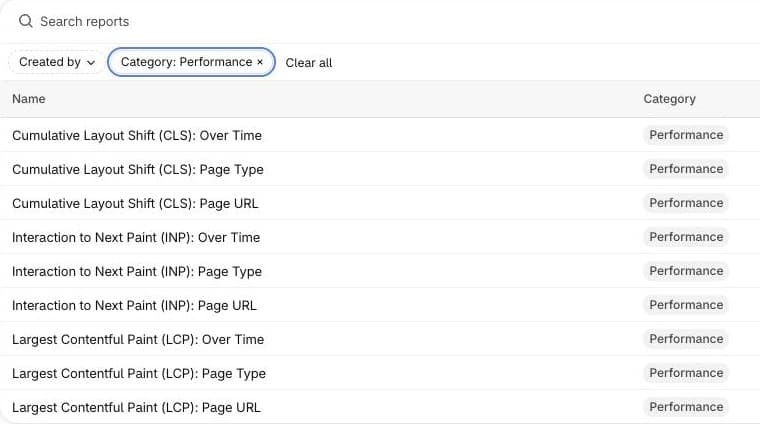
The numbers show the experience of 75% of your visitors, and they can take up to 36 hours to update. The Over Time reports mark events such as app installs and theme updates on the graph, which is the quickest way to see whether a new app made things worse. A store that is still password protected has no data yet.
Step 2: List what each app loads on your store
Go to Settings, then Apps, and go through the list. For each app, ask two questions: does it show anything on your store, and do you still use it? Then open your theme editor and click the App embeds icon in the left toolbar. Every switched-on embed loads on every page. Switch off any embed for an app you no longer use, and save.
The apps that usually cost the most are the ones that run on every page and do a lot: chat widgets, review carousels, popups, page builders, and stacks of tracking pixels. Two apps doing the same job, such as two review apps after a switch, are a common and easy win.
Step 3: Test before and after
Change one thing at a time. Turn off one app’s embed, wait a few days and compare the Over Time report. For a quick check of a single page, run it through Google’s PageSpeed Insights before and after. Its result varies from run to run, so test the same page a few times instead of trusting one score.
Step 4: Remove code that uninstalled apps left behind
Shopify says it plainly: uninstalling an app doesn’t automatically remove its code from your theme. Apps built on app embeds and app blocks are switched off with the app. Older apps that wrote code into your theme files, or asked you to paste a snippet, can leave it behind, and that code may keep loading files that no longer do anything.
- Duplicate your live theme first, so you can always go back.
- In the copy, open Edit code and look in theme.liquid and the snippets folder for files or lines named after apps you removed.
- Remove one thing at a time and preview the copy after each change.
- If you’re unsure, ask the app’s developer for removal steps. Shopify suggests the same.
How Seny keeps app code light
Seny loads every app you publish from one file through one app embed, instead of one script per app. Adding a second or fifth Seny app doesn’t add another request to your pages. That file is requested early in the page and cached close to your shoppers, and an unpublished app is simply left out of it. When you remove Seny, its app embed goes with it, so there is no code to clean out of your theme.
Common mistakes
- Counting apps instead of measuring. Admin-only apps cost nothing on the storefront.
- Trusting one PageSpeed score. It changes between runs. Shopify’s reports use real visitors and are steadier.
- Uninstalling without checking the theme. Old apps can leave code that keeps loading.
- Editing the live theme directly. Always clean up in a duplicate first.
- Blaming apps for slow images. Large photos and a heavy first section are the usual cause of a poor LCP.