
 Get started
 How to add a sticky Add-to-Cart button on Shopify
On a phone, the Add to cart button disappears as soon as shoppers scroll to read reviews or the description. A sticky bar keeps it in reach. Here’s how to add one to your Shopify product pages and check it works.
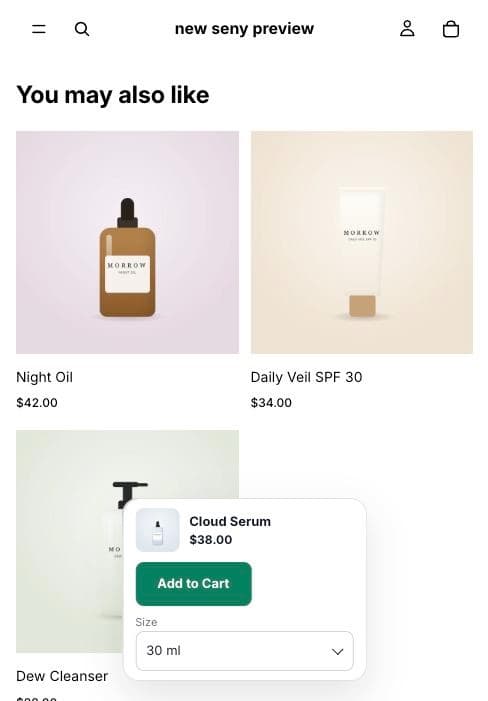
Product pages are long: photos, description, reviews, related products. On a phone, the Add to cart button is gone after the first swipe, and a shopper who has made up their mind has to scroll all the way back up to buy.
A sticky Add-to-Cart bar shows the product, its price and the button whenever the theme’s own button is off screen. This guide adds one to a real Shopify store without editing the theme. Every screenshot comes from a real test store.
Does your theme already have one?
Some Shopify themes include a sticky buy bar in the theme settings; many don’t. Open a product page on your phone and scroll down. If the button disappears and nothing replaces it, you don’t have one.
If your theme does have one, Seny’s bar hides it while Seny’s bar is on the page (Hide the theme’s sticky bar, on by default), so shoppers never see two.
Step 1: Open Sticky Add to Cart in Seny
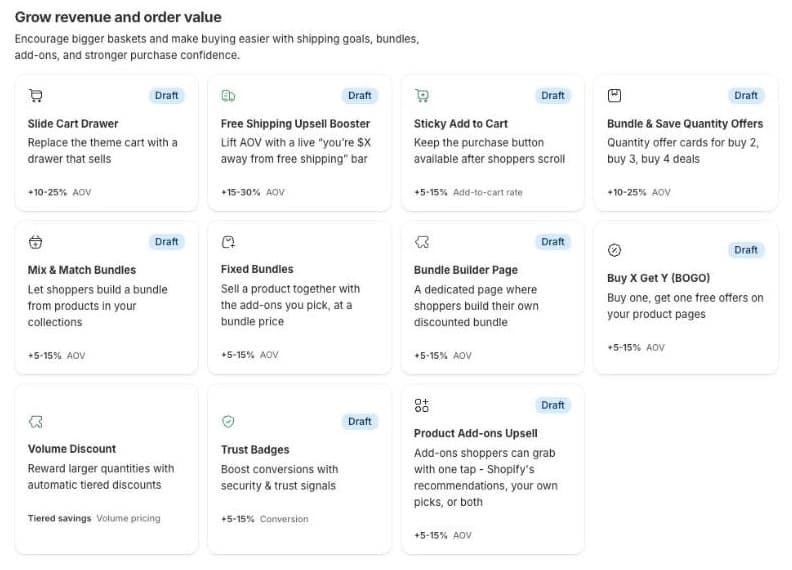
In Seny, go to Apps library and open Sticky Add to Cart. The preview opens on one of your product pages.
Step 2: Choose the bar style and where it shows
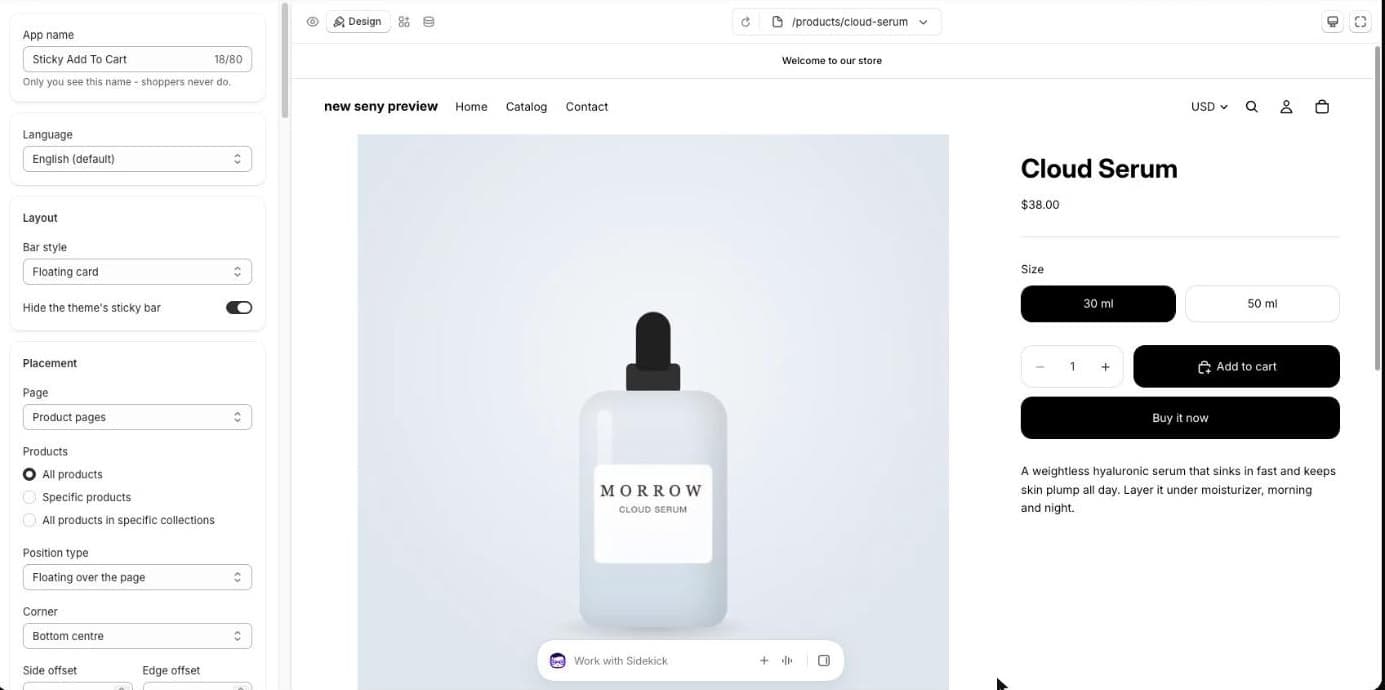
Under Layout, pick a Bar style: Floating card, Compact pill, Button only or Full-width bar. We used the floating card, placed at the Bottom centre.
Under Placement, the bar is set to Product pages. Products limits it to Specific products or All products in specific collections if you don’t want it everywhere.
Step 3: Add the size picker
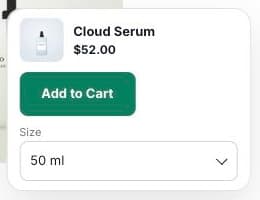
If your products come in sizes or colours, switch on Options. The bar then shows the product’s own option pickers, so a shopper can change the size without scrolling back up. The price and photo update with the choice.
Quantity adds a quantity stepper too. Under Cart, Open cart after add opens the cart once the item is added. Turn it on if you want shoppers to see that the add worked.
Step 4: Publish and test it on a phone
Click Publish, then open a product page on your phone. The bar appears whenever the theme’s Add to cart button is off screen. On a phone that is often straight away, because the button sits below the photos.
- Scroll down past the description. The bar should stay at the bottom of the screen.
- Change the size in the bar and check the price changes.
- Tap Add to Cart and open the cart. In our test, the 50 ml serum went into the cart at $52.00 without a page reload.
- Scroll back up. When the theme’s own button is back on screen, the bar hides again.
Common mistakes to avoid
- Covering other buttons. A chat bubble or cookie banner in the same corner hides behind the bar. Move one of them.
- No size picker on products with options. Without Options, the bar adds whichever size is selected on the page, which may not be the one the shopper wants.
- Two sticky bars. Keep Hide the theme’s sticky bar on if your theme has its own.
- Only testing on desktop. Most of the value is on phones. Always check there.